
Settings → Privacy & Security lists active sessions and marks the current device. Other entries show their browser or device label and recent activity.
A browser label may be broad, so check the timing as well as the name. Sign out unfamiliar sessions and reset your password if you suspect unauthorized access.
Is this the same as clearing trusted devices?
No. Signing out ends an active session. Clearing trusted devices removes remembered verification, so later sign-ins need a code again.
If you need help with an unfamiliar session, email hi@myvylo.com.
On the web
Open Privacy & Security
Choose Settings in the navigation, then Privacy & Security.
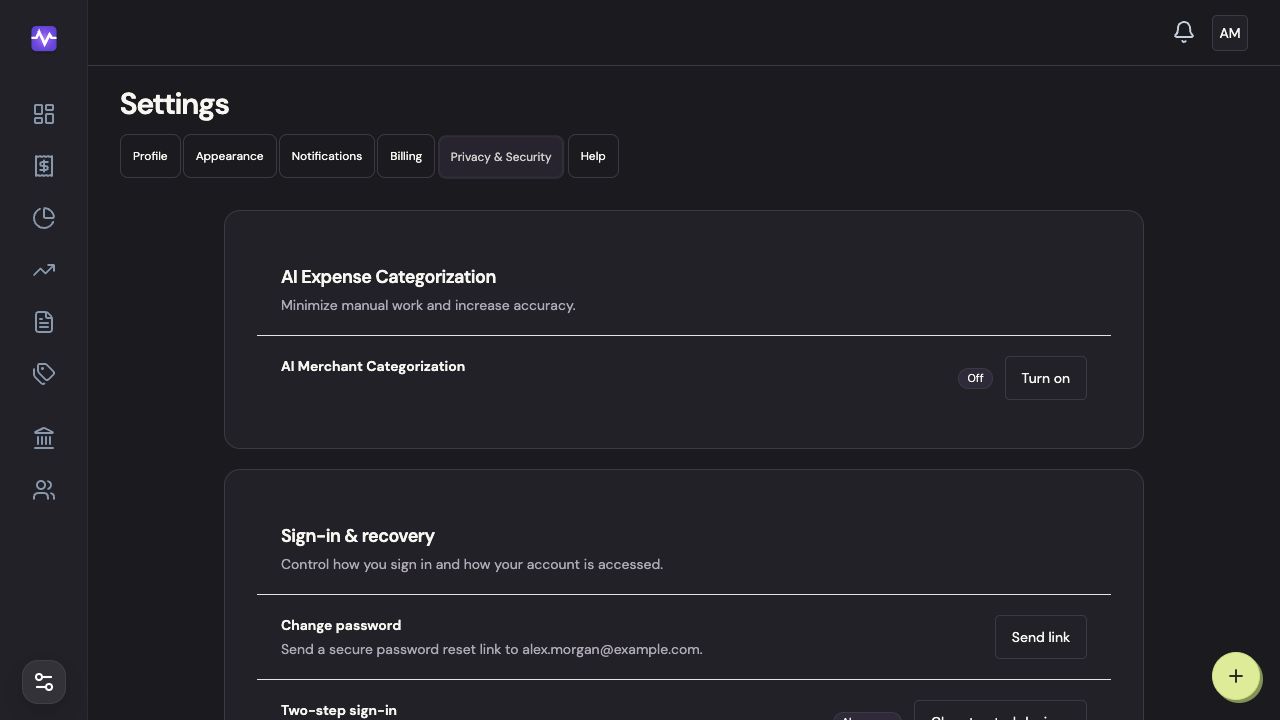
Open Privacy & SecurityTap to enlarge Review your devices
Scroll to Signed-in devices. The Current label marks this browser.
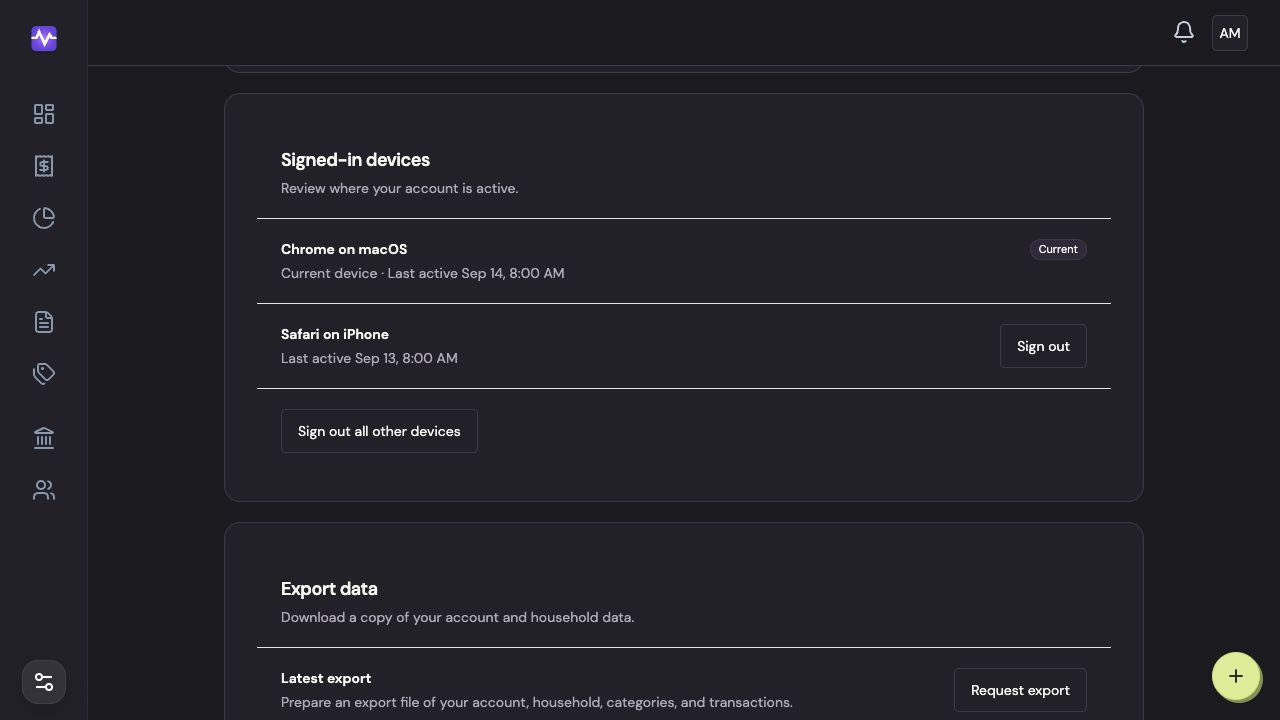
Review your devicesTap to enlarge Choose which devices to sign out
Click Sign out beside one device, or Sign out all other devices below the list.
Choose which devices to sign outTap to enlarge Sign out other devices
Click Confirm to end those sessions. The current browser stays signed in.
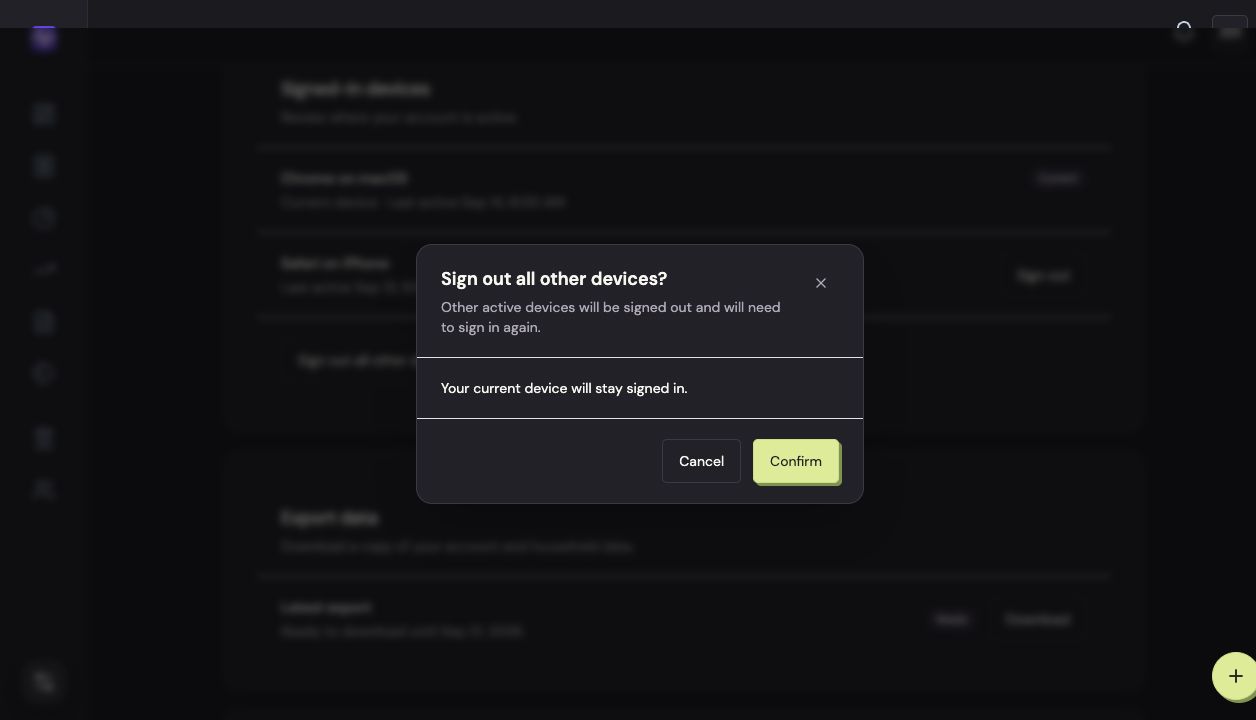
Sign out other devicesTap to enlarge
On iPhone
Open Privacy & Security
Tap the settings control at the top right of the app, then Privacy & Security.
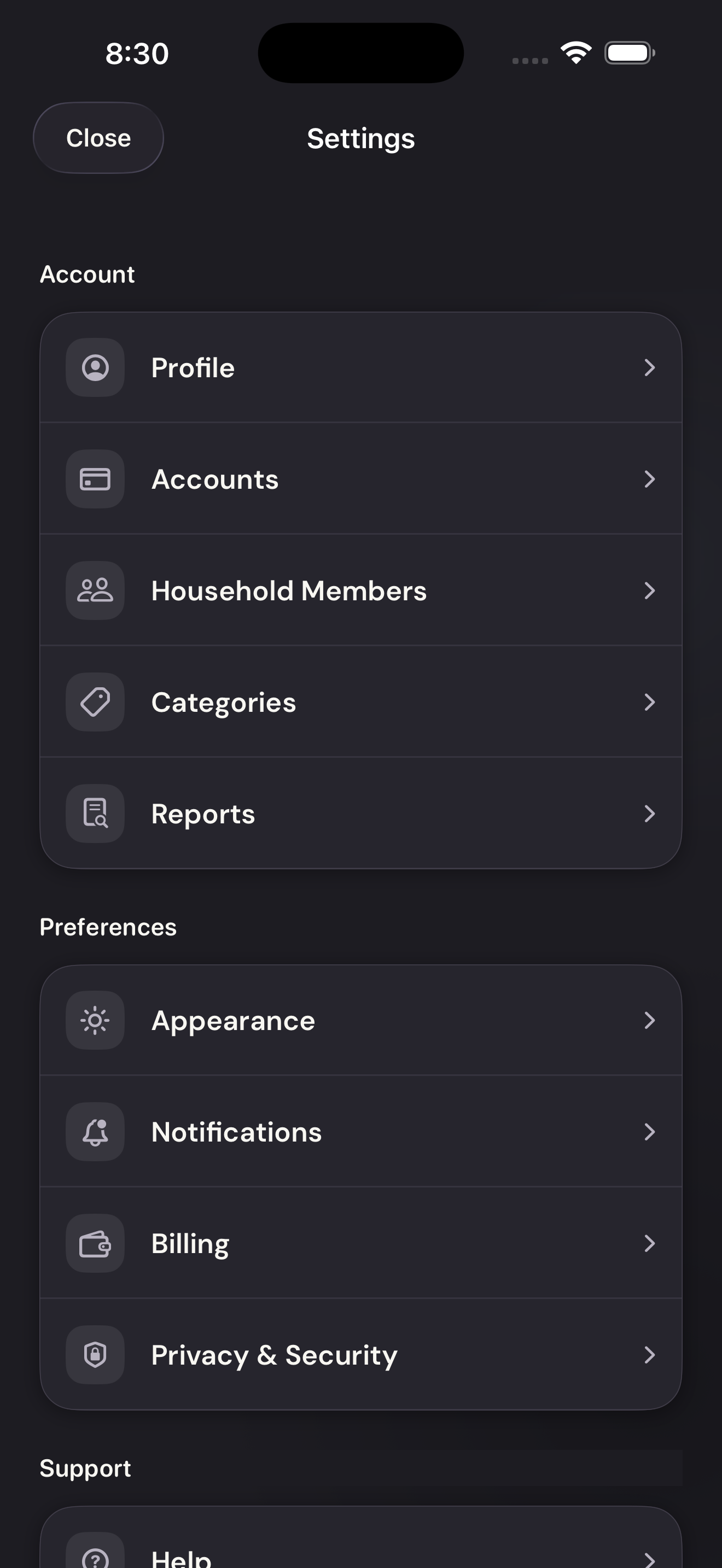
Open Privacy & SecurityTap to enlarge Review signed-in devices
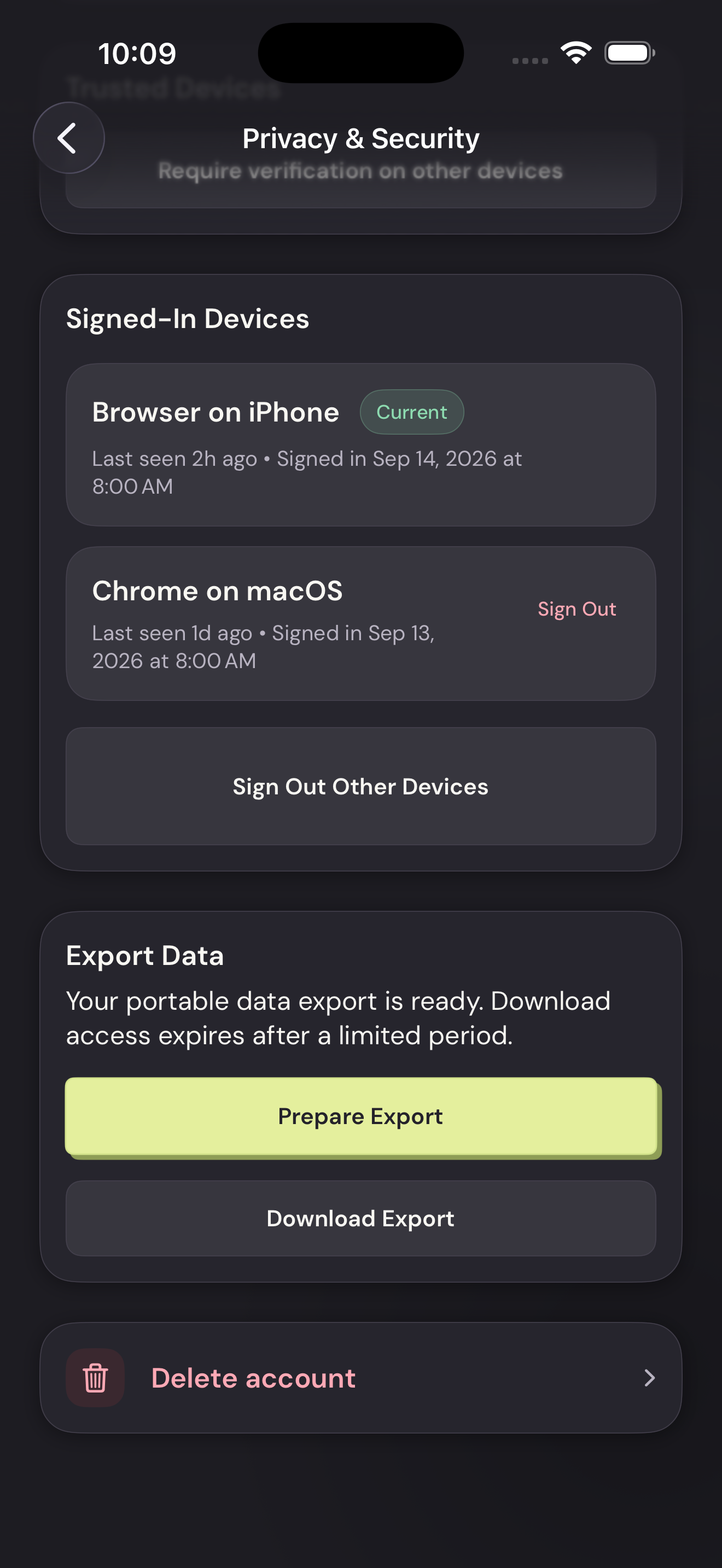
Scroll to Signed-In Devices. Each entry shows the device and when it was last active.
Review signed-in devicesTap to enlarge Choose which sessions to end
Tap Sign Out beside one device, or Sign Out Other Devices below the list.
Choose which sessions to endTap to enlarge Confirm the sign-out
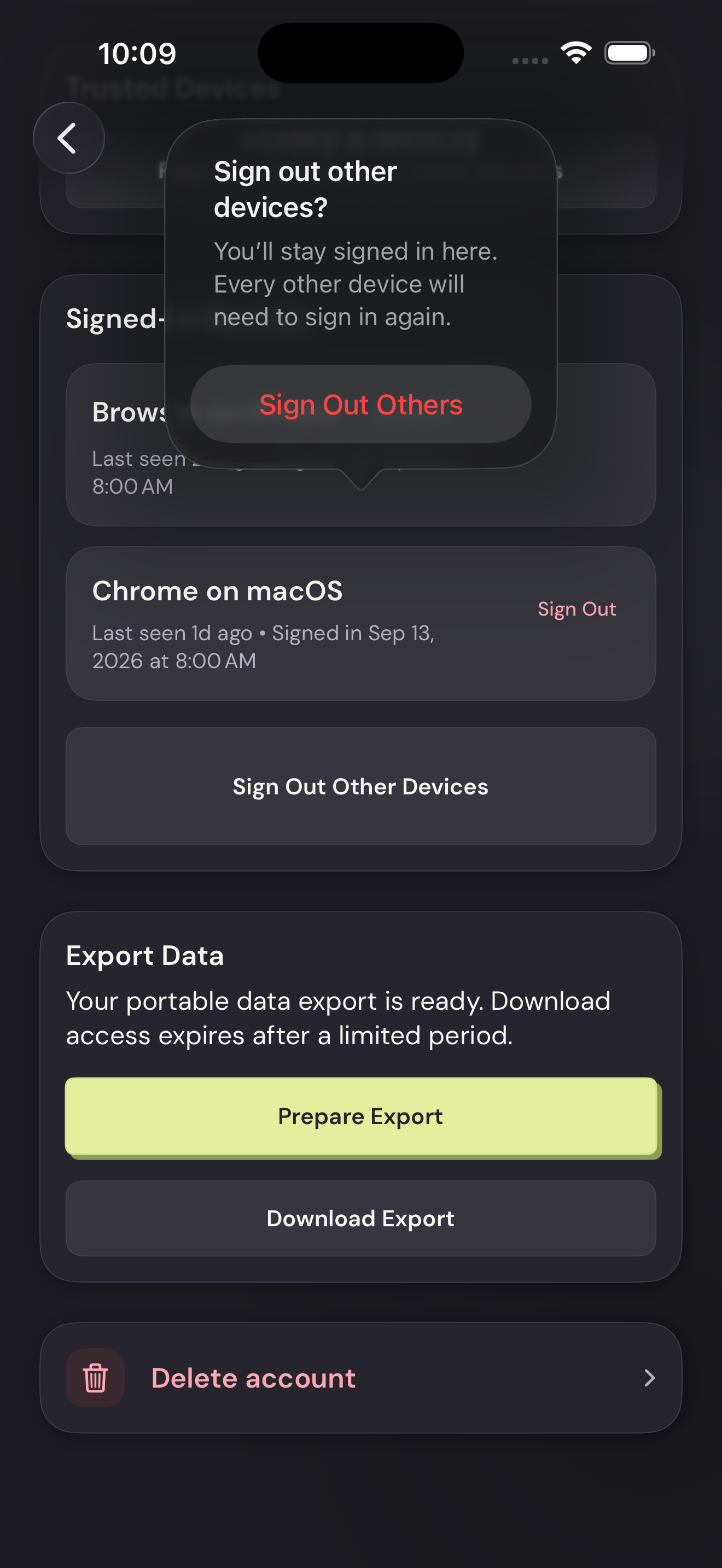
Tap Sign Out Others to require the other devices to sign in again. You stay signed in here.
Confirm the sign-outTap to enlarge