
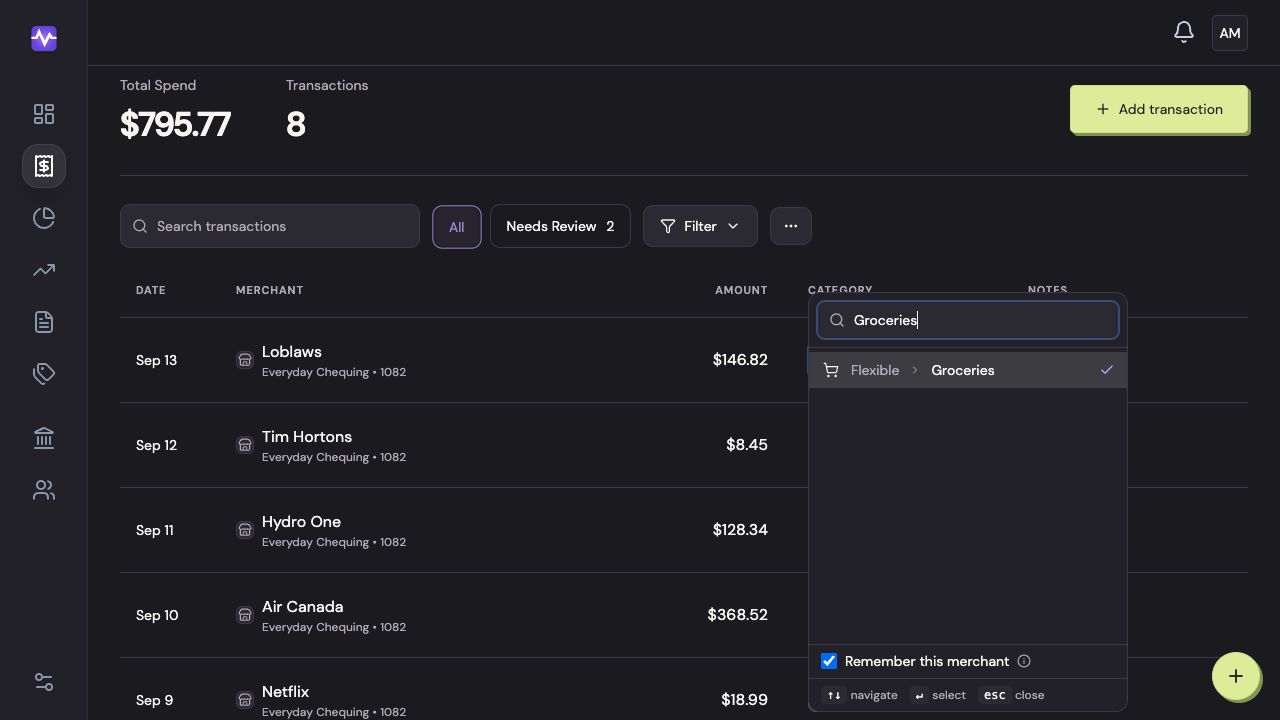
Remember merchant saves your category choice for future matching purchases. A regular internet bill is a good example: choose Internet once and let Vylo reuse it.
On the iPhone review card, the same choice is called Always use this category.
What if this purchase is an exception?
Leave the option off. That changes the current transaction without saving a new merchant rule. This is useful at a store where you buy different things on different visits.
Will old purchases change too?
Don’t assume a saved merchant choice rewrites all earlier transactions. Check older purchases separately if you want to correct their categories.
If future purchases keep going to the wrong place, check that merchant’s saved choice and the category’s custom keywords.
On the web
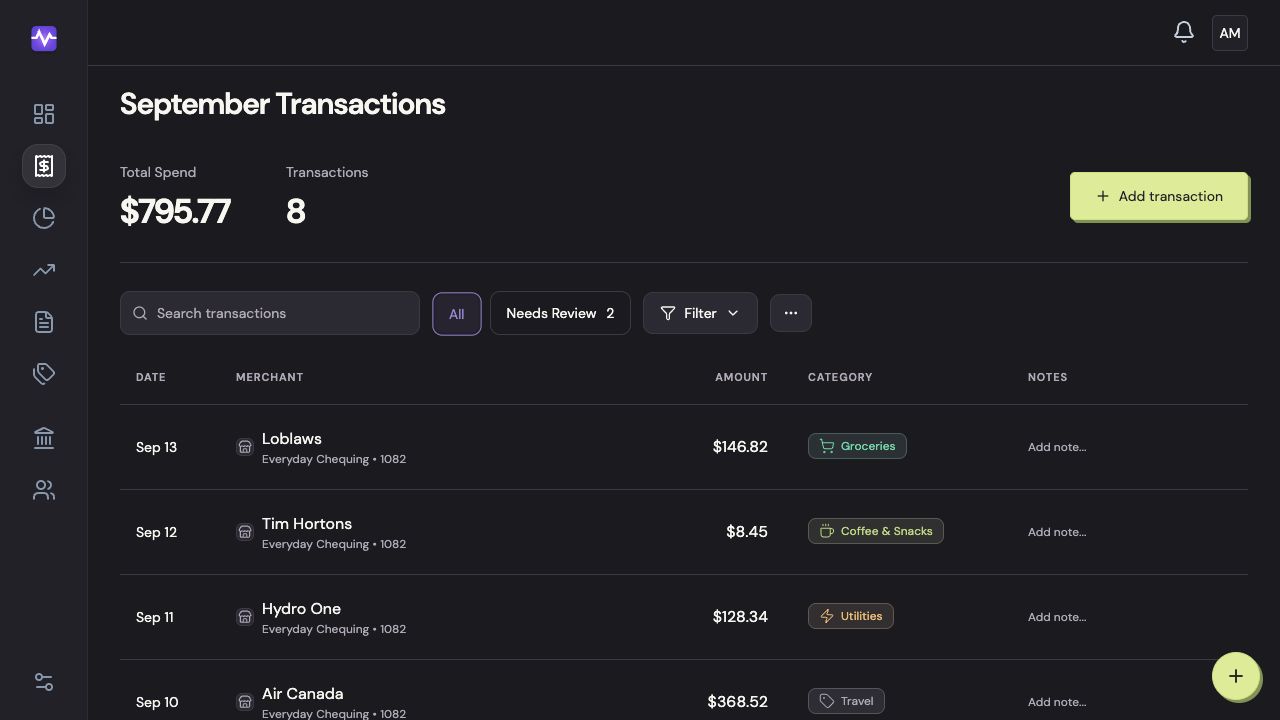
Open Transactions
Choose Transactions in the left navigation.
Open TransactionsTap to enlarge Open the category picker
Click the category on the transaction’s row.
Open the category pickerTap to enlarge Keep the merchant rule on
Leave Remember this merchant checked. Choose the category to save that choice for future matching purchases.
Keep the merchant rule onTap to enlarge In the review queue, confirm the choice
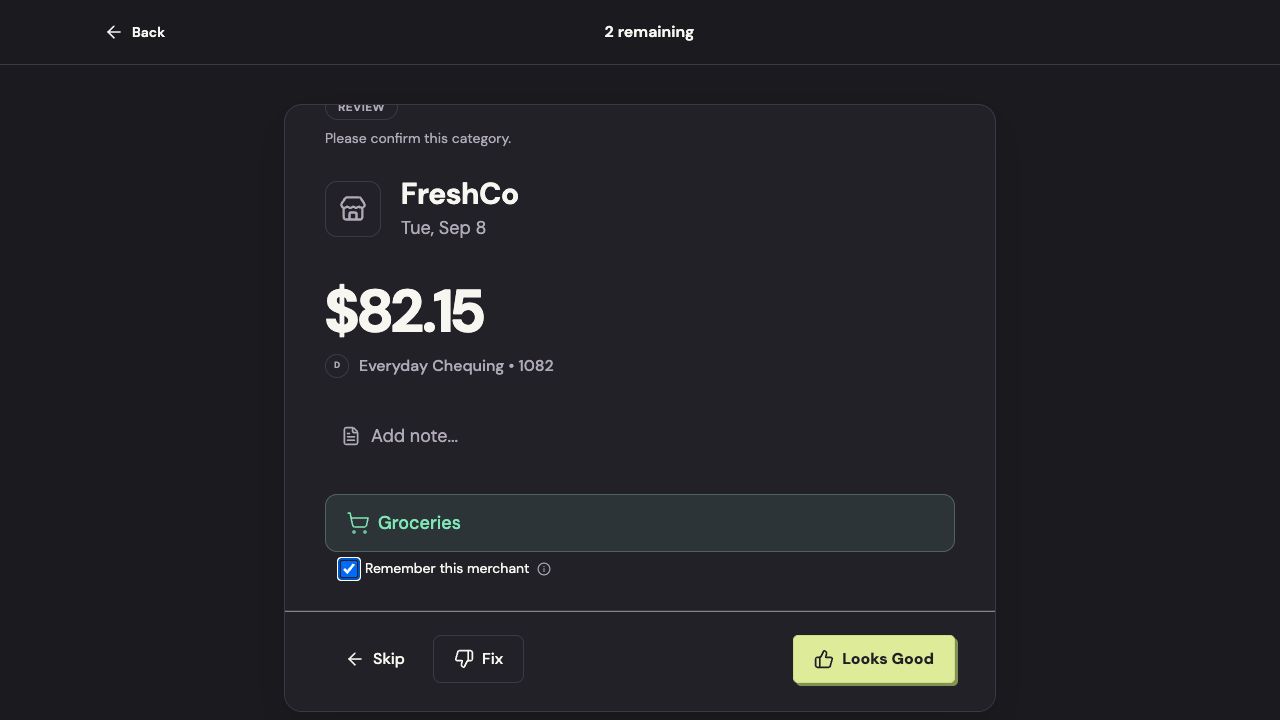
The review queue has the same checkbox below the category. Scroll within the card if needed. Check Remember this merchant, then click Looks Good.
In the review queue, confirm the choiceTap to enlarge
On iPhone
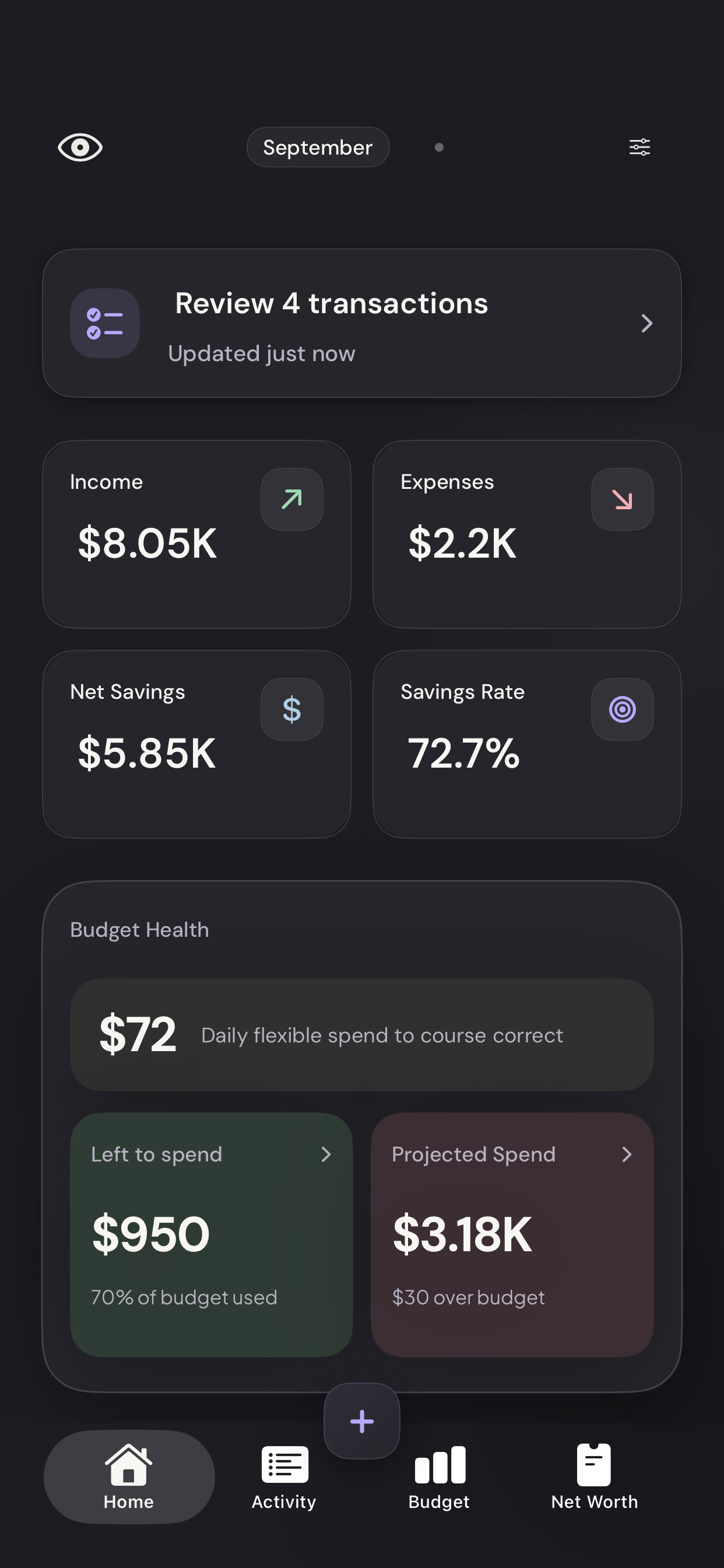
Open the review queue
Tap Review transactions on Home.
Vylo for iPhone · Demo dataTap to enlarge Choose whether Vylo should remember it
Always use this category applies your choice to future matching purchases. Turn it off for an exception.
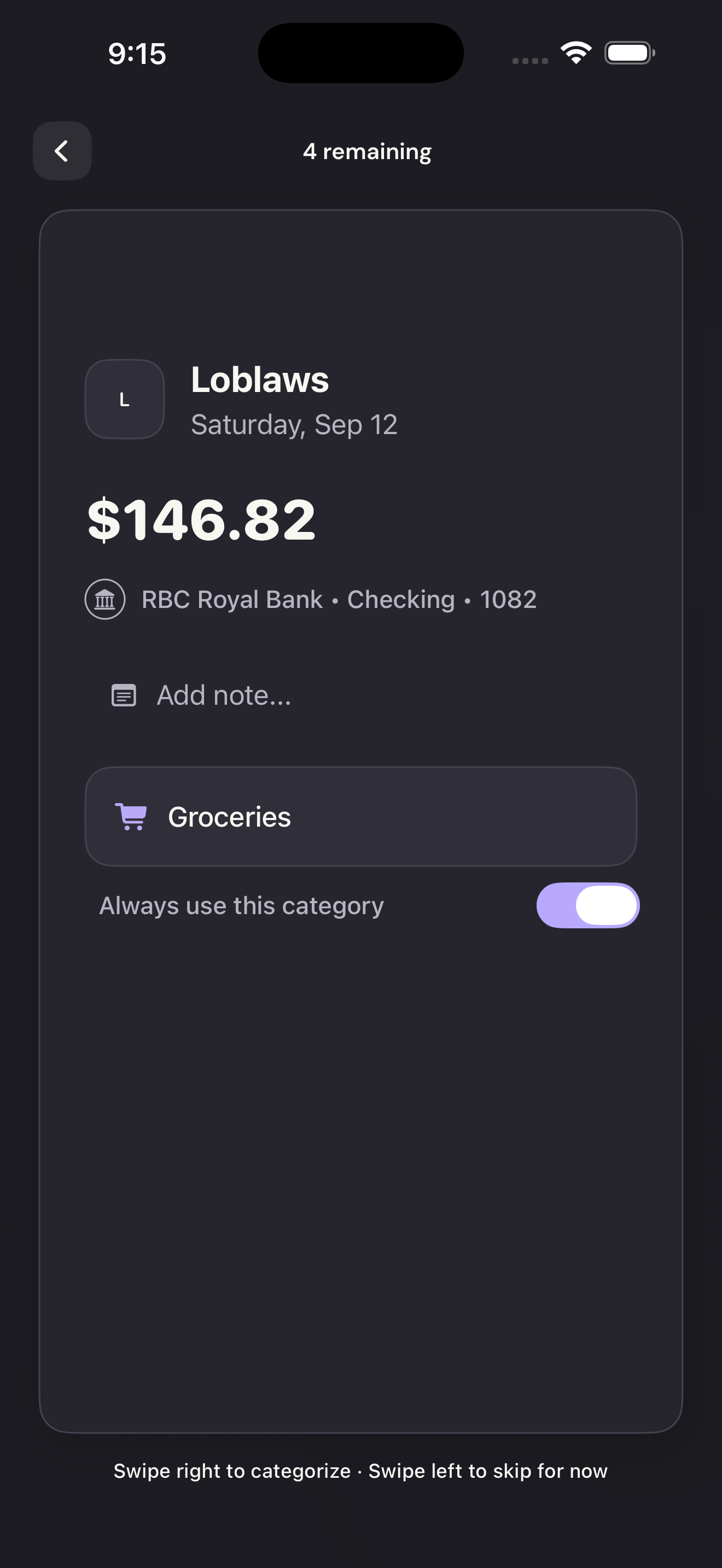
Choose whether Vylo should remember itTap to enlarge Confirm the transaction
After choosing the category, swipe the card right to categorize it. Swipe left to leave it for later.
Confirm the transactionTap to enlarge