
Auto-build from spending uses your transaction history to suggest a monthly budget. It gives you a starting point; you choose the amounts to keep.
The preview uses available spending from the past 90 days. An unusual purchase or incomplete import can affect the averages, so check the suggestions before applying them.
Why is budget setup waiting for data?
Your first bank import needs to finish before Vylo can calculate spending-based amounts. Leave the connection in place while it finishes.
You can also start from scratch or change amounts later. A budget sets spending targets in Vylo; it doesn’t move money between bank accounts.
On the web
Open budget setup
Choose Spend in the navigation, then Add Budget. Once a budget exists, this section is called Budgets.
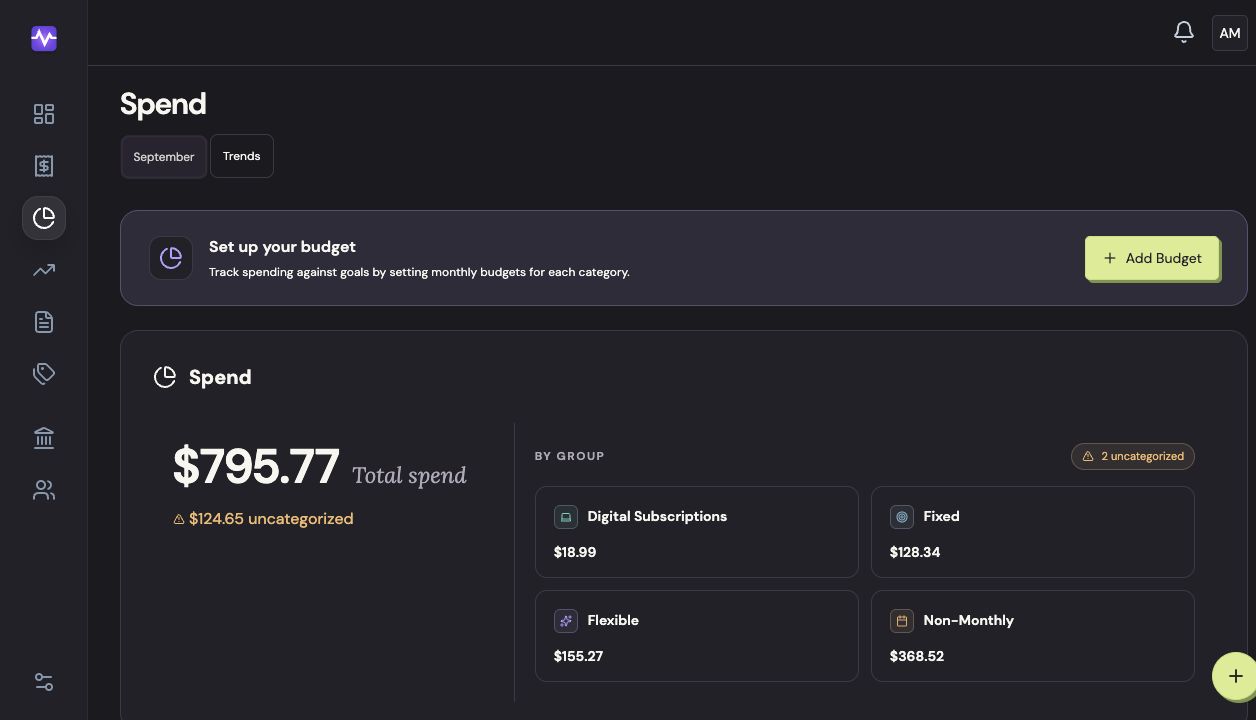
Open budget setupTap to enlarge Choose how to start
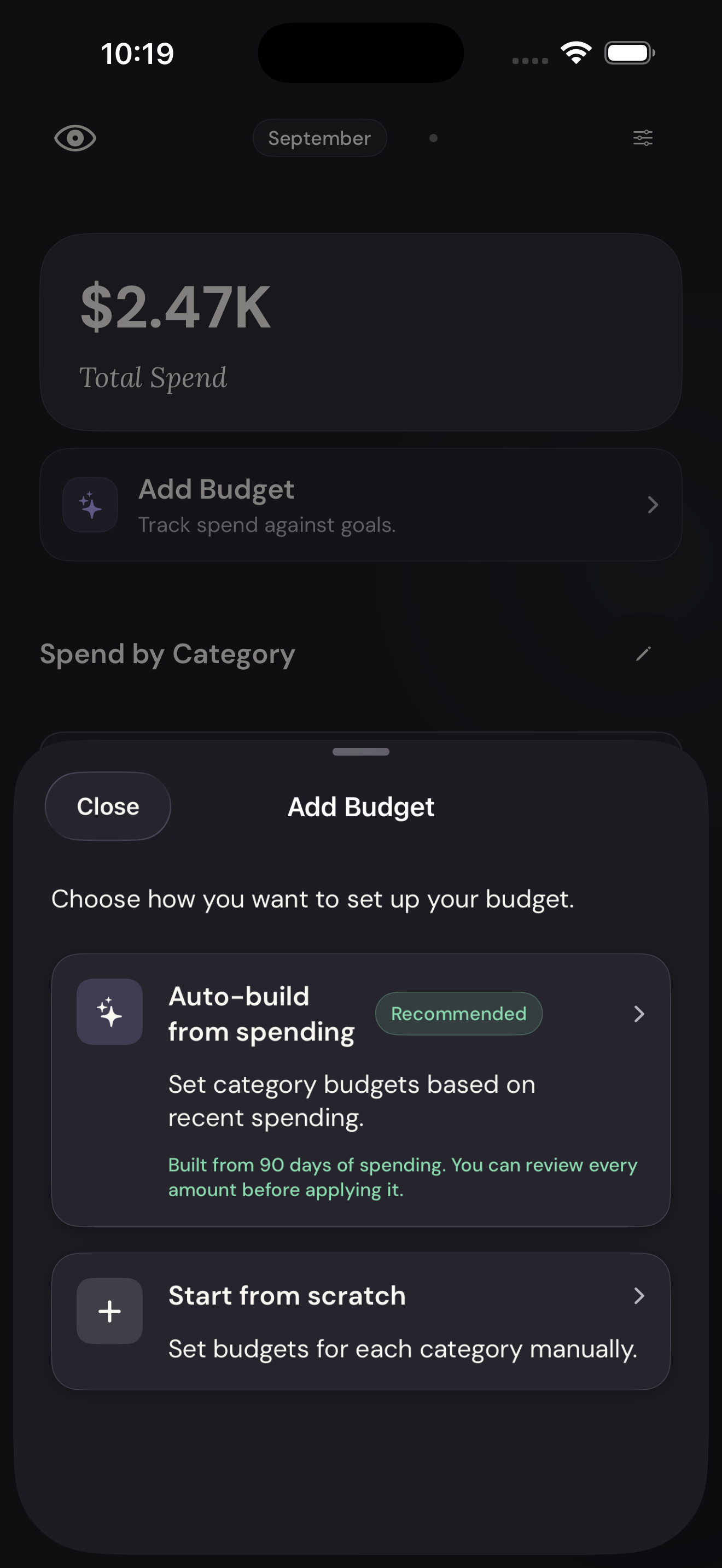
Choose Auto-build from spending to use your recent purchases as a starting point.
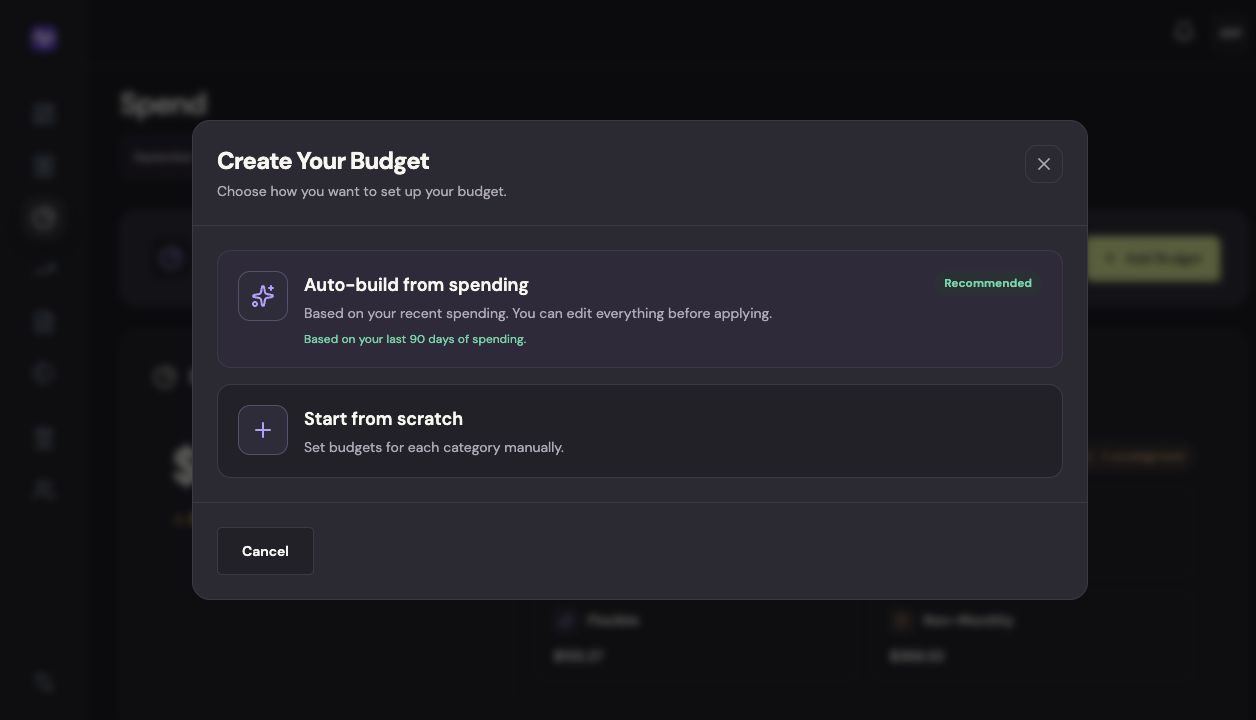
Choose how to startTap to enlarge Check the suggested amounts
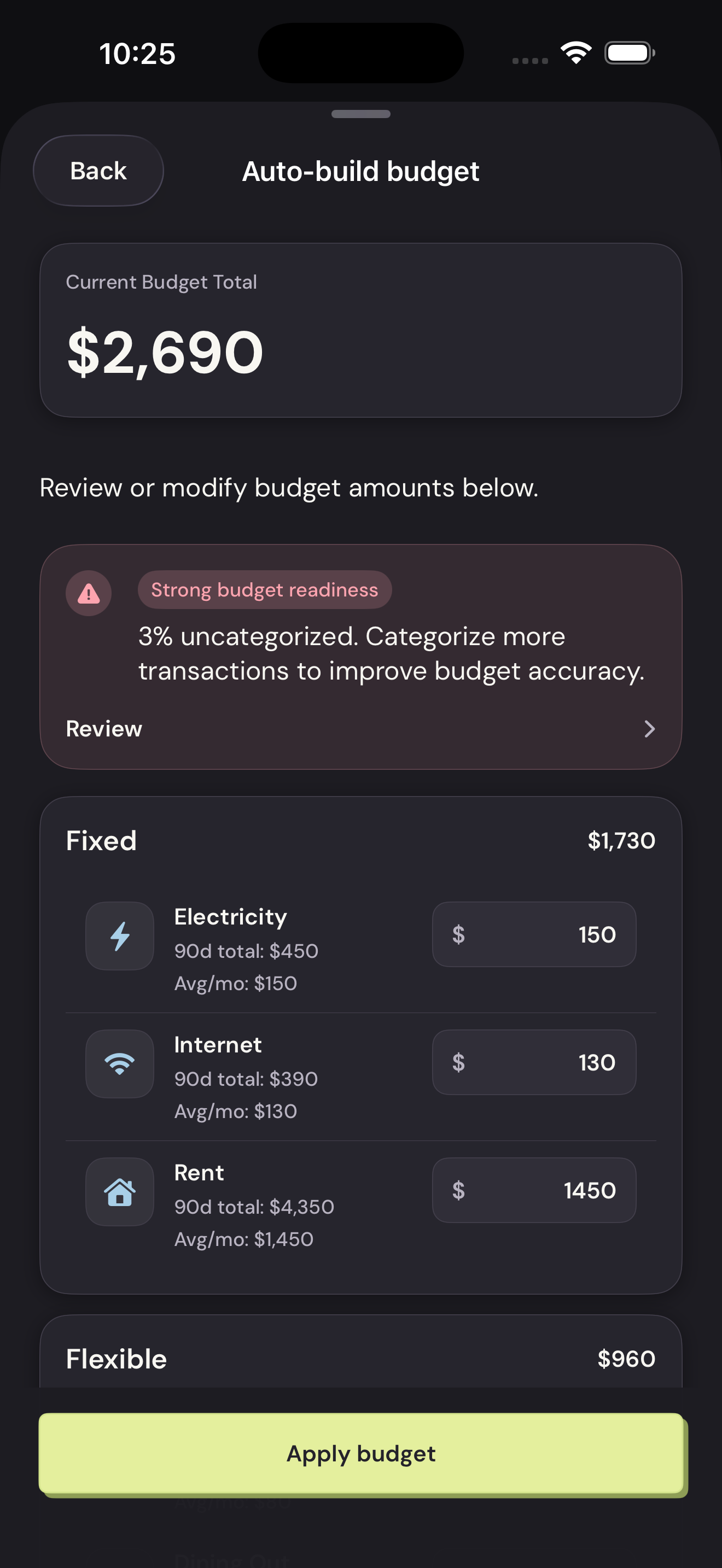
Review each category. The recent total and monthly average explain the suggestion; change any amount that doesn’t fit your plans.
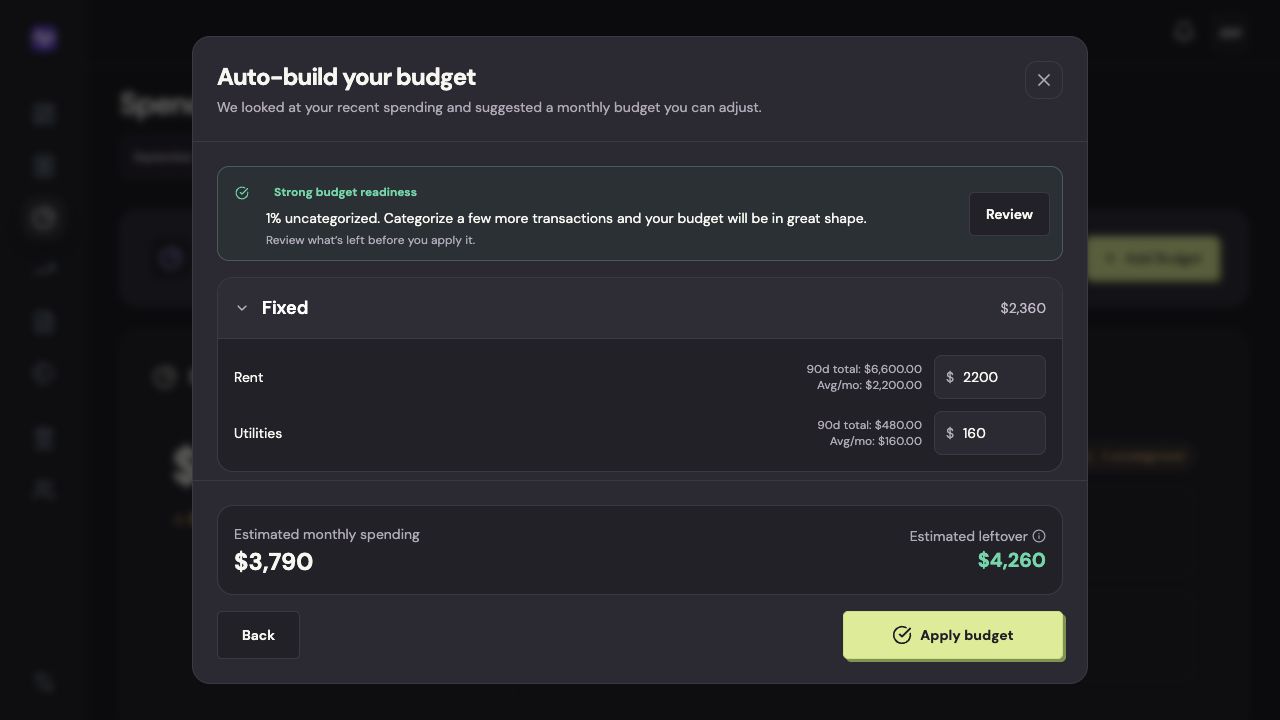
Check the suggested amountsTap to enlarge Apply your budget
Check the total and click Apply budget. You can edit individual category amounts afterward.
Apply your budgetTap to enlarge
On iPhone
Add a budget
Tap Spend in the bottom navigation, then Add Budget.
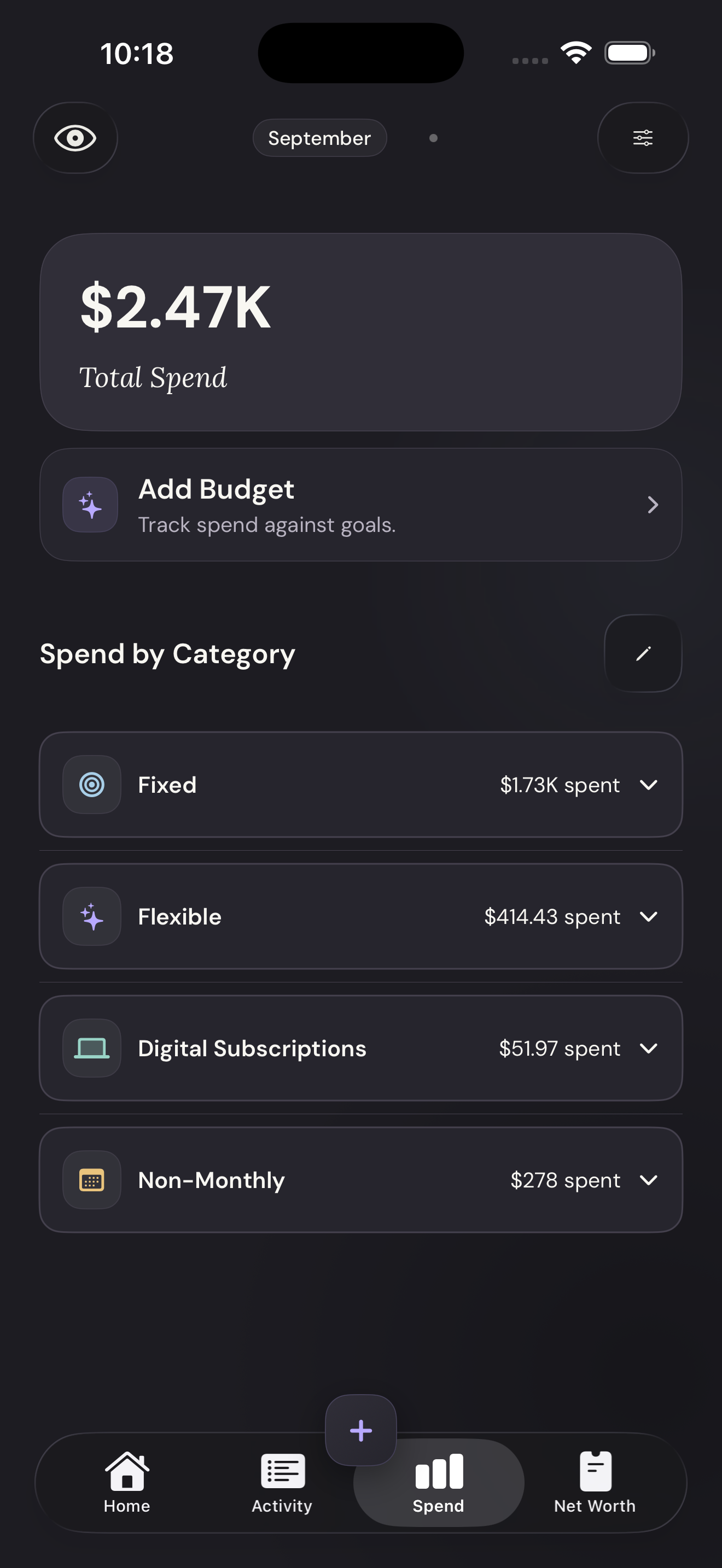
Add a budgetTap to enlarge Use your past spending
Tap Auto-build from spending.
Use your past spendingTap to enlarge Review the amounts
Change any category amount that needs adjusting. Scroll for the remaining groups.
Review the amountsTap to enlarge Apply the budget
Check the total, then tap Apply budget.
Apply the budgetTap to enlarge