
Vylo can use OpenAI to help categorize a transaction when its usual rules can’t identify the merchant confidently. It only does this after the person who connected that bank gives explicit consent. You can decline and still use automatic rules, budgets, and manual review.
When does Vylo ask for permission?
Vylo explains the AI processing and asks you to allow or decline it before sending eligible transaction text to OpenAI. A household member cannot agree on behalf of someone else’s connected accounts.
Bank access and AI permission are separate. Accepting updated terms also does not turn AI on. If Vylo changes what information it sends, it asks again. Permission to use merchant names alone does not also cover bank descriptions.
What gets sent to OpenAI?
The request contains one shortened piece of text from the merchant name or bank transaction description, plus instructions and Vylo’s standard expense categories so OpenAI can suggest a category.
Before sending it, Vylo removes detected email addresses, phone numbers, web links, numeric references, account-reference patterns, and known profile or household names. Bank descriptions can contain personal information that these checks miss, so we don’t call this text anonymous.
Vylo does not add:
- Transaction amounts, currency, dates, balances, or transaction IDs.
- Separate bank-account, card, profile, or household details.
- Your custom category names, category history, budgets, or financial snapshots.
Transfers and transactions already reviewed by the person who connected the account are excluded from AI sorting. This permission does not authorize AI budgeting, financial advice, or analysis of your full financial history.
Does OpenAI train on it or keep it?
Vylo uses OpenAI’s API. OpenAI says API data is not used to train its models by default. Vylo tells OpenAI not to save responses for later retrieval. That is not a promise of zero retention: OpenAI may keep request and response content in abuse-monitoring logs for up to 30 days by default, or longer for the legal and safety reasons described in its policy. Read OpenAI’s data controls.
Vylo’s own limited AI result logs and reusable categorization results expire after 30 days. They are also removed when the person who connected the account declines or withdraws consent.
What happens when I turn it off?
Vylo stops new OpenAI requests for your connected accounts and cancels queued AI work. The usual sorting rules and review queue keep working. Categories already applied to transactions stay in place; you can change them yourself.
Vylo keeps a record of your consent choice while your account exists, then deletes it with your account unless the law requires retention.
On the web
To turn AI off later, return to this setting and use Turn off. Vylo stops new AI requests for your connected accounts; your existing transaction categories remain.
Open the AI setting
Go to Settings, then Privacy & Security. The AI setting shows whether it’s on or off.
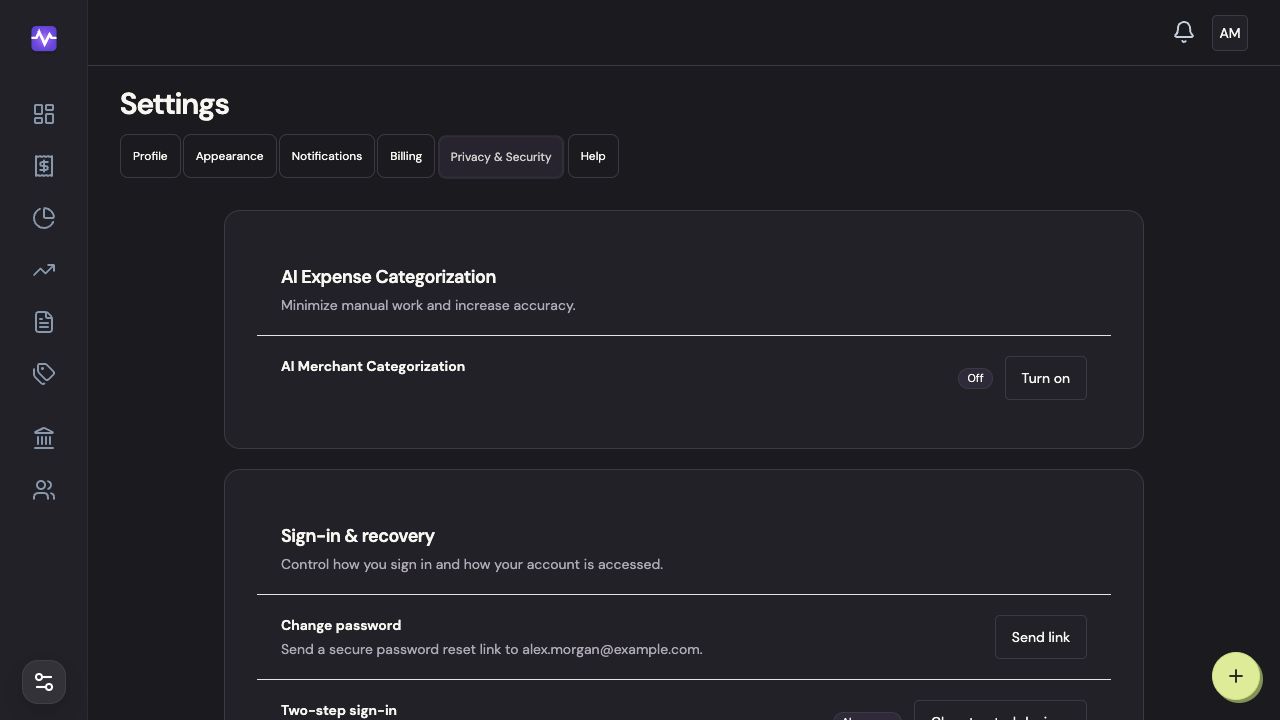
Open the AI settingTap to enlarge Read the permission request
Click Turn on to open the disclosure. Opening it does not enable AI.
Read the permission requestTap to enlarge Make your choice
Read what information is used. Choose Enable only if you agree, or Cancel to leave AI off.
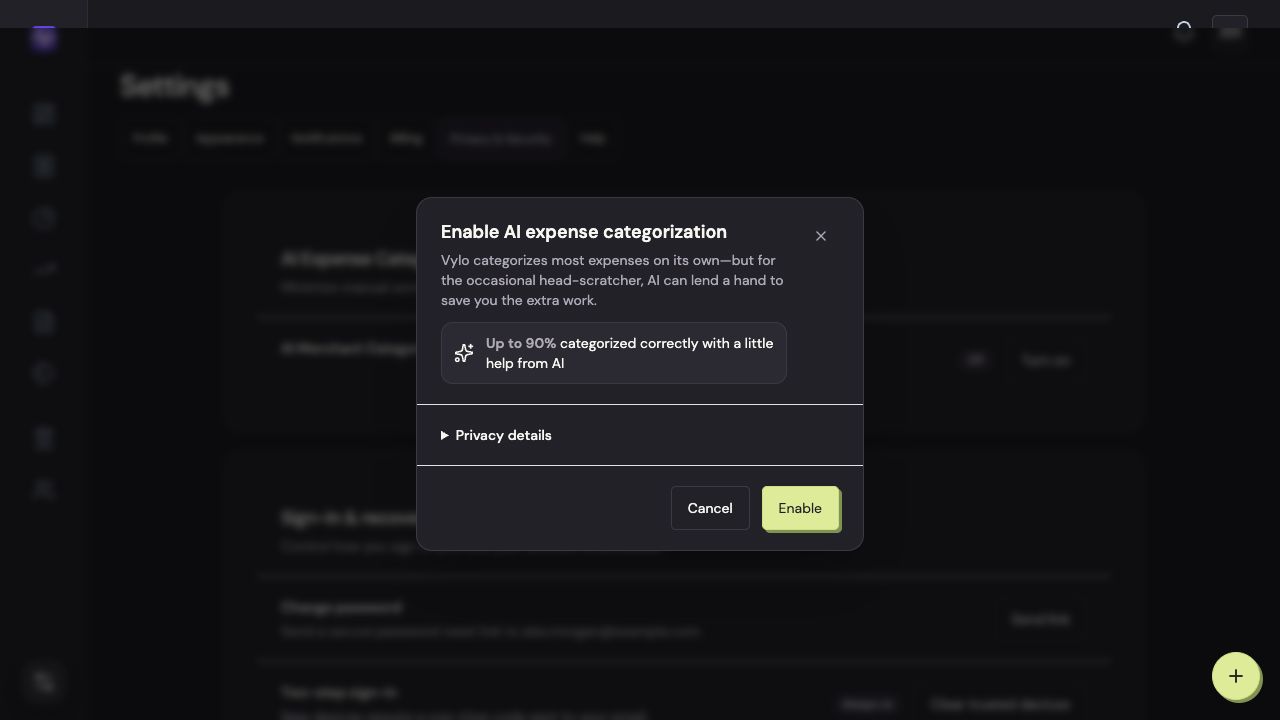
Make your choiceTap to enlarge
On iPhone
To turn AI off later, return to this page, tap Turn off, and confirm. Each person controls consent for the bank accounts they connected.
Open Privacy & Security
Tap the settings control at the top right of the app, then Privacy & Security.
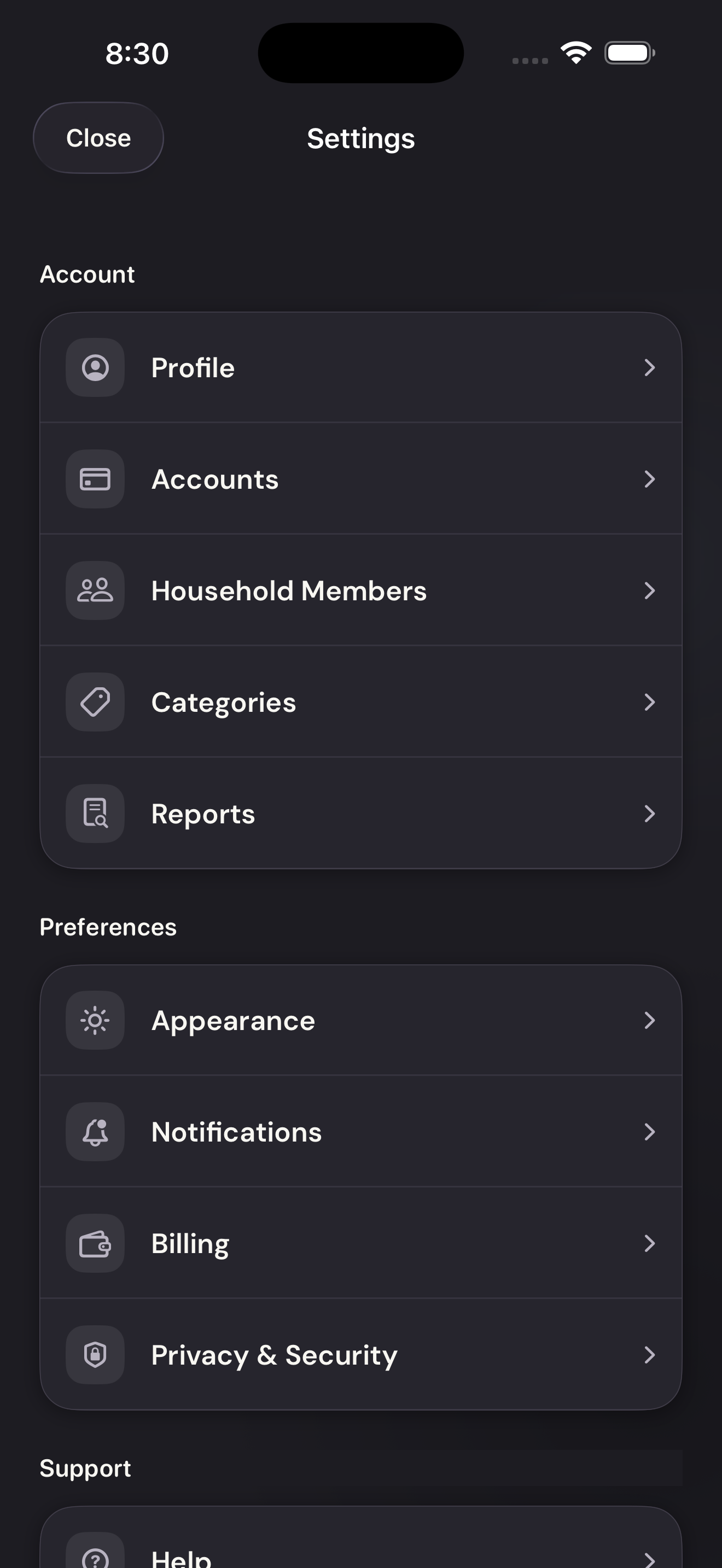
Open Privacy & SecurityTap to enlarge Open AI Merchant Categorization
Tap AI Merchant Categorization at the top of Privacy & Security.
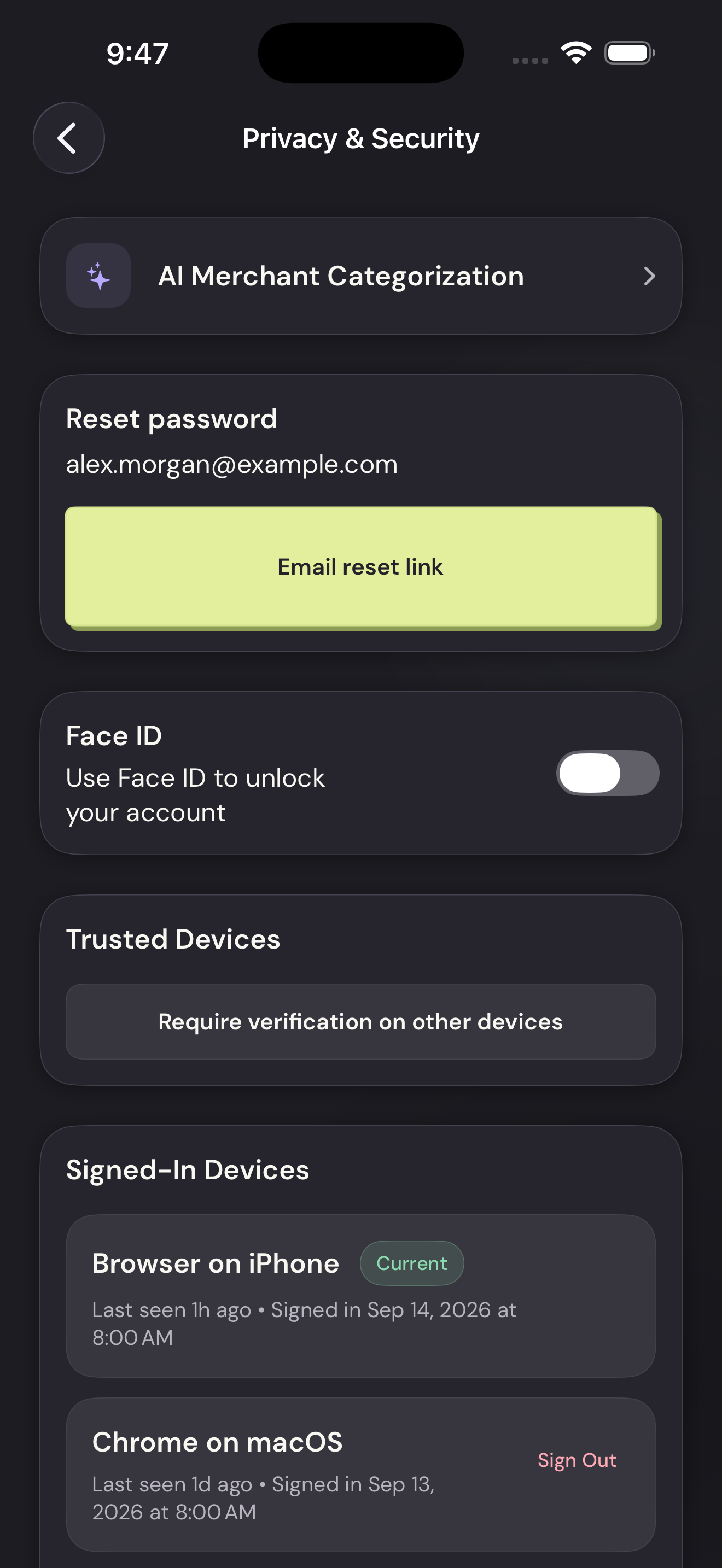
Open AI Merchant CategorizationTap to enlarge Read Privacy details
Tap Privacy details to read what is sent and how the permission works.
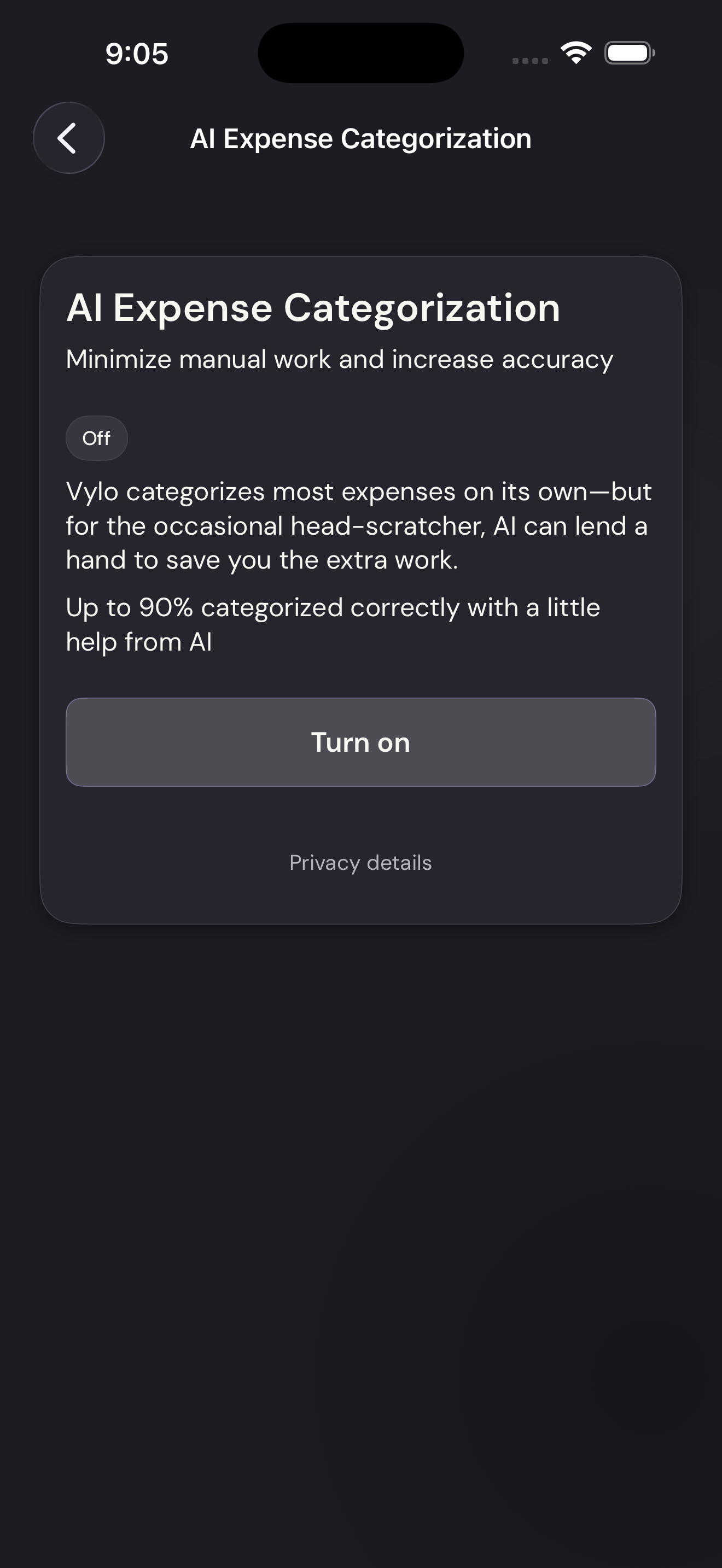
Read Privacy detailsTap to enlarge Enable it only if you agree
Tap Turn on, then Enable in the confirmation. Dismiss the confirmation to leave AI off.
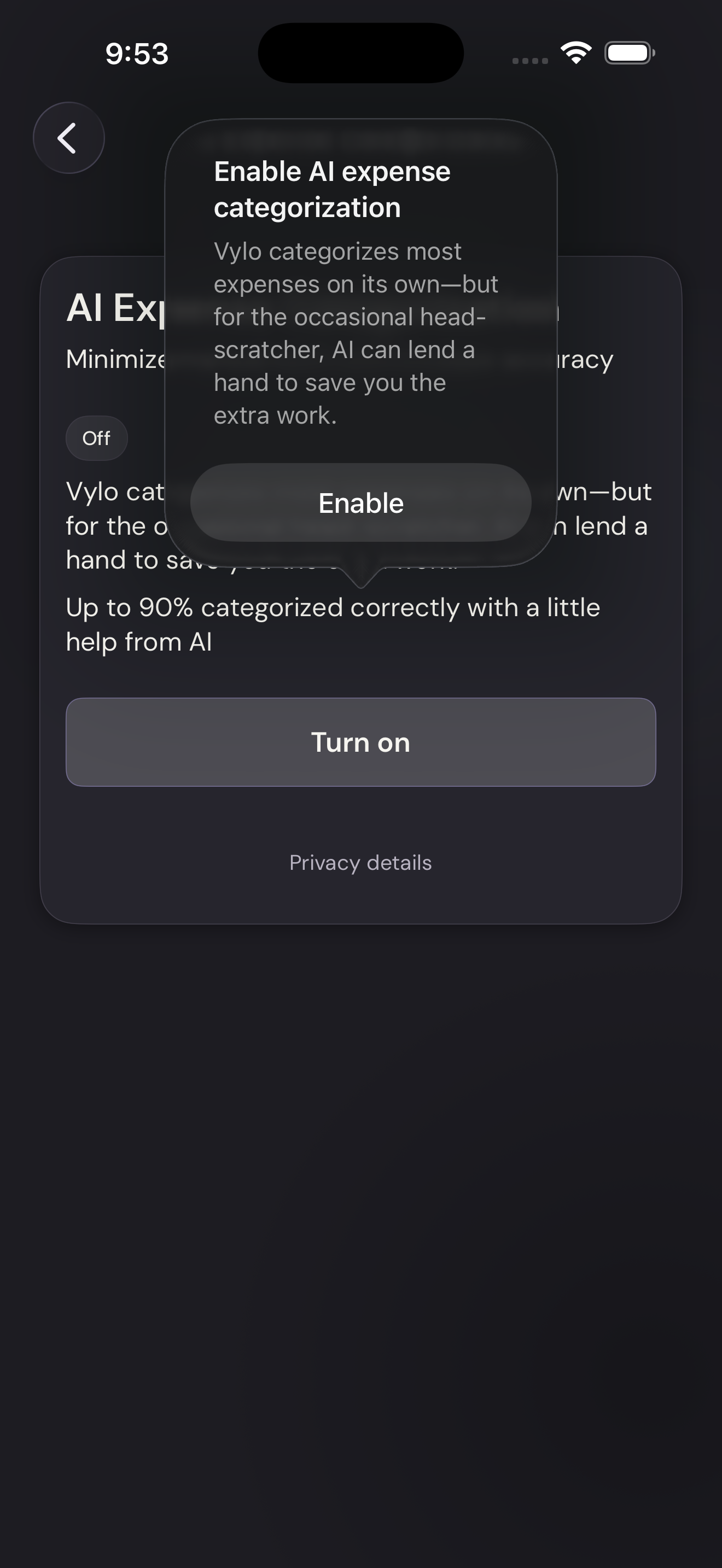
Enable it only if you agreeTap to enlarge