
Choose the month you want, then search for the merchant. If the shop’s usual name finds nothing, try part of the description shown by your bank.
Still can’t find it?
Clear any filters and check the month when the purchase posted. A late-month purchase may post in the following month.
If it still isn’t there, check missing transactions. A pending purchase or delayed bank sync may explain it.
On the web
Open Transactions
Choose Transactions in the left navigation.
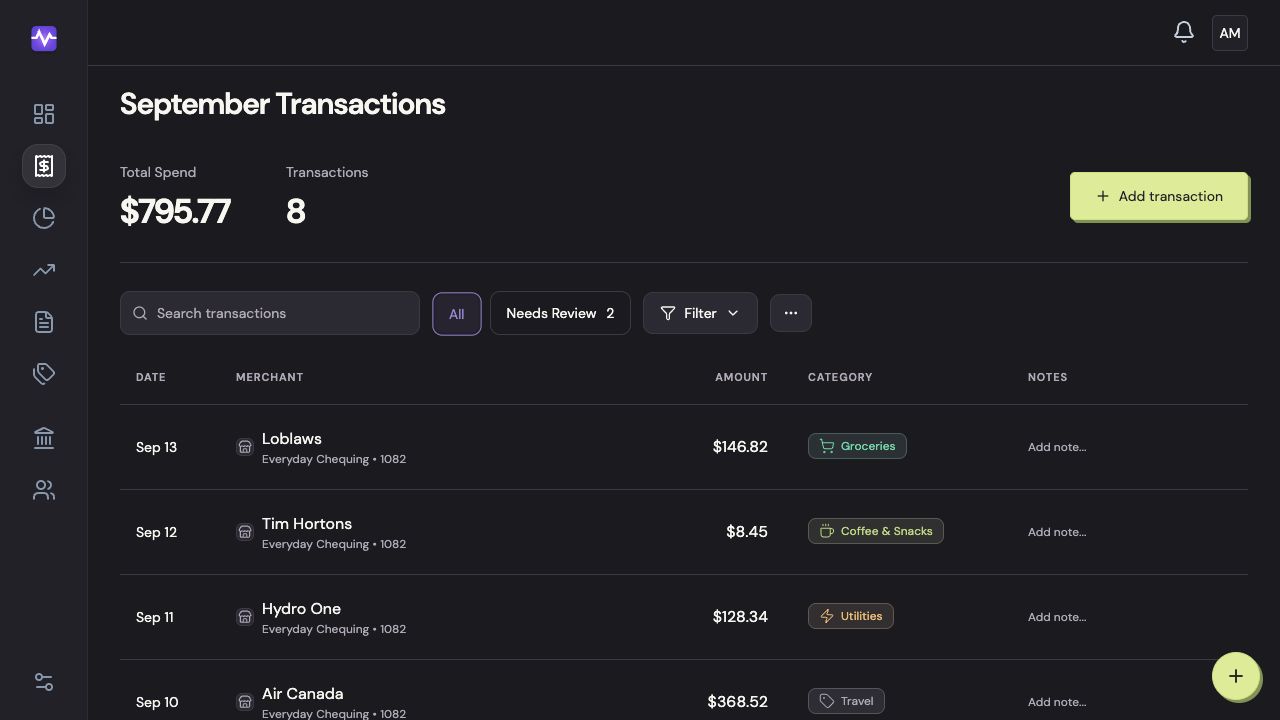
Open TransactionsTap to enlarge Search the list
Type a merchant or a word from the transaction into Search transactions.
Search the listTap to enlarge Narrow the results
Open Filter and choose a group or Uncategorized. Use All to return to the complete list.
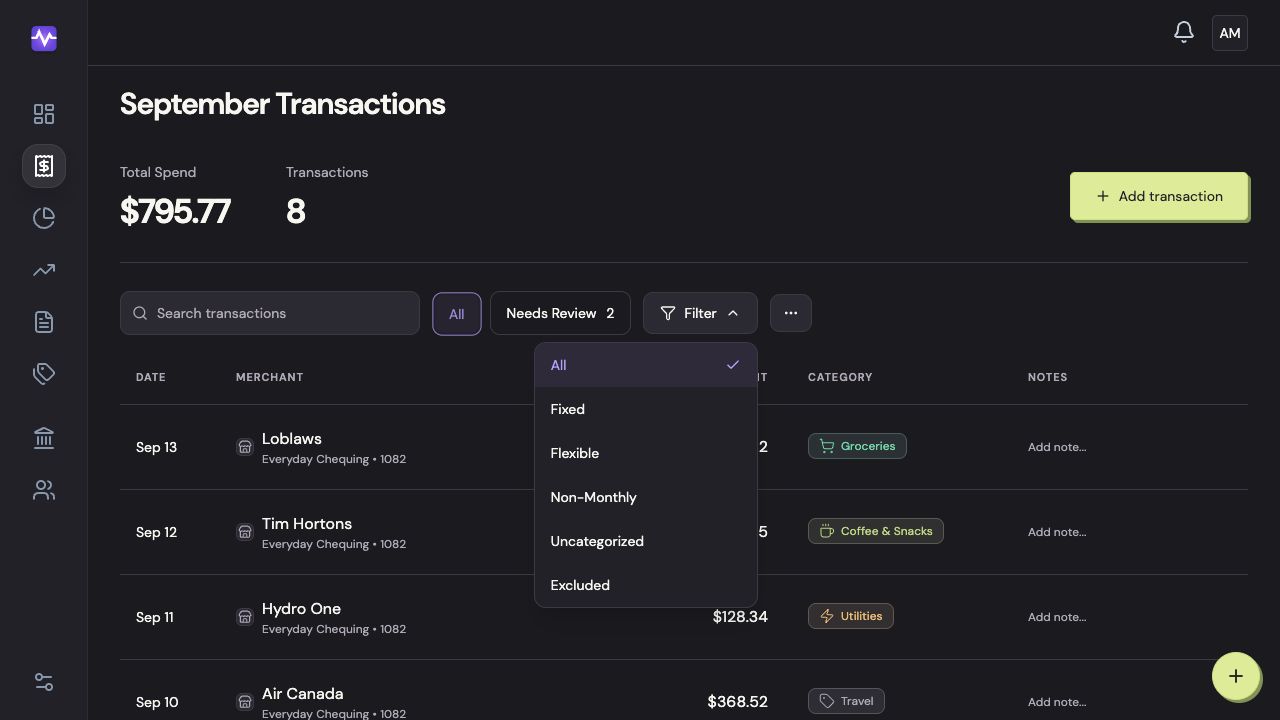
Narrow the resultsTap to enlarge
On iPhone
Open Activity
Tap Activity in the bottom navigation.
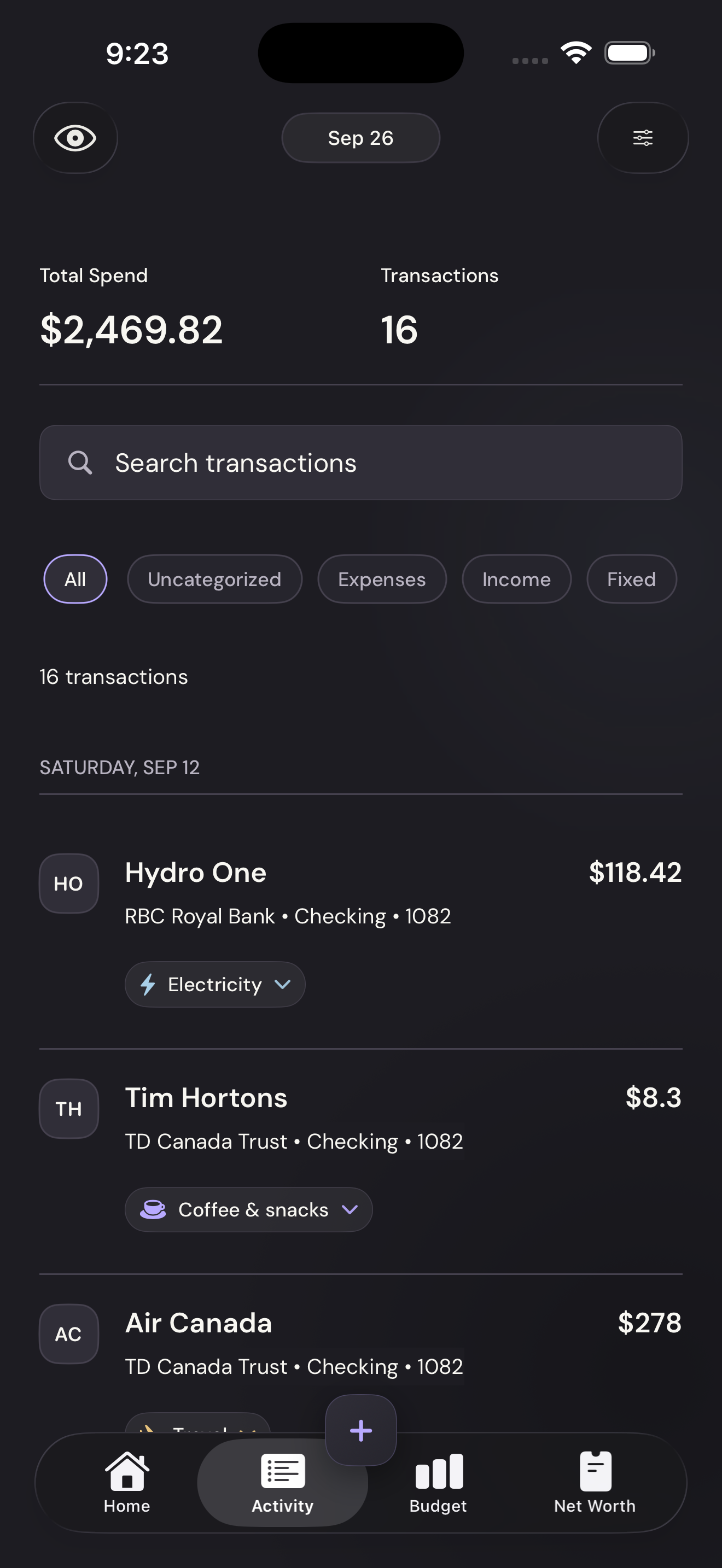
Open ActivityTap to enlarge Search for a purchase
Type a merchant or description into Search transactions.
Search for a purchaseTap to enlarge Filter the list
Tap a chip such as Uncategorized, Expenses, or Income. Swipe the chip row sideways for more groups.
Filter the listTap to enlarge