
The review queue brings together transactions that need your attention. It saves you looking through every purchase to find the uncertain ones.
Why is a transaction here?
Vylo may not have enough information to choose a category confidently. A merchant can also sell several kinds of things, so a reasonable suggestion may still need your decision.
Vylo uses saved merchant choices and built-in matching first. With the bank-account owner’s consent, OpenAI can help identify eligible unclear transactions. Anything that still needs a decision remains for you to review. See how sorting works.
What does reviewing it do?
You choose the category and confirm the transaction. If that merchant should normally use the same category, save the merchant choice too. Leave that option off for a one-time exception.
Skip leaves the transaction for later. Use it when you need to check a receipt or ask someone in your household. An empty queue is less useful than an accurate one.
Why did an item come back?
Check whether it’s a new purchase from the same merchant and whether the earlier change saved. If the same reviewed transaction keeps returning, email hi@myvylo.com with one example.
On the web
Open the review queue
Click the review banner at the top of Dashboard.
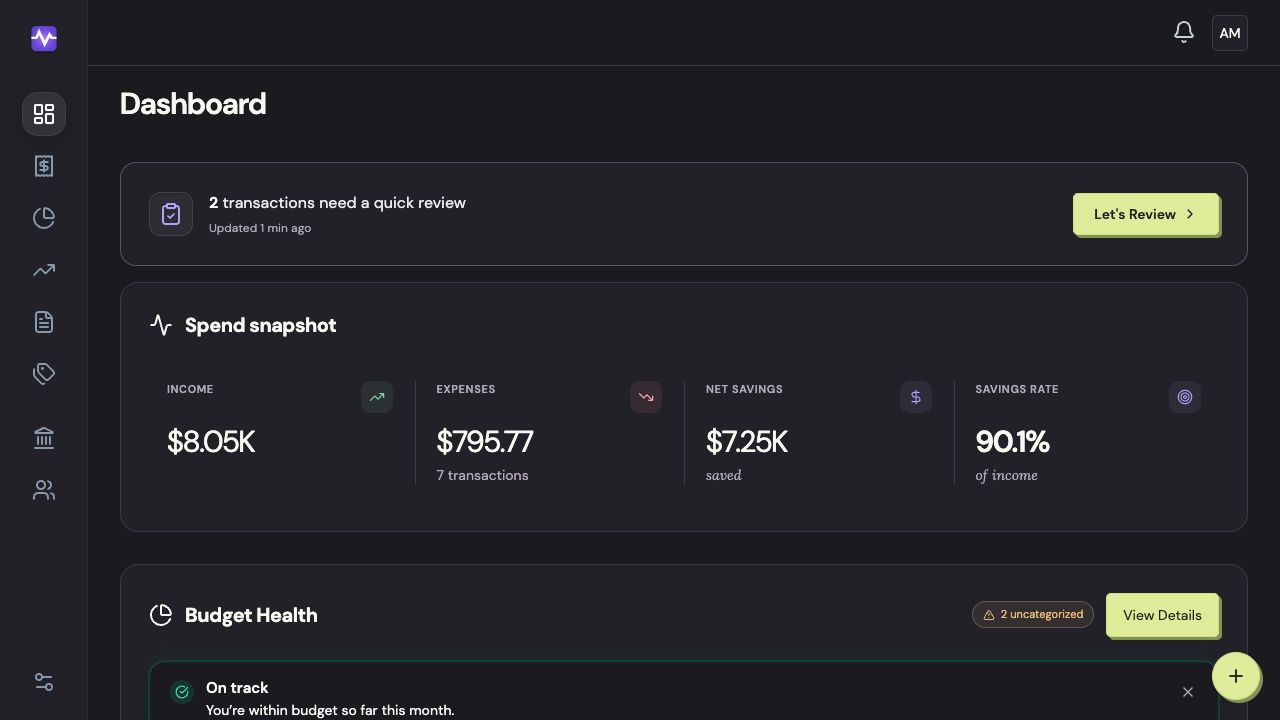
Open the review queueTap to enlarge Check the purchase
Read the merchant, amount, date, and account. Click Assign Category if it needs one.
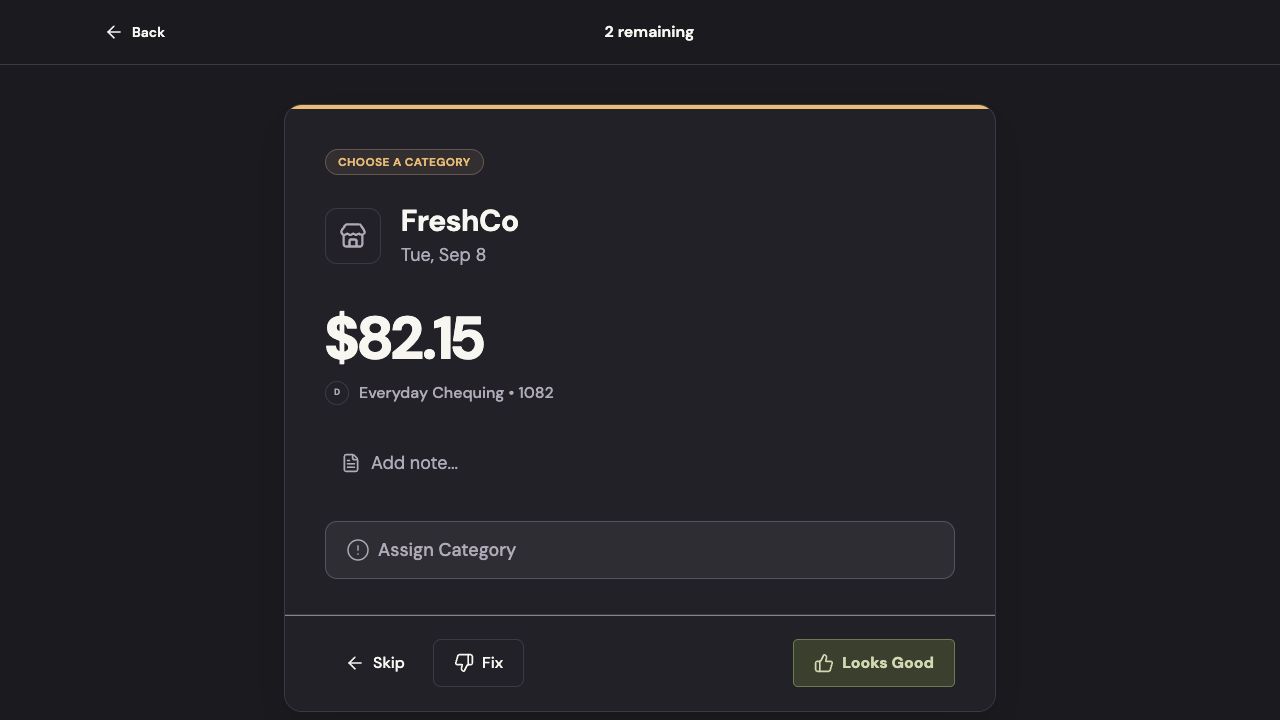
Check the purchaseTap to enlarge Choose the category
Search by name and click the matching category.
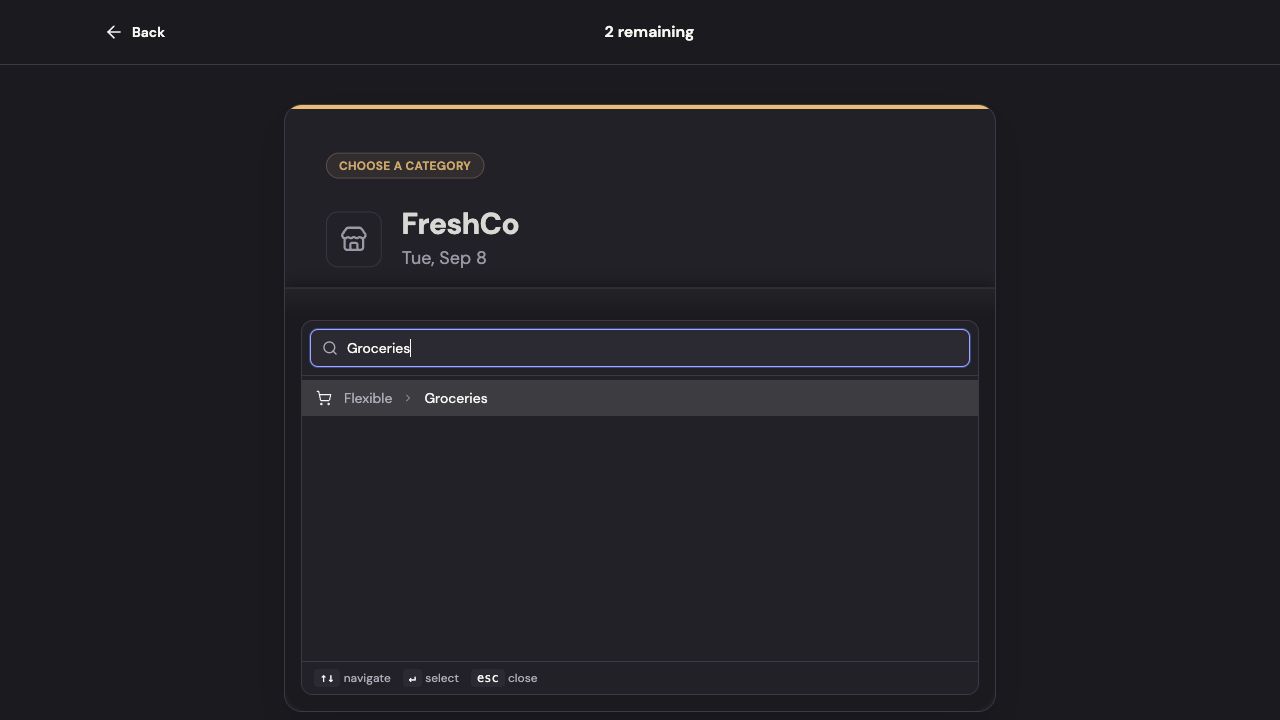
Choose the categoryTap to enlarge Confirm or skip
Check Remember this merchant below the category only if the choice should carry forward. Scroll inside the card if needed. Click Looks Good to finish, or Skip if you need to check the purchase first.
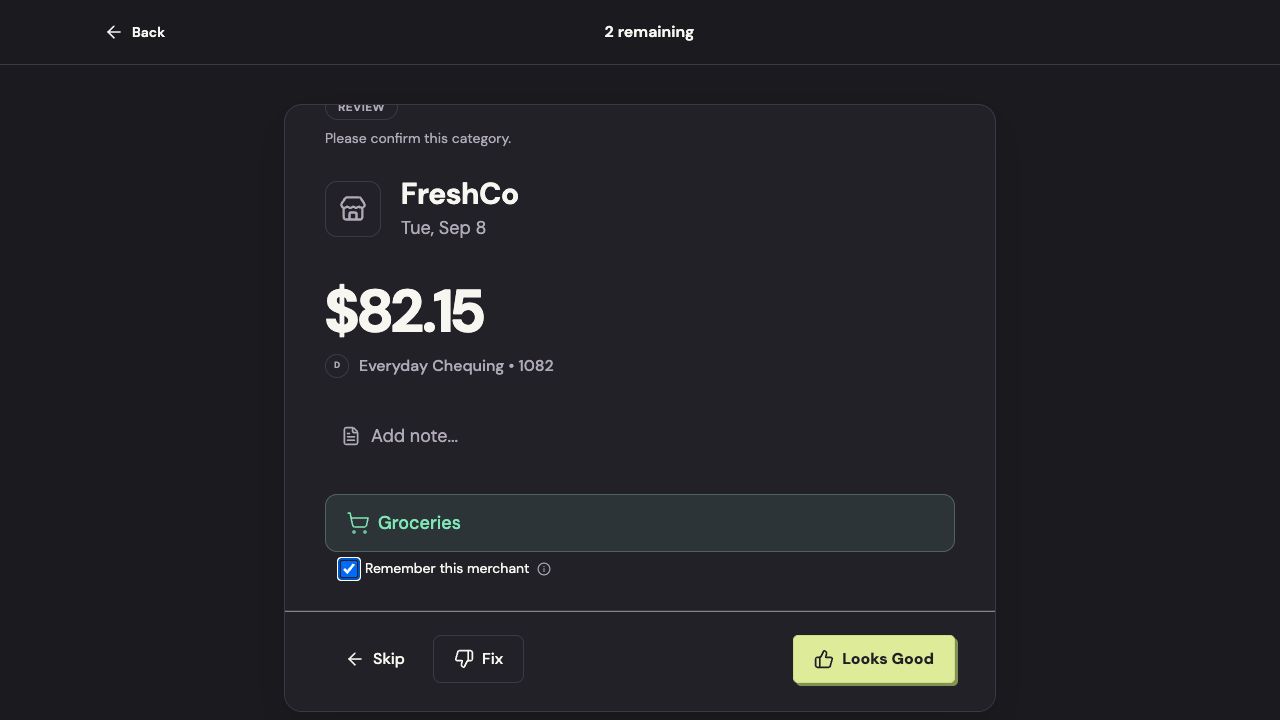
Confirm or skipTap to enlarge
On iPhone
Open the review queue
Tap Review transactions on Home.
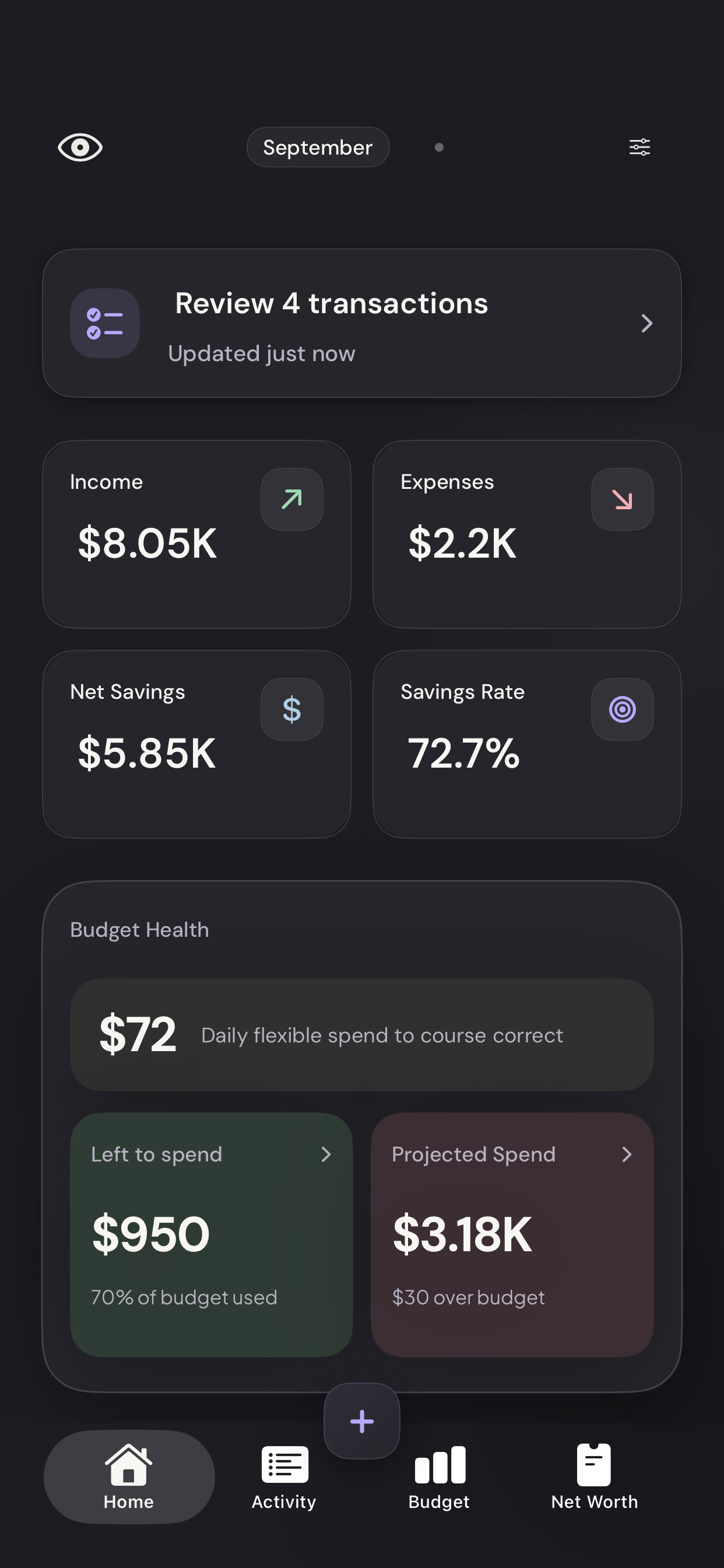
Vylo for iPhone · Demo dataTap to enlarge Check the purchase
Read the merchant, date, amount, and account. Tap the category to change it.
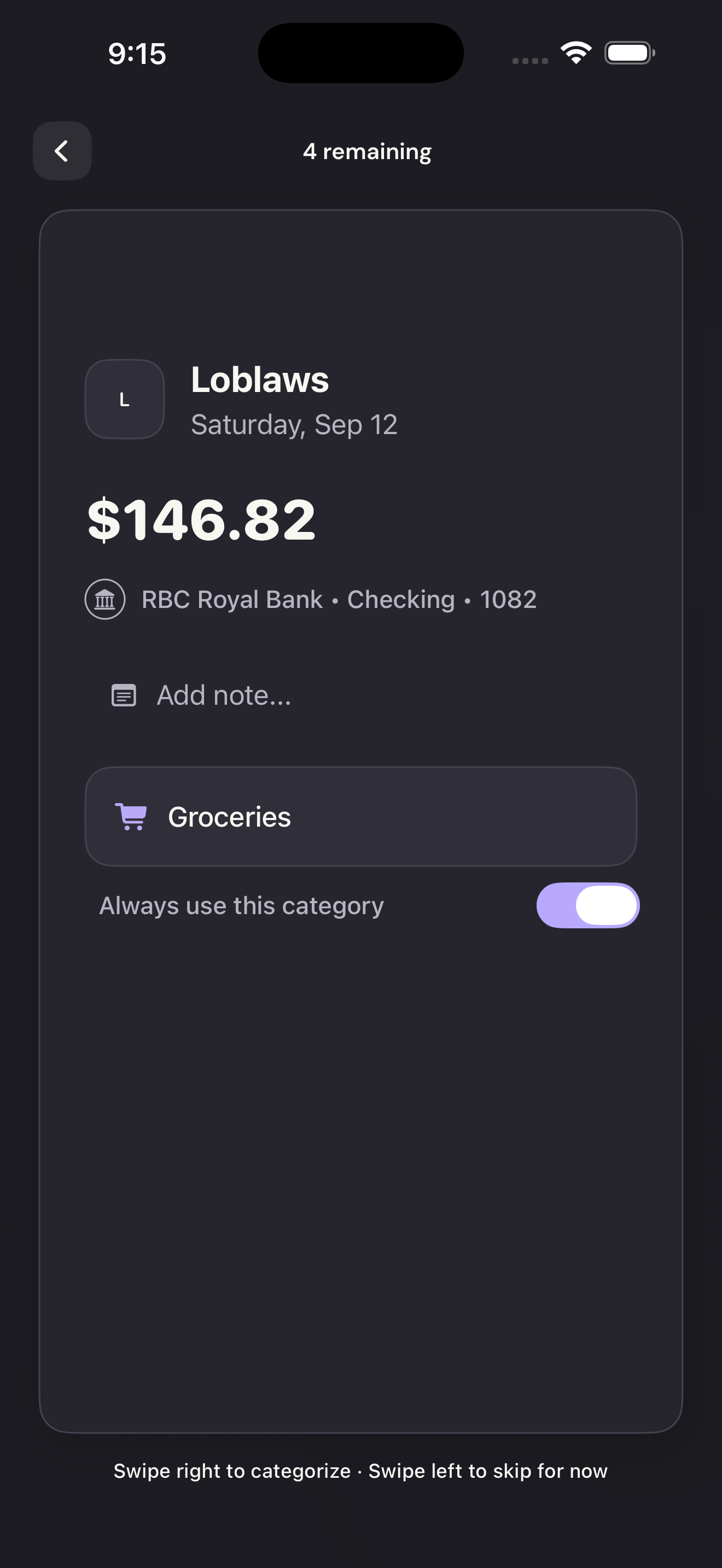
Check the purchaseTap to enlarge Choose the category
Search for a category and tap the matching result. Always use this category saves a merchant rule for future purchases.
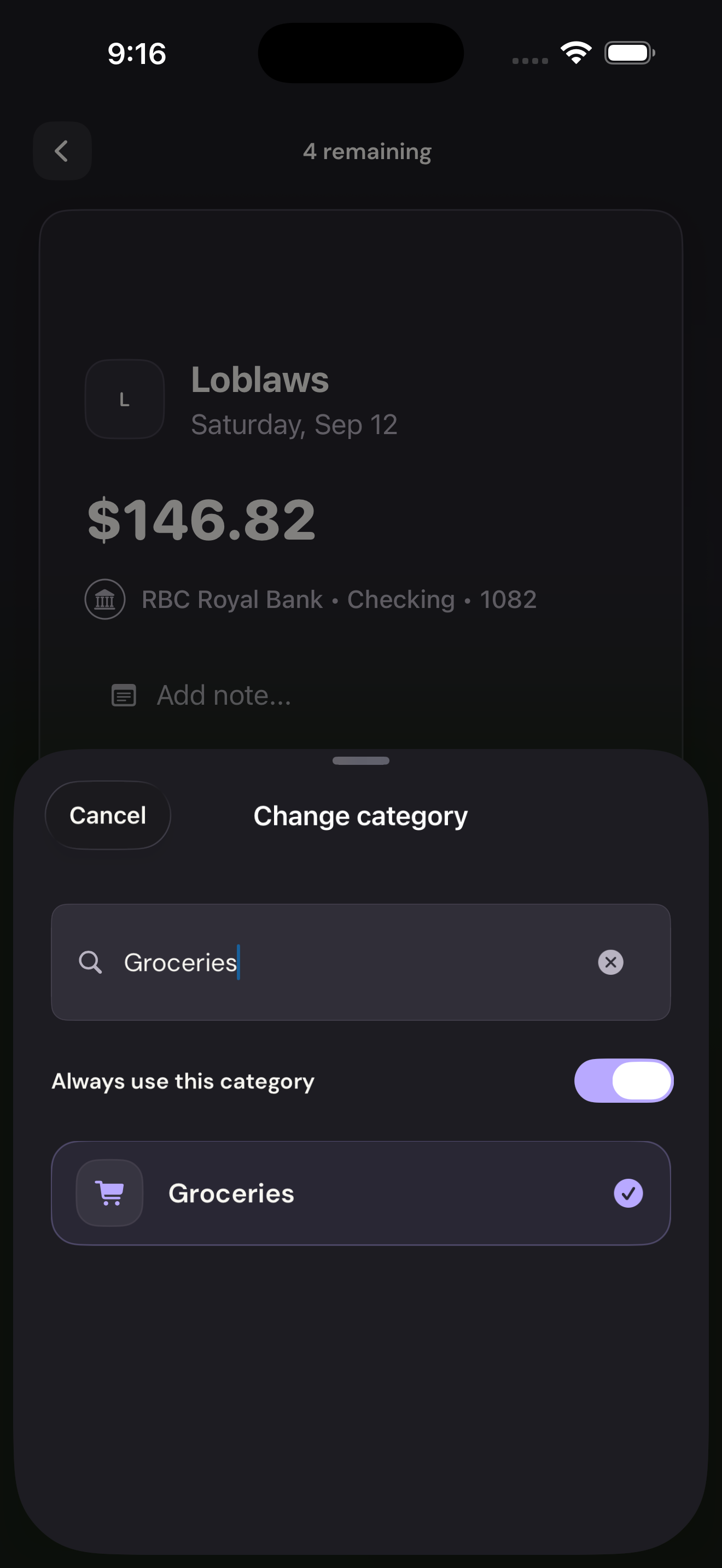
Choose the categoryTap to enlarge Swipe to finish
Swipe right to categorize the transaction. Swipe left to skip it for now. Skipping does not delete the purchase.
Swipe to finishTap to enlarge