
Moving a category keeps it and its transactions, but places it under a different group. Deleting a category removes it and asks what to do with its transactions.
How do I combine two categories?
Keep one category. Delete the other and choose to move its transactions to the category you’re keeping. Then check the remaining category’s budget and rules.
For expense categories, you can also move transactions to Uncategorized and review them later. Income has separate reassignment rules, and Salary can be renamed but not deleted.
If you only want a different label, rename the category.
On the web
Open Categories
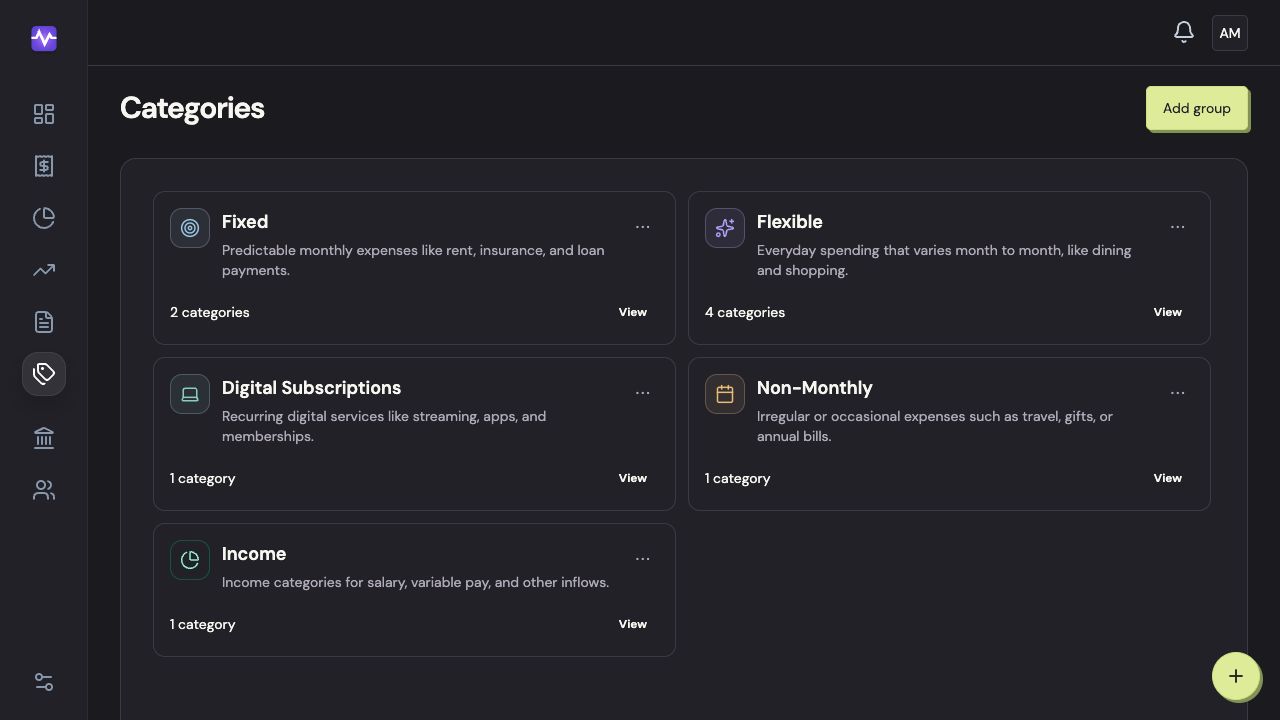
Choose Categories in the left navigation.
Open CategoriesTap to enlarge Open the group
Click View on the group containing the category. This example uses Flexible.
Open the groupTap to enlarge Open the category’s menu
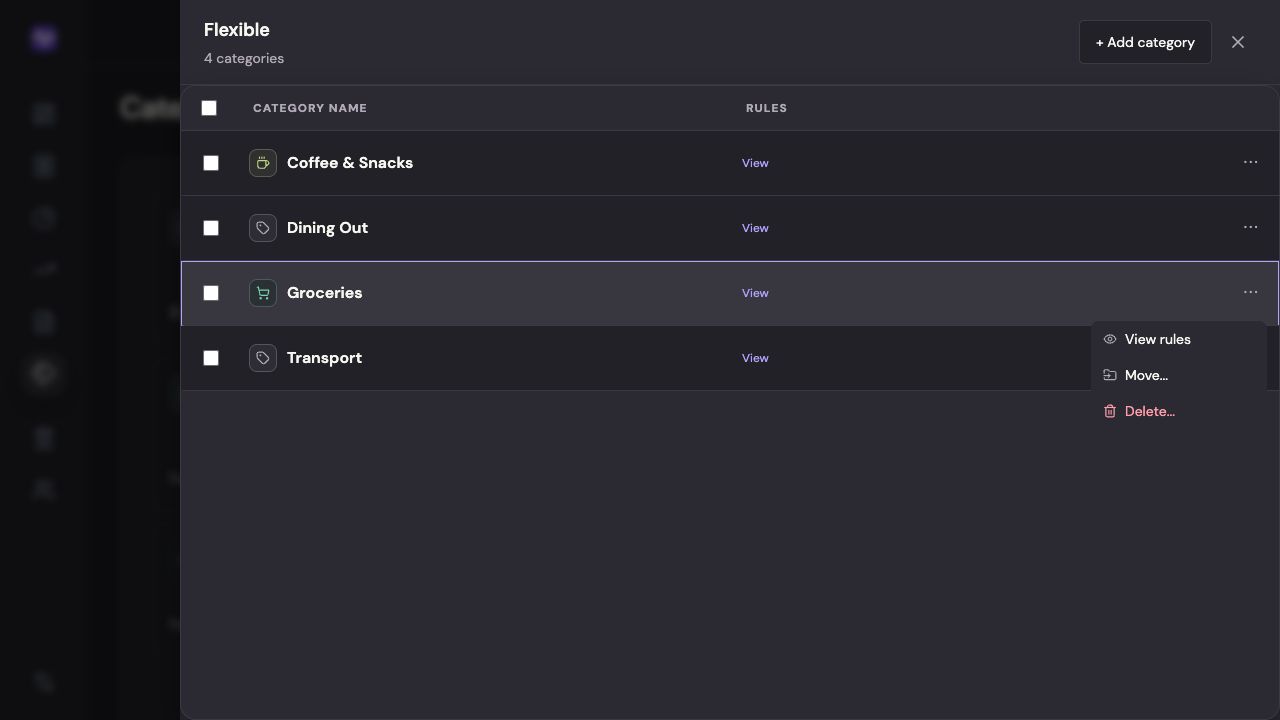
Click the three dots on the category row. Choose Move to change its group, or Delete to remove the category.
Open the category’s menuTap to enlarge Move it to a different group
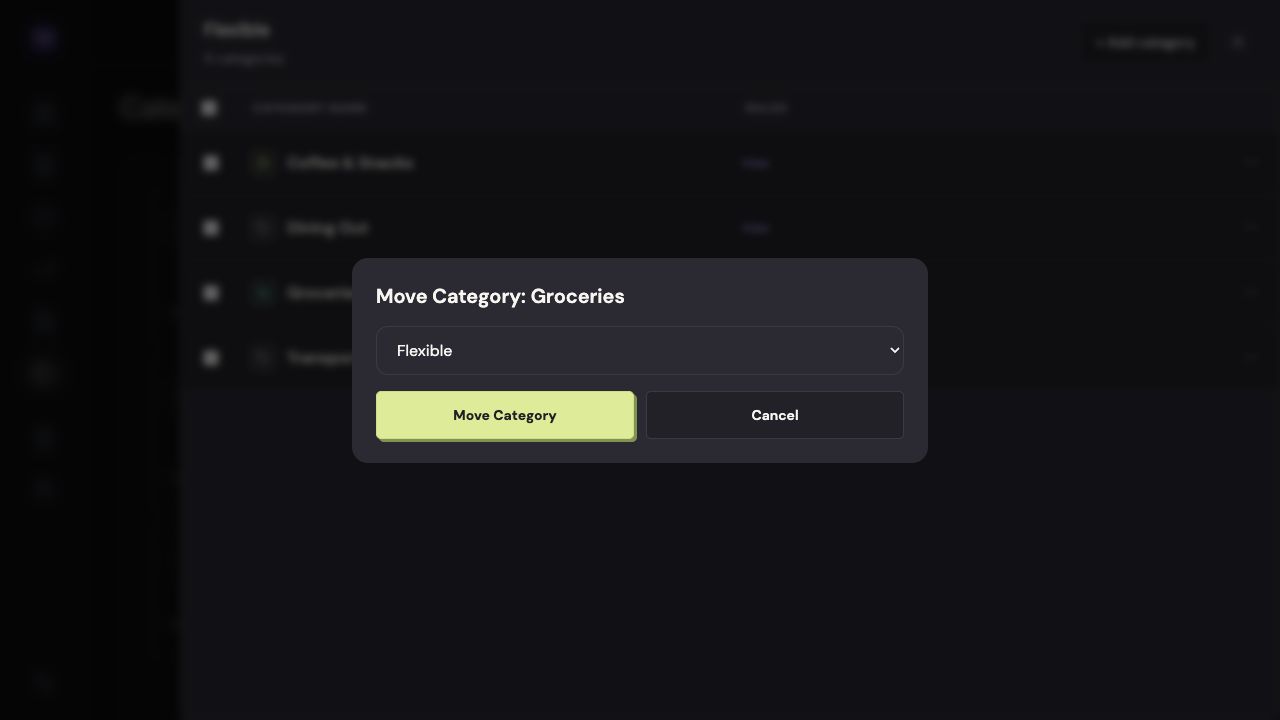
Choose the destination group, then click Move Category.
Move it to a different groupTap to enlarge Choose where its transactions should go
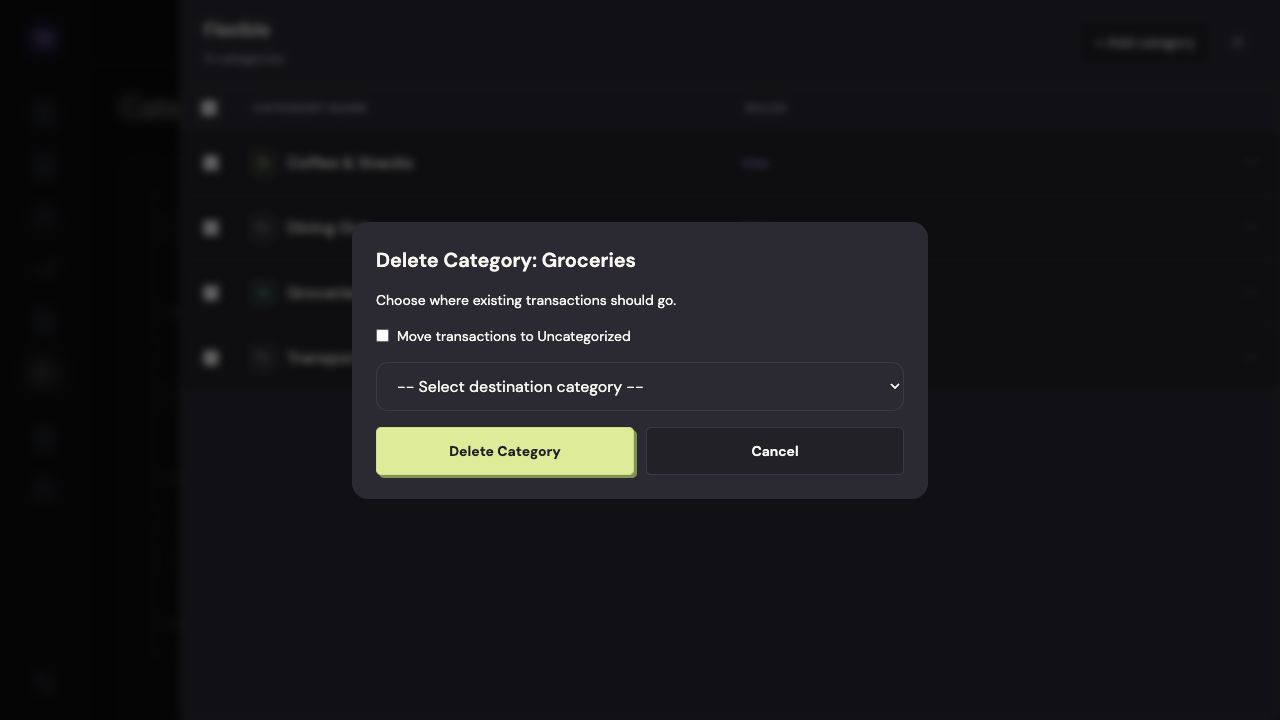
For deletion, leave Move transactions to Uncategorized checked, or uncheck it and choose another category. Click Delete Category only after checking that choice.
Choose where its transactions should goTap to enlarge
On iPhone
Moving a category between groups is available on the web. On iPhone, you can rename it, change its budget, or delete it and reassign its transactions.
Open Categories
Tap the settings control at the top right of the app, then Categories.
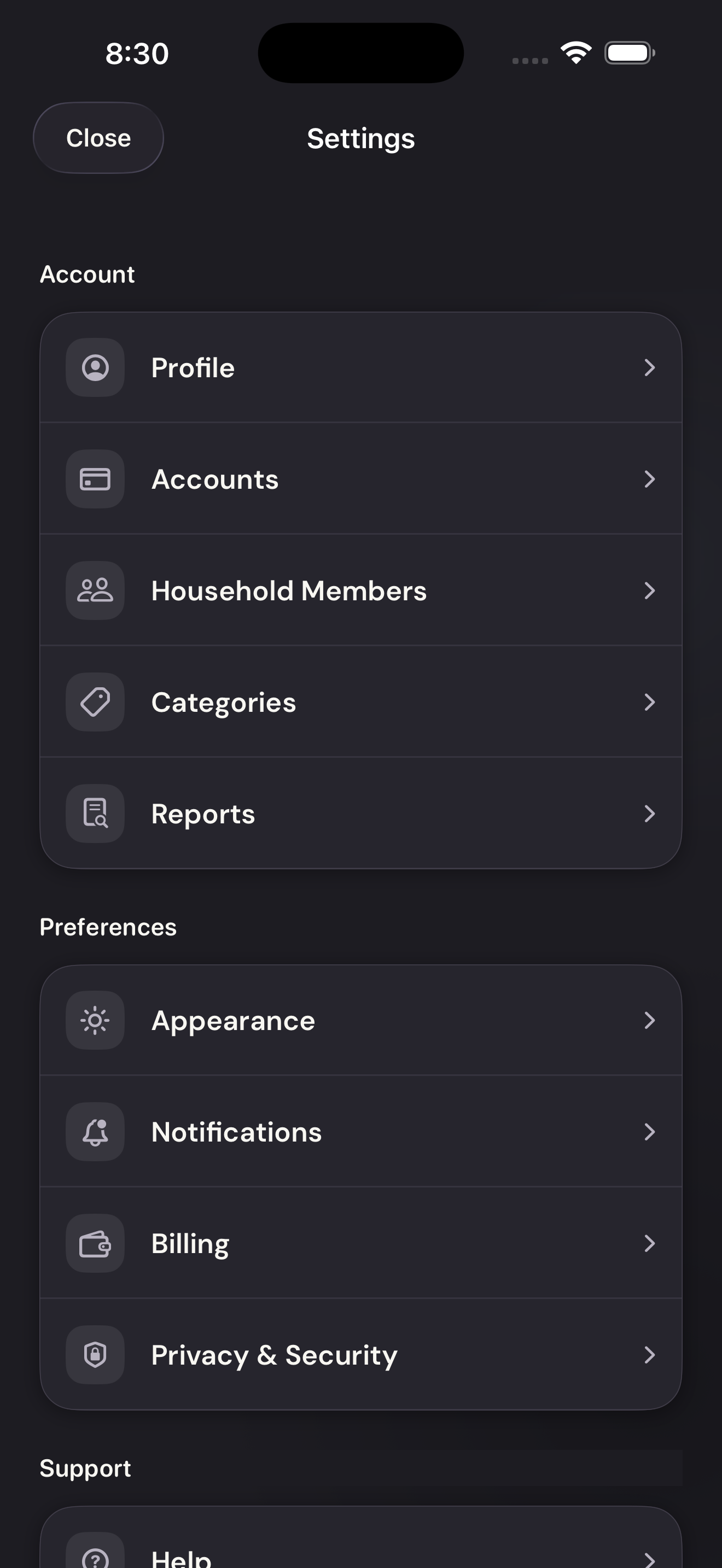
Open CategoriesTap to enlarge Open the category
Tap the category name. Expand its group first if the list is collapsed.
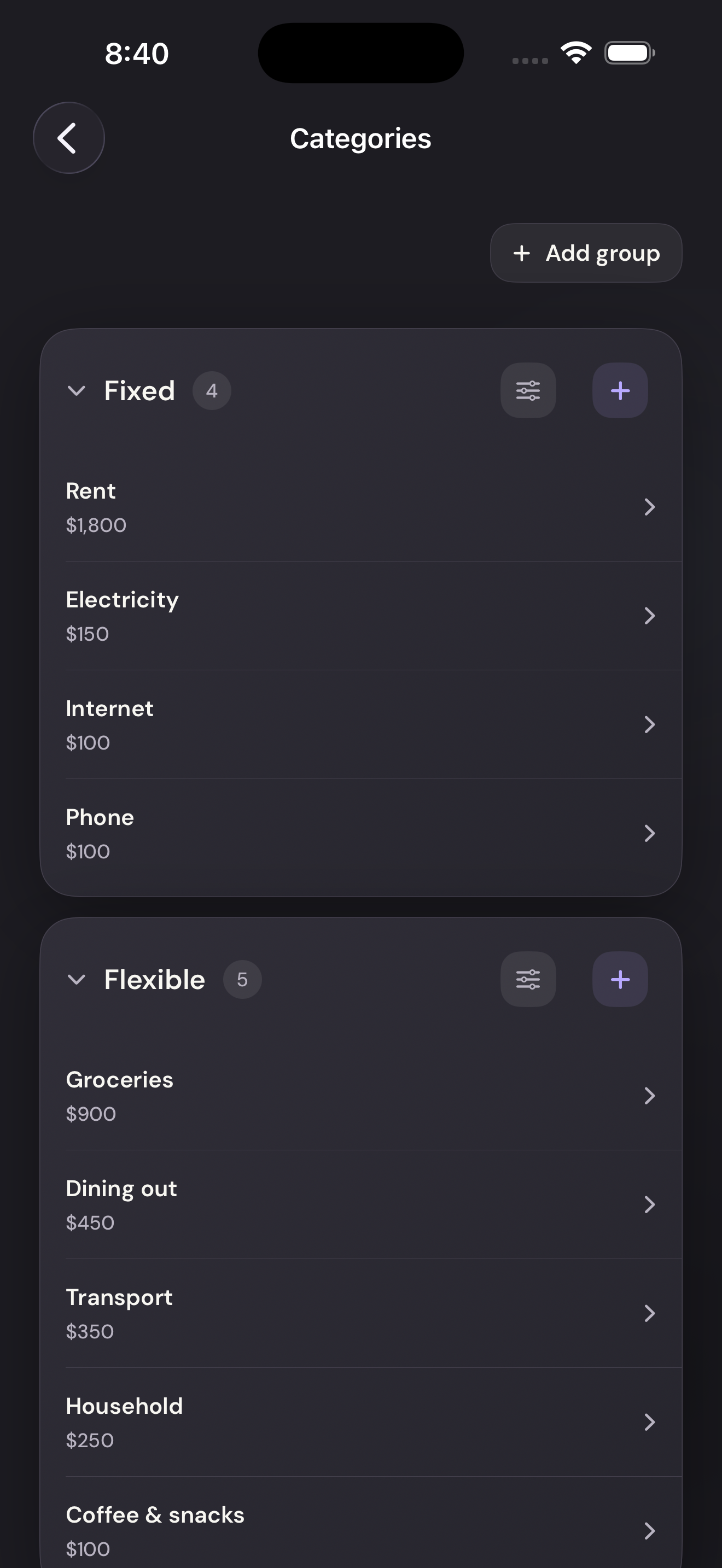
Open the categoryTap to enlarge Open Delete category
Scroll to the bottom of the category editor and tap Delete category.
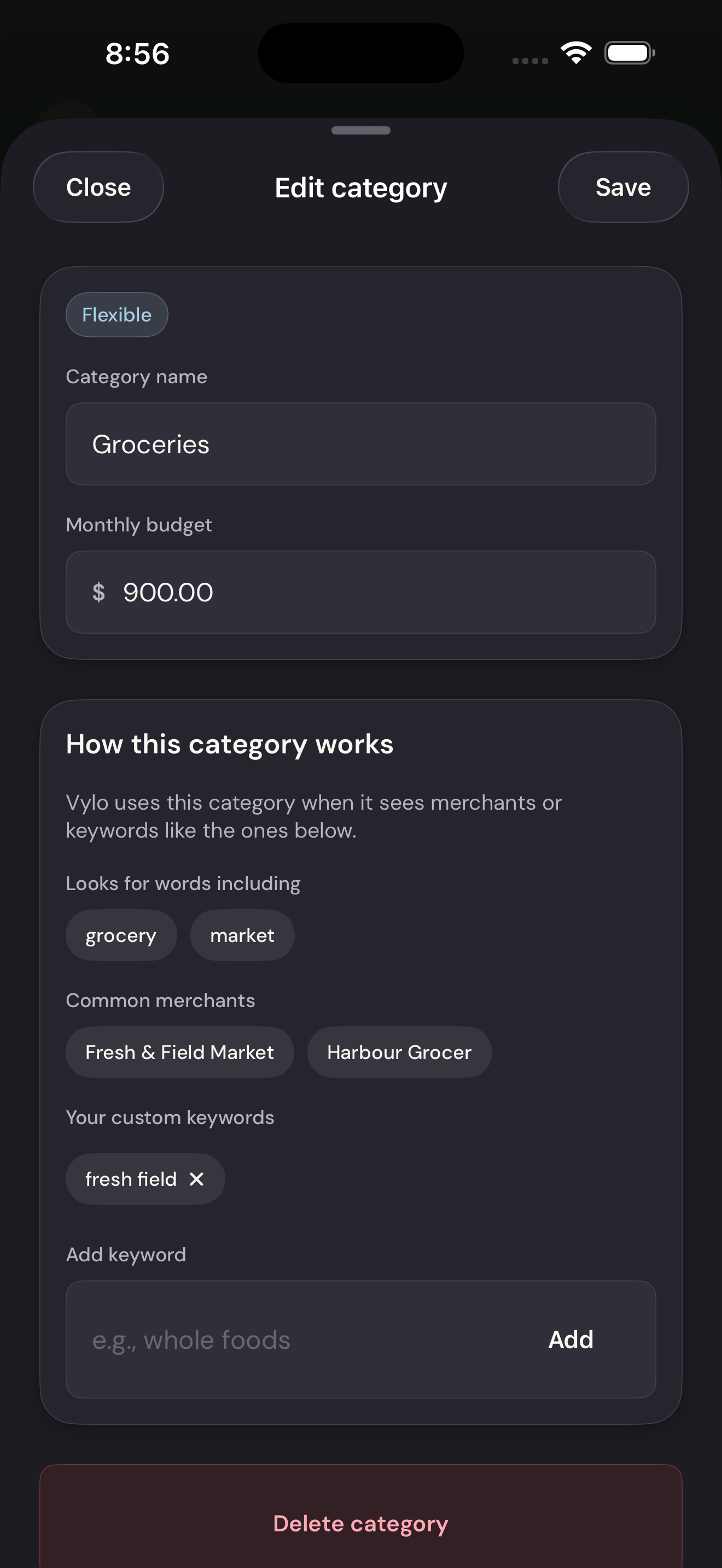
Open Delete categoryTap to enlarge Choose a destination and confirm
Move the transactions to Uncategorized, or select another category. Tap Delete Category to remove the old category.
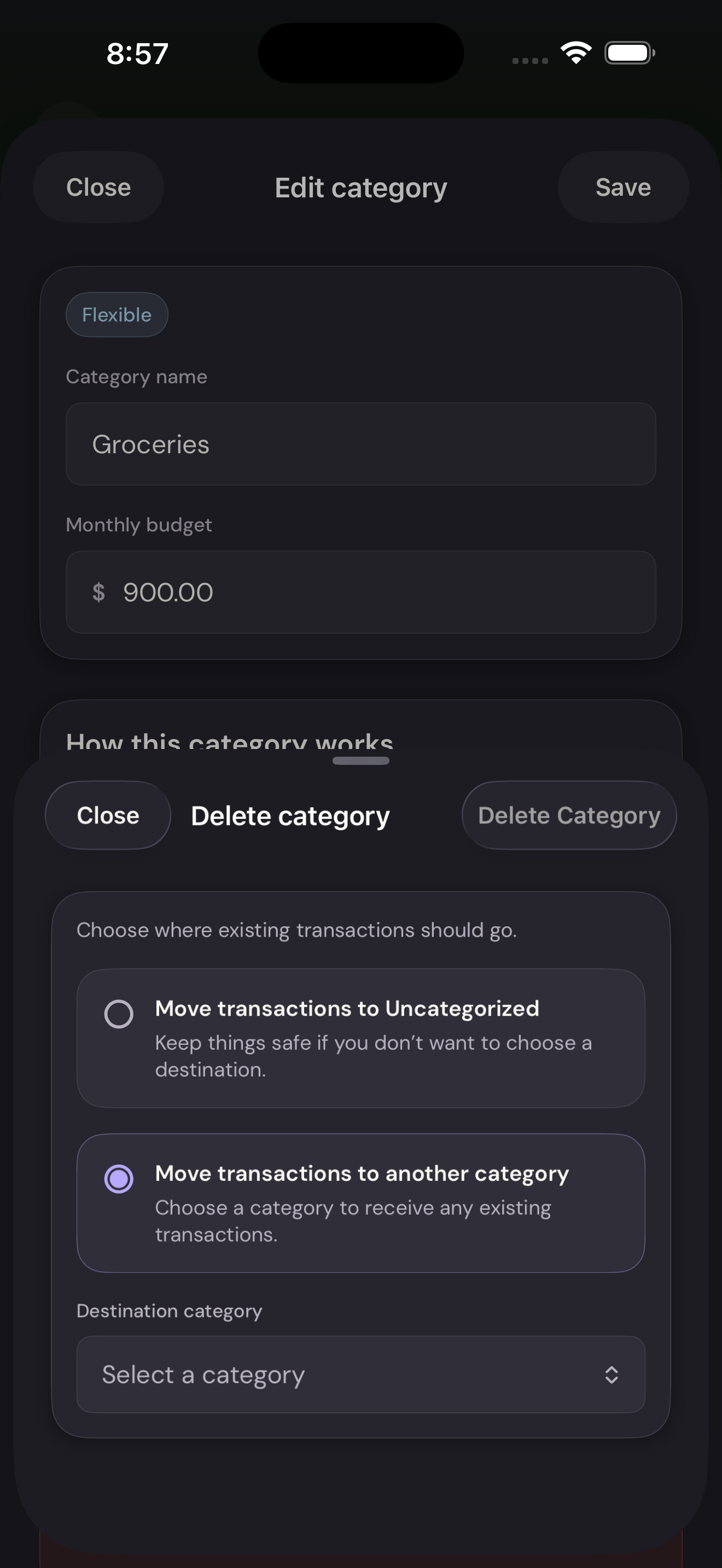
Choose a destination and confirmTap to enlarge