
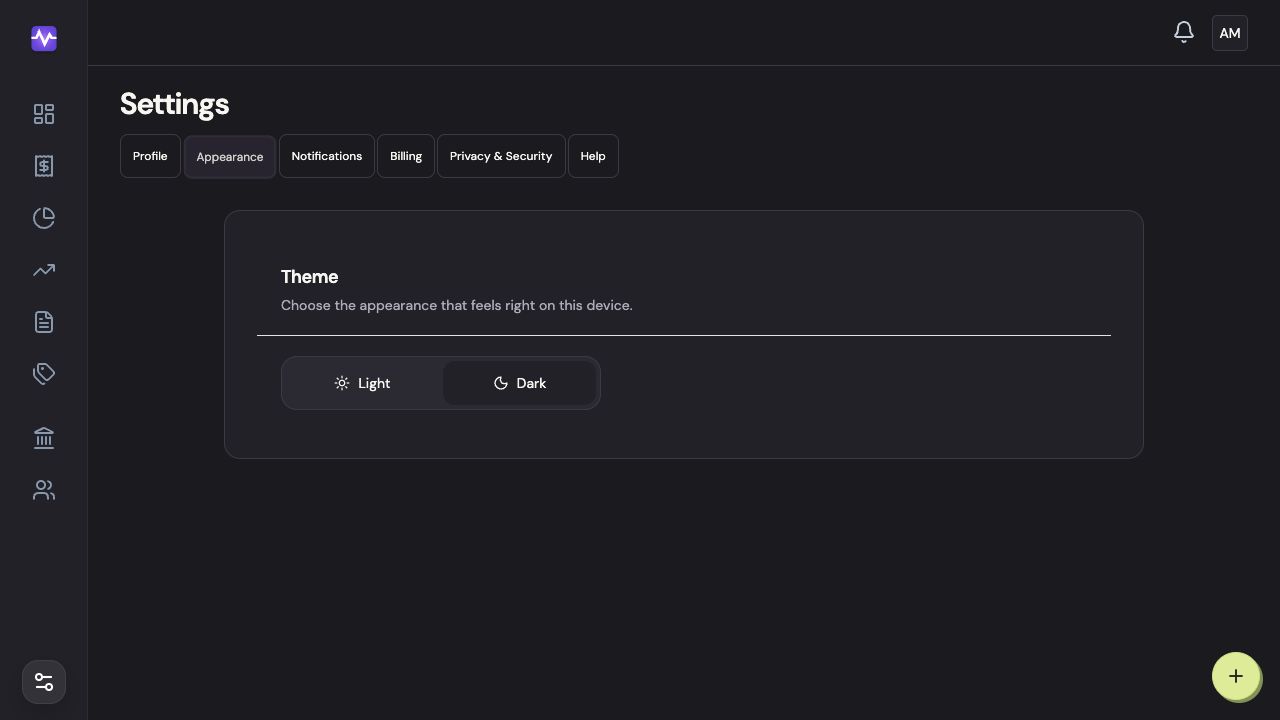
Change the theme in Settings → Appearance. This changes how Vylo looks, not your household’s data.
What does the eye button hide?
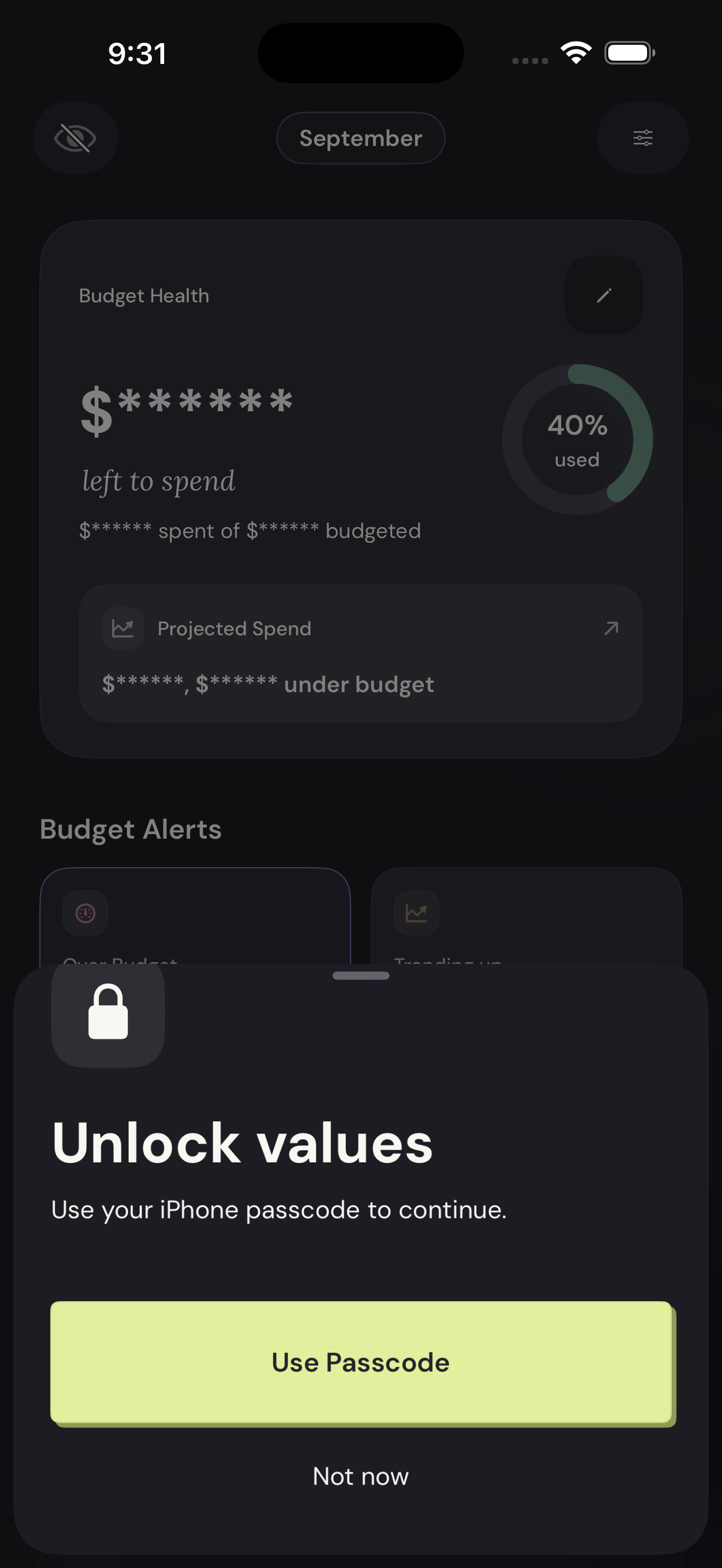
On iPhone, the eye button on supported main screens hides financial values on your display. Tap it again and complete Face ID or passcode verification to show them.
It doesn’t hide accounts from another household member or change their permissions. Read about household sharing.
On the web
On iPhone
Open Appearance
Tap the settings control at the top right of the app, then Appearance.
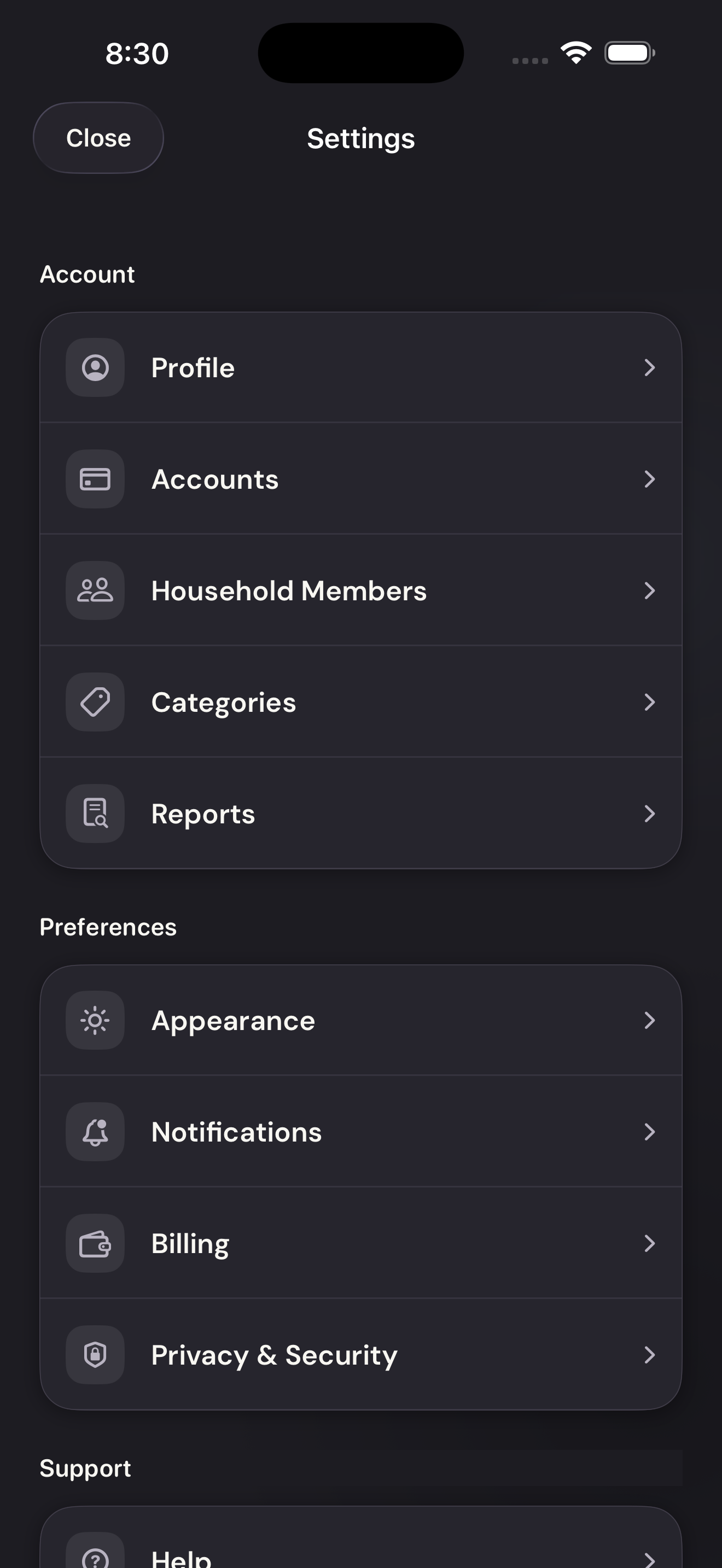
Open AppearanceTap to enlarge Choose the theme
Tap Light or Dark. The change applies on this iPhone.
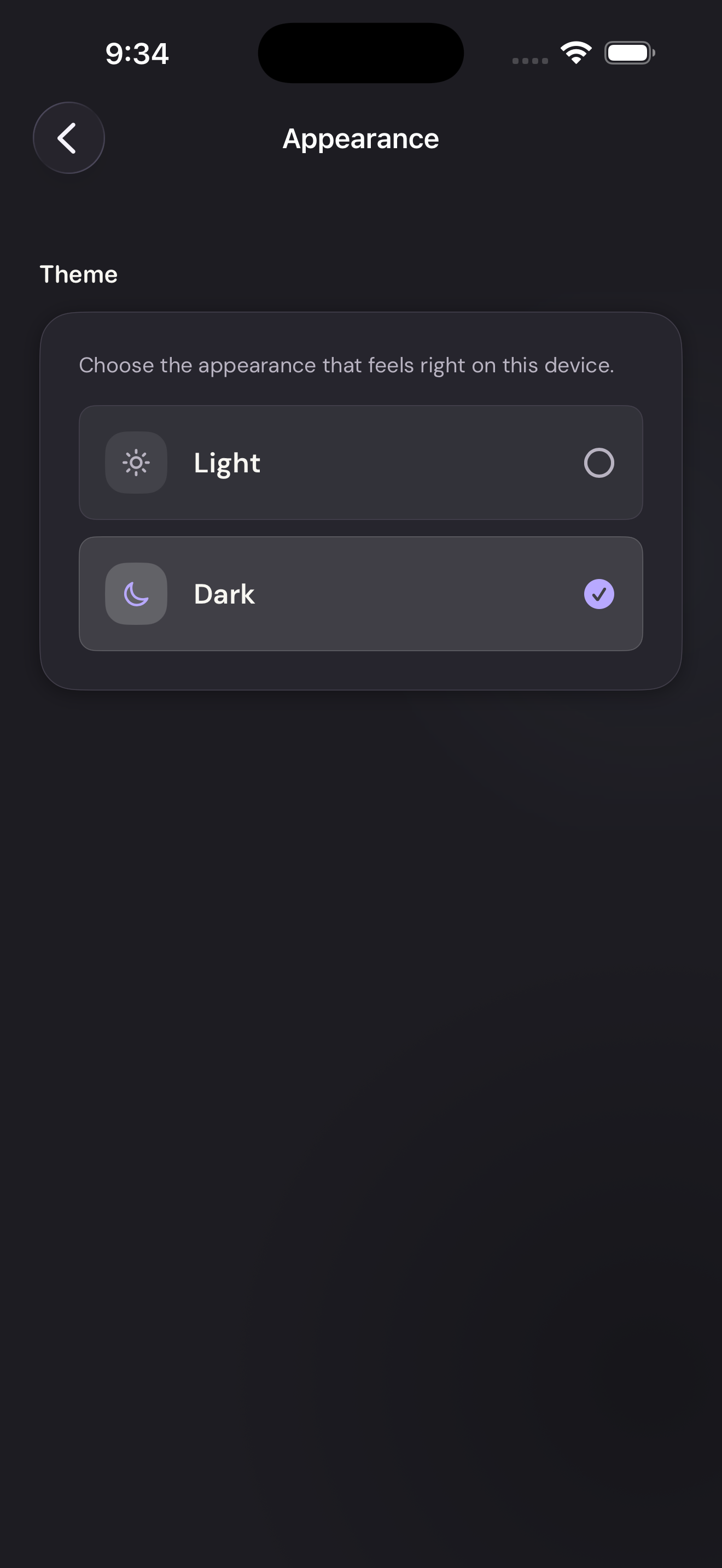
Choose the themeTap to enlarge Hide financial values
On a main screen, tap the eye at the top left. The amounts are hidden on this iPhone.
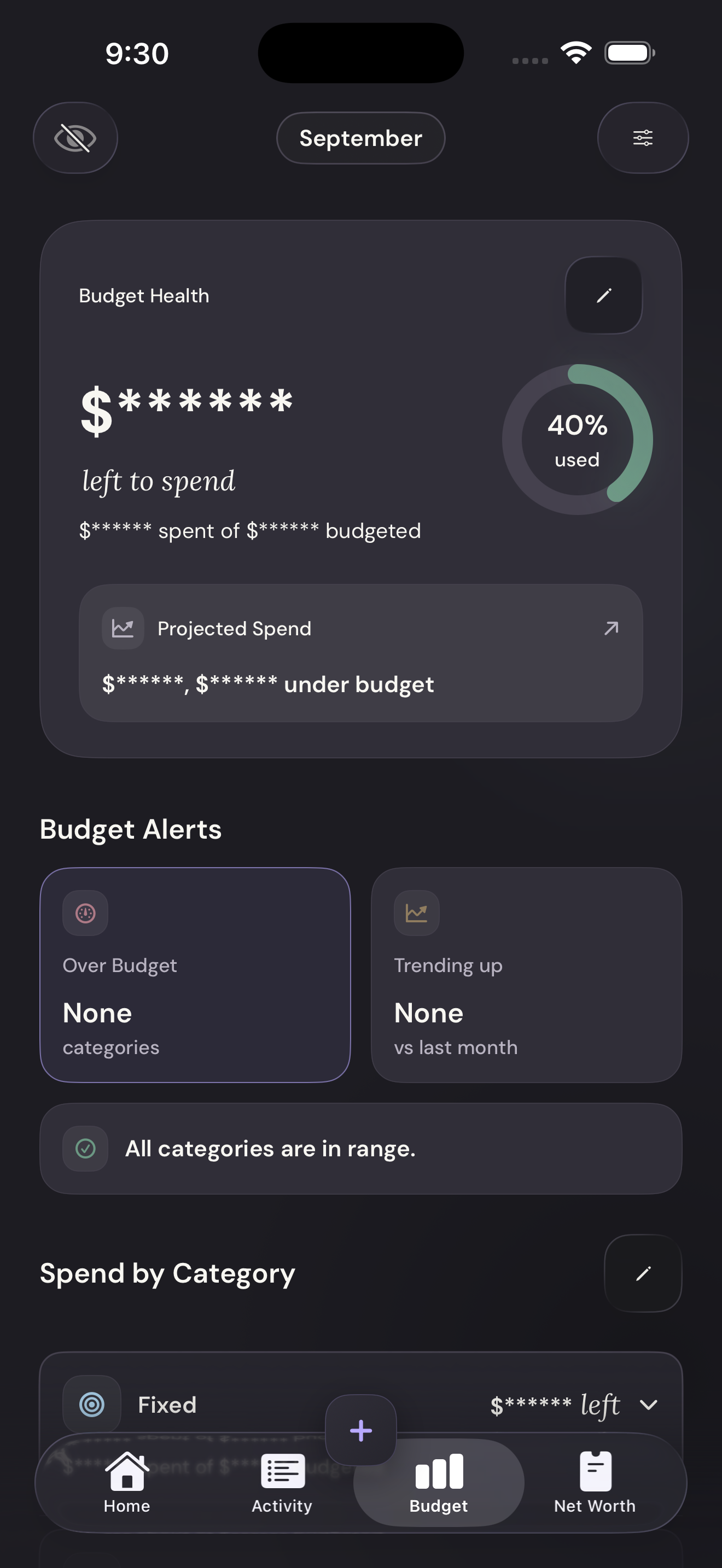
Hide financial valuesTap to enlarge Show the values again
Tap the eye again and complete device authentication. Depending on your iPhone, Vylo offers Face ID or your passcode.
Show the values againTap to enlarge