First check that you’re signed into the Vylo account and household that should have access. A different email address or an unaccepted household invitation can make a subscription appear missing.
Restoring an Apple purchase
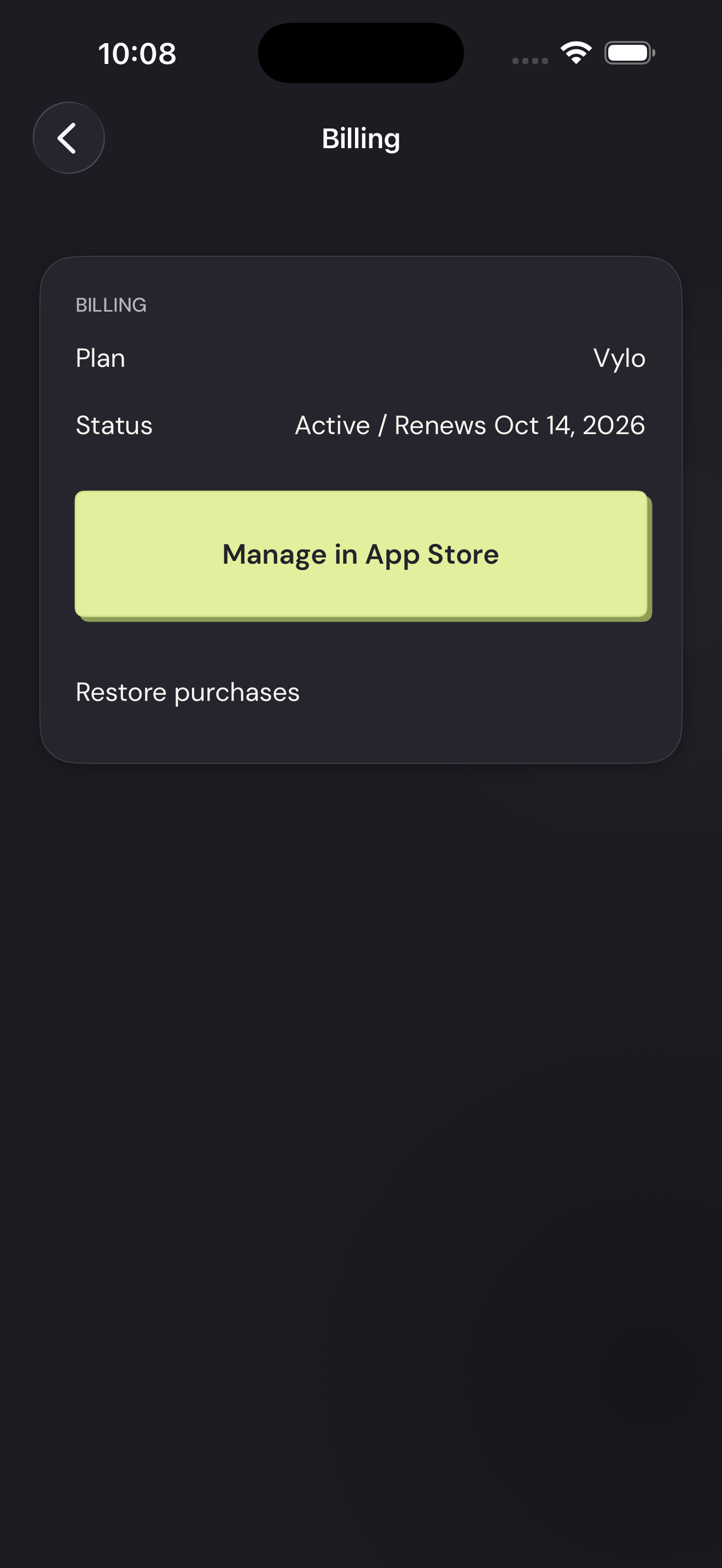
Use Restore Purchases in Vylo while signed into the Apple Account that made the purchase. Restoring checks the existing purchase; it doesn’t mean you need to buy another subscription.
If Apple shows an active Vylo subscription but access still isn’t restored, email us with the receipt reference and your Vylo account email.
Restoring a web subscription
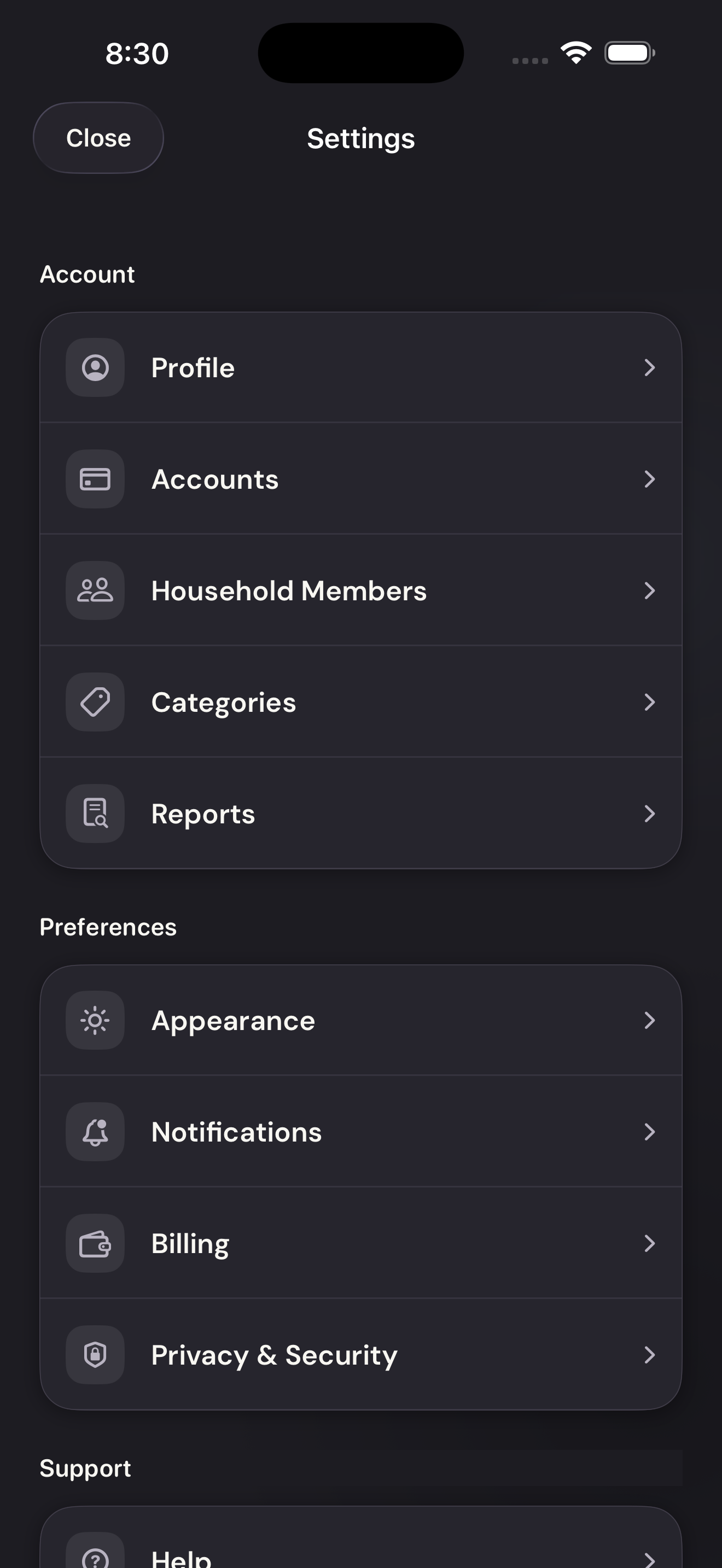
Check Settings → Billing. An active plan should already provide access. An ending or inactive plan may offer a resume or restart option; confirm the price and renewal terms before continuing.
On the web
Restore purchases is an iPhone action for App Store subscriptions. For a web payment that is missing from Billing, email hi@myvylo.com with the account email and payment date.