
A keyword helps Vylo recognize text in a merchant name or transaction description. Choose something distinctive, such as a particular shop’s name. A broad word can match unrelated purchases.
What can I edit?
Categories that support custom keywords show Your custom keywords and an Add keyword field. You can add a word or remove one of your own. Built-in matches may be shown for reference without an edit control.
Custom keywords work alongside automatic matching. They don’t replace every other rule. For one merchant that always belongs in the same category, Remember merchant is usually simpler.
Do rule changes fix old transactions?
Rule changes affect future sorting. Review existing transactions separately if you need to correct them.
Where Restore original rules is available, it returns the category to its starting rules. Check the confirmation before discarding changes you want to keep.
On the web
Open Categories
Choose Categories in the left navigation.
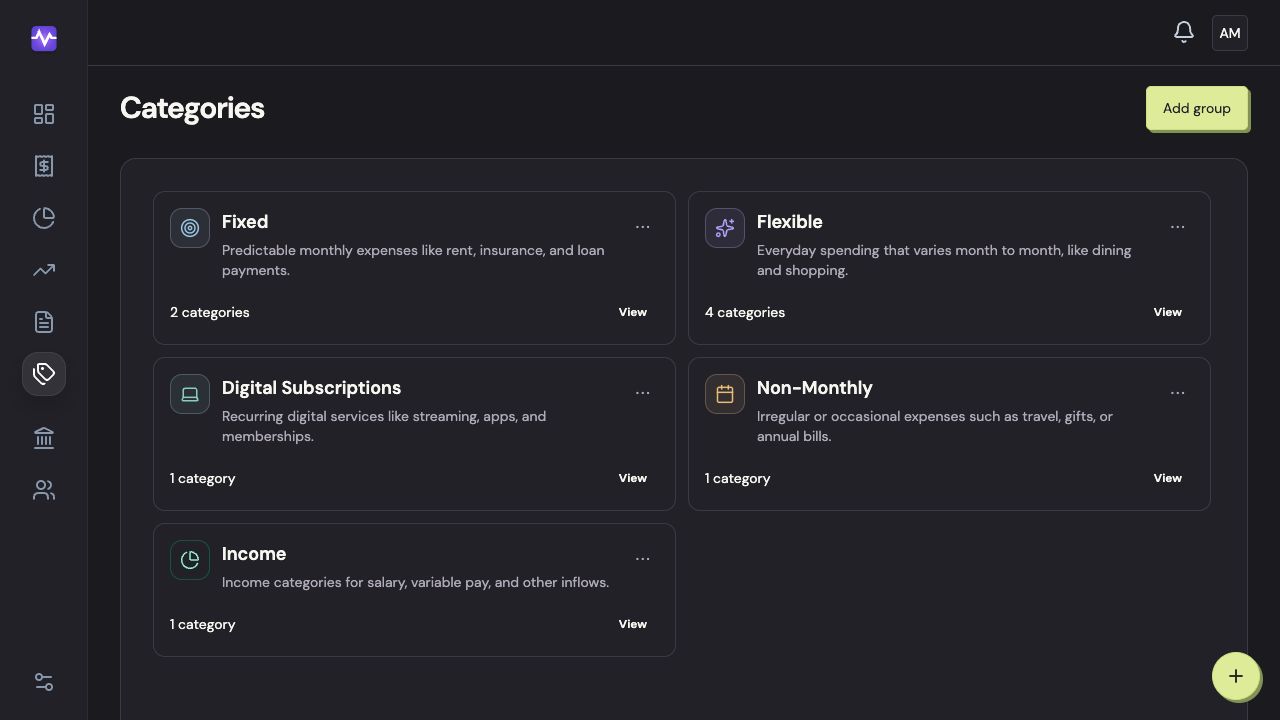
Open CategoriesTap to enlarge Open the group
Click View on the group containing the category. This example uses Flexible.
Open the groupTap to enlarge View the category’s rules
Click View in the Rules column on the category’s row.
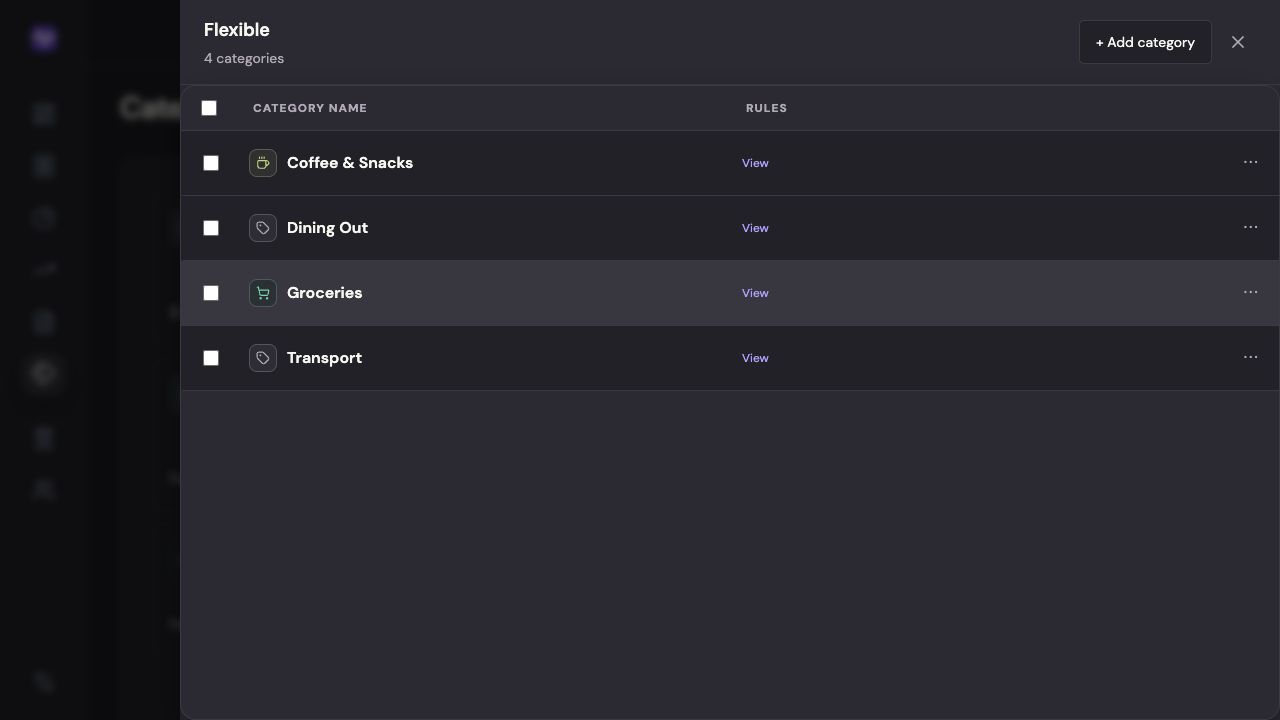
View the category’s rulesTap to enlarge Add a useful keyword
Under custom keywords, enter a distinctive word that appears in the bank description. Click Add.
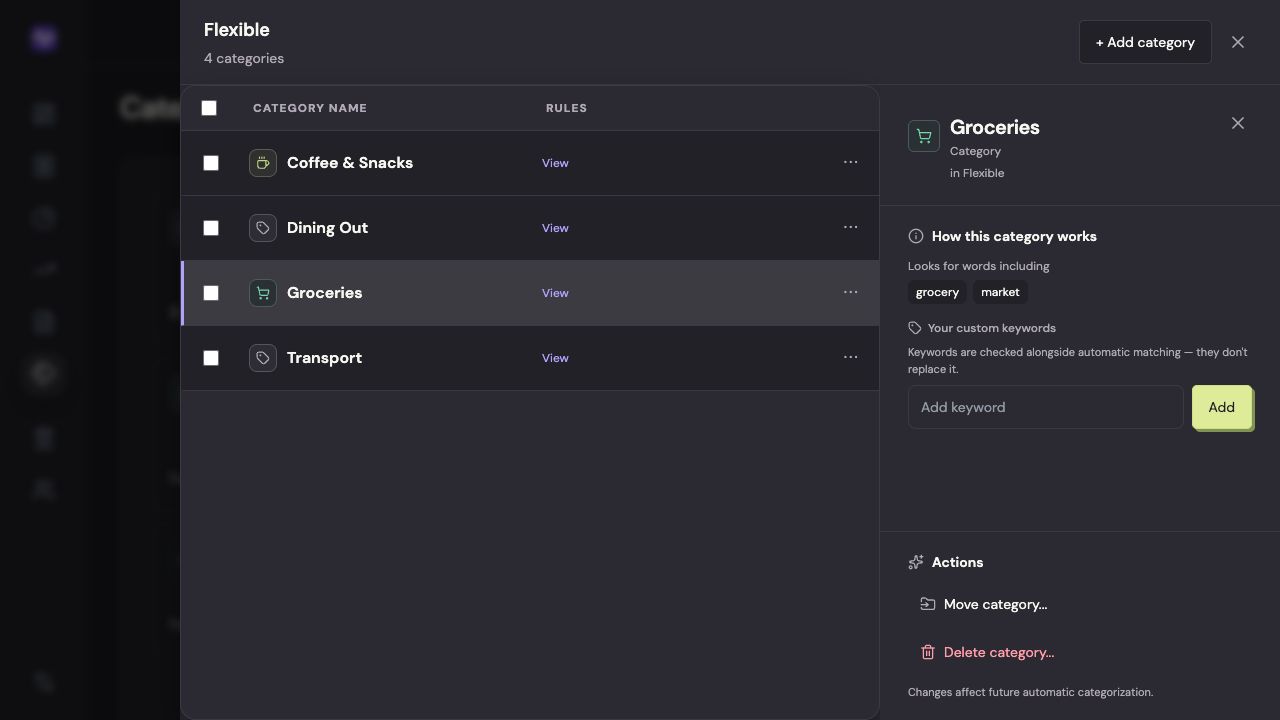
Add a useful keywordTap to enlarge
On iPhone
Open Categories
Tap the settings control at the top right of the app, then Categories.
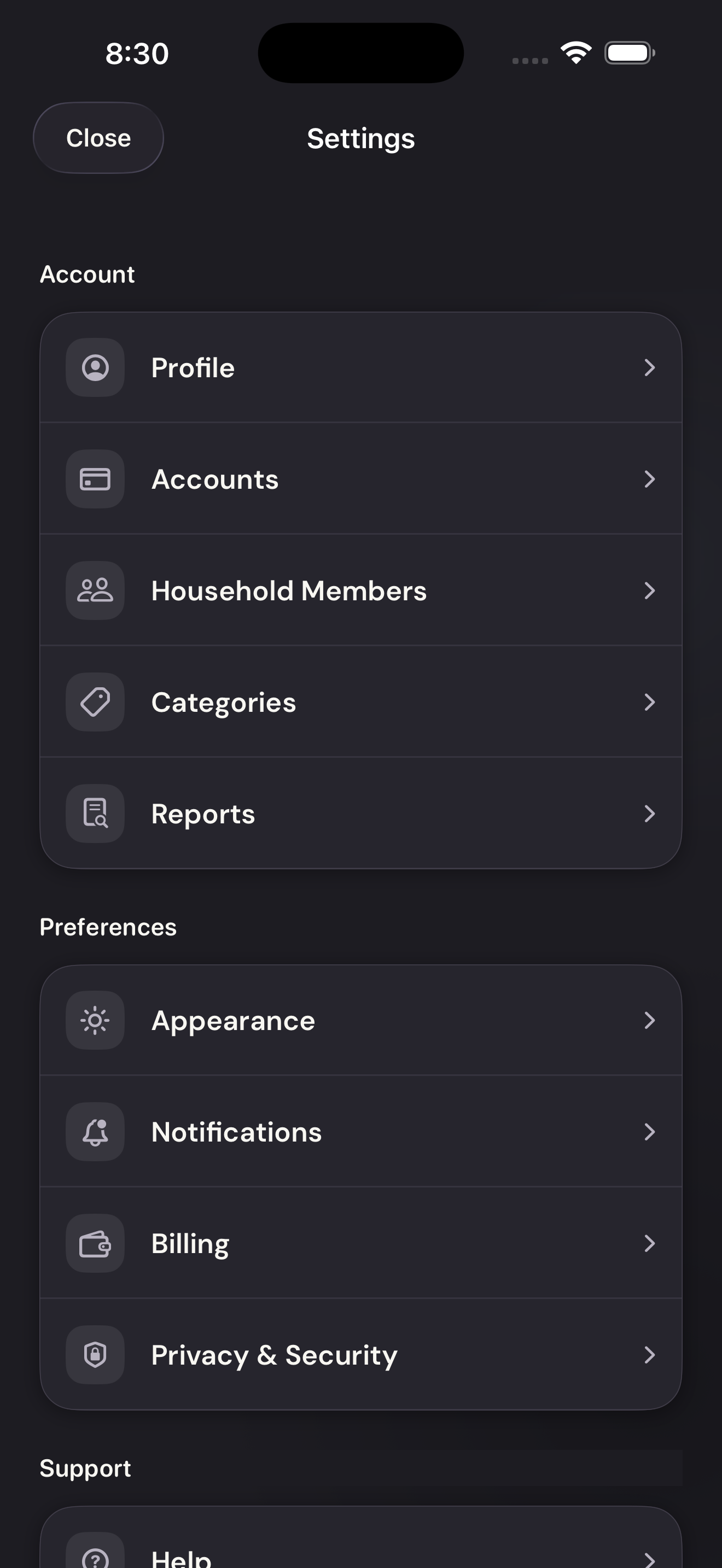
Open CategoriesTap to enlarge Open the category
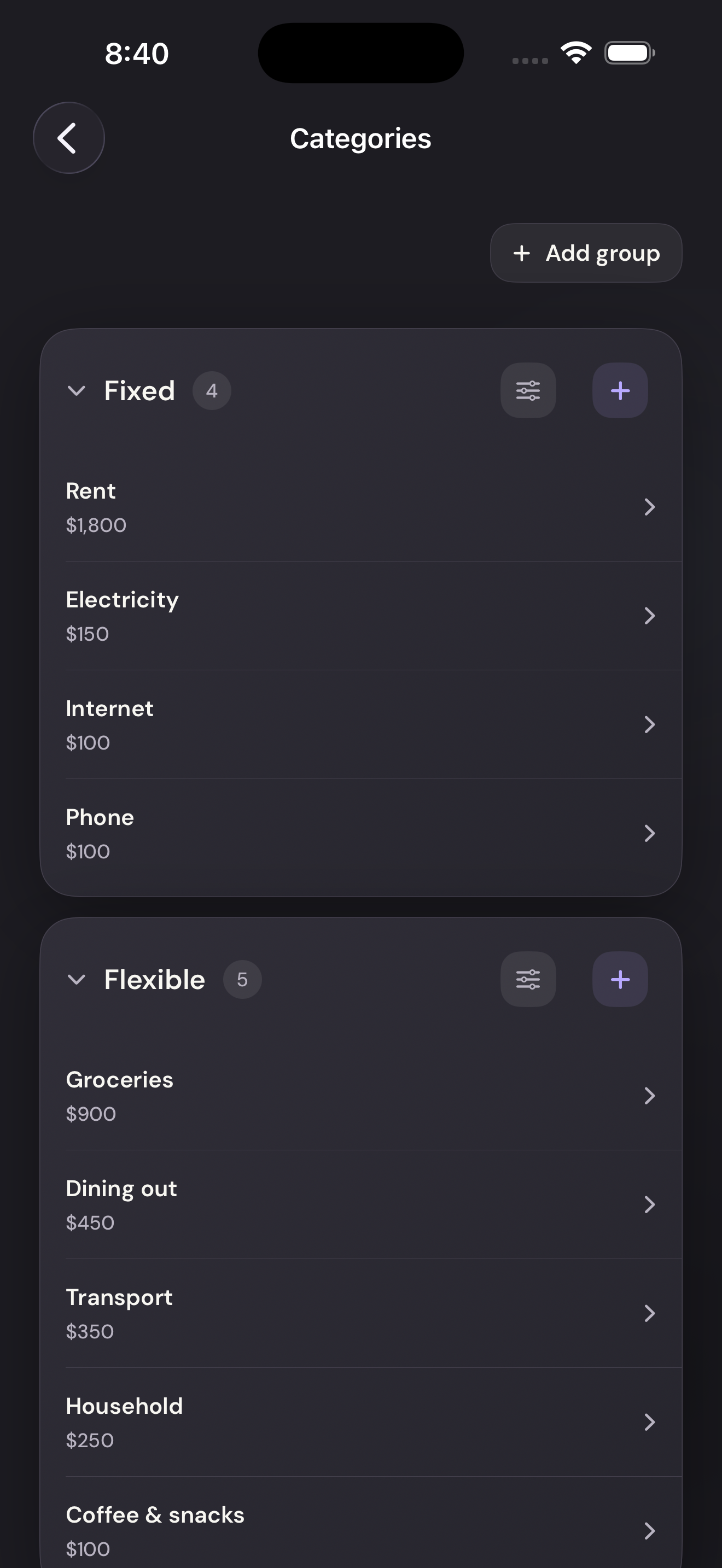
Tap the category name. Expand its group first if the list is collapsed.
Open the categoryTap to enlarge Look at the existing rules
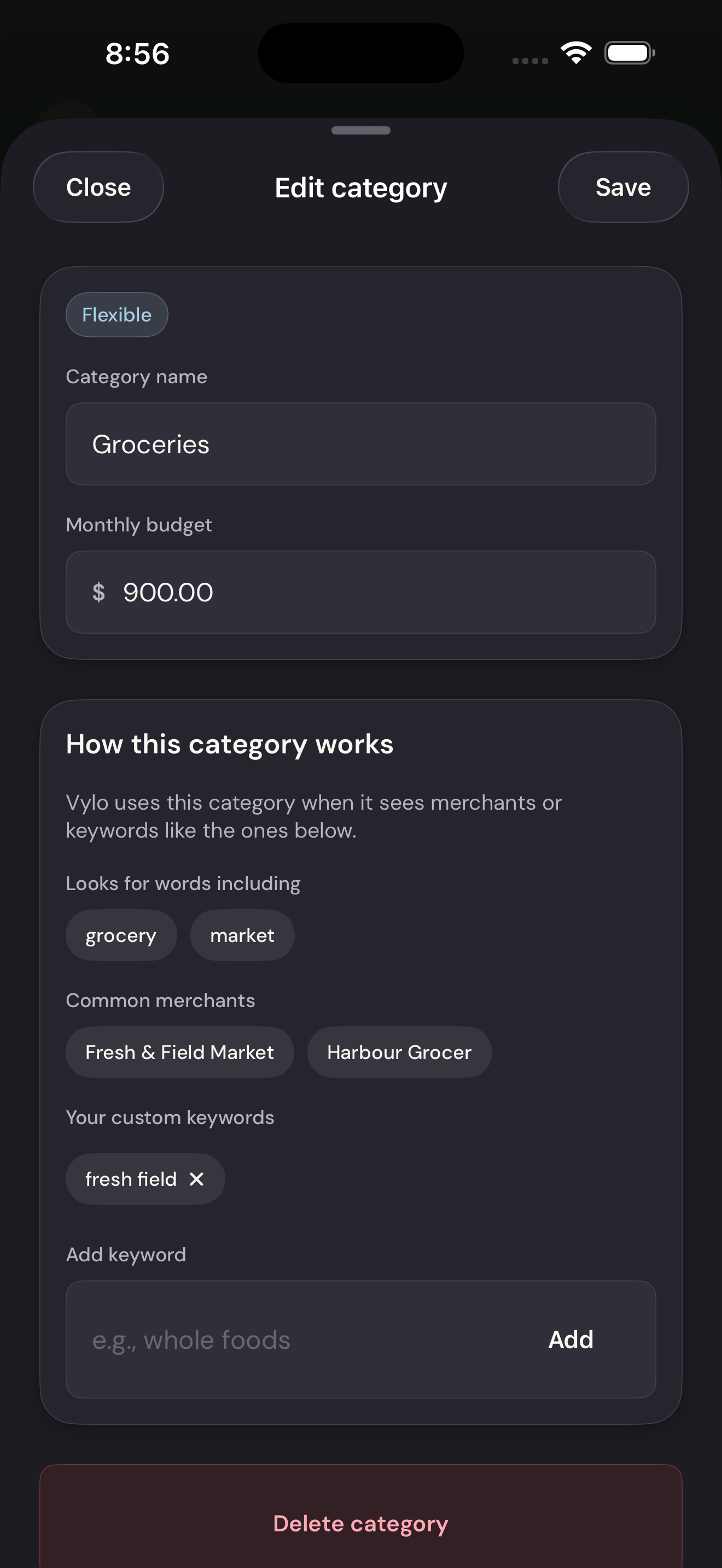
Scroll down in the category editor to How this category works. The merchant examples and keywords explain what Vylo recognizes.
Look at the existing rulesTap to enlarge Add your keyword
Under Your custom keywords, enter a word or phrase and tap Add. Tap Save to finish editing.
Add your keywordTap to enlarge