
A monthly report summarizes spending, leading categories, and changes during a completed month. When a budget exists, it can compare spending with that plan too.
A report-ready notification is a shortcut. You can return to Reports later even if you dismissed it.
Why isn’t a month available?
A new household may not have an eligible report yet, and the current month isn’t complete. Reports also depend on the transaction history available to Vylo and completed processing.
If an expected past month is still missing after imports finish, email hi@myvylo.com with the month.
Can I check the purchases behind a number?
Yes. Use the report’s category and transaction details to see what contributed to it. Reviewing uncategorized purchases makes the breakdown more useful.
On the web
Open Reports
Choose Reports in the navigation.
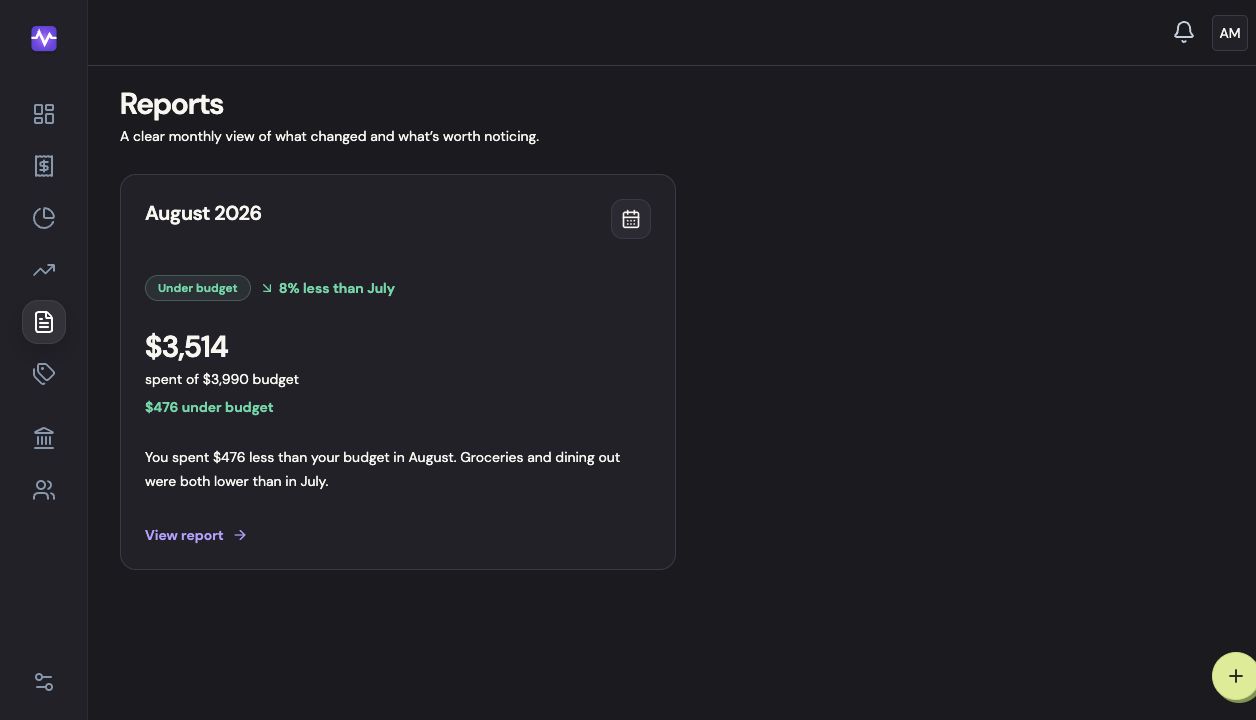
Open ReportsTap to enlarge Choose a month
Click a month’s report card.
Choose a monthTap to enlarge Follow up on the numbers
Use View all transactions to check the purchases behind the report, or Edit budget to adjust your plan.
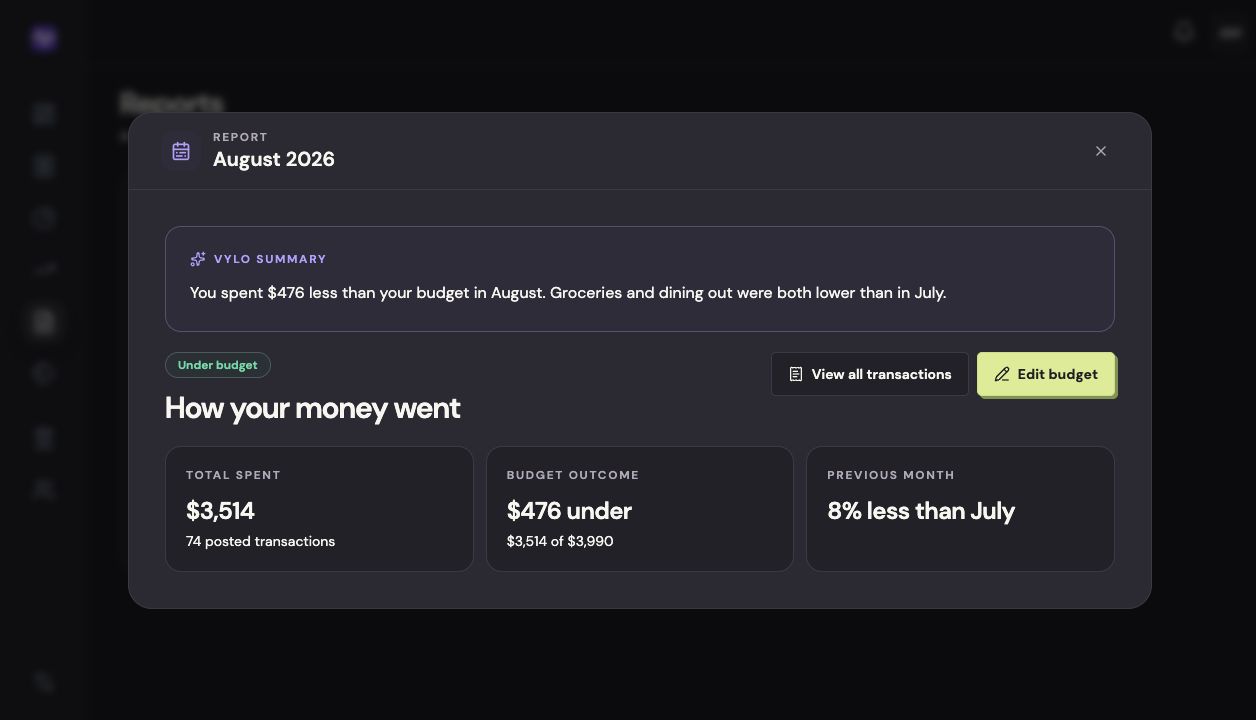
Follow up on the numbersTap to enlarge
On iPhone
Open Reports
Tap the settings control at the top right of the app, then Reports.
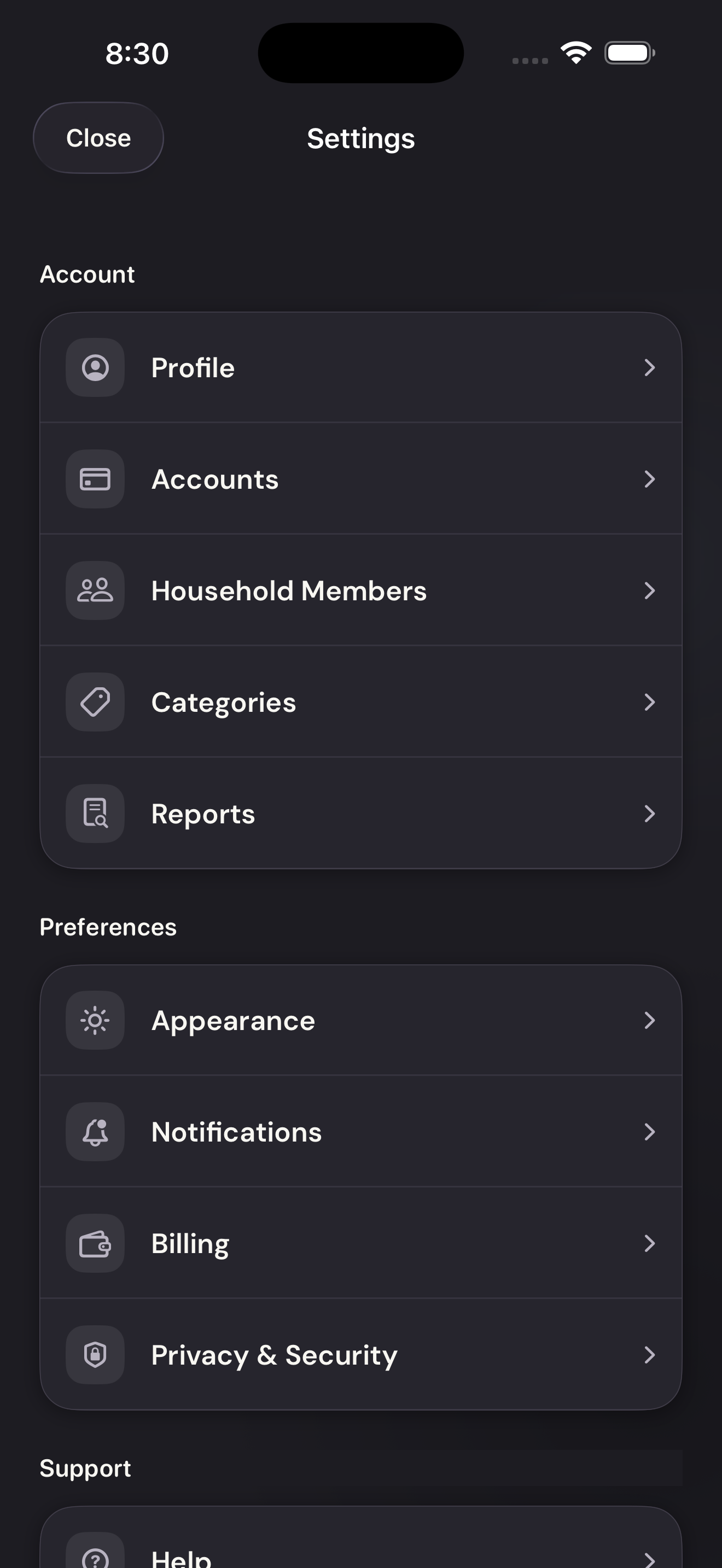
Open ReportsTap to enlarge Choose the month
Tap a month’s card to open the report.
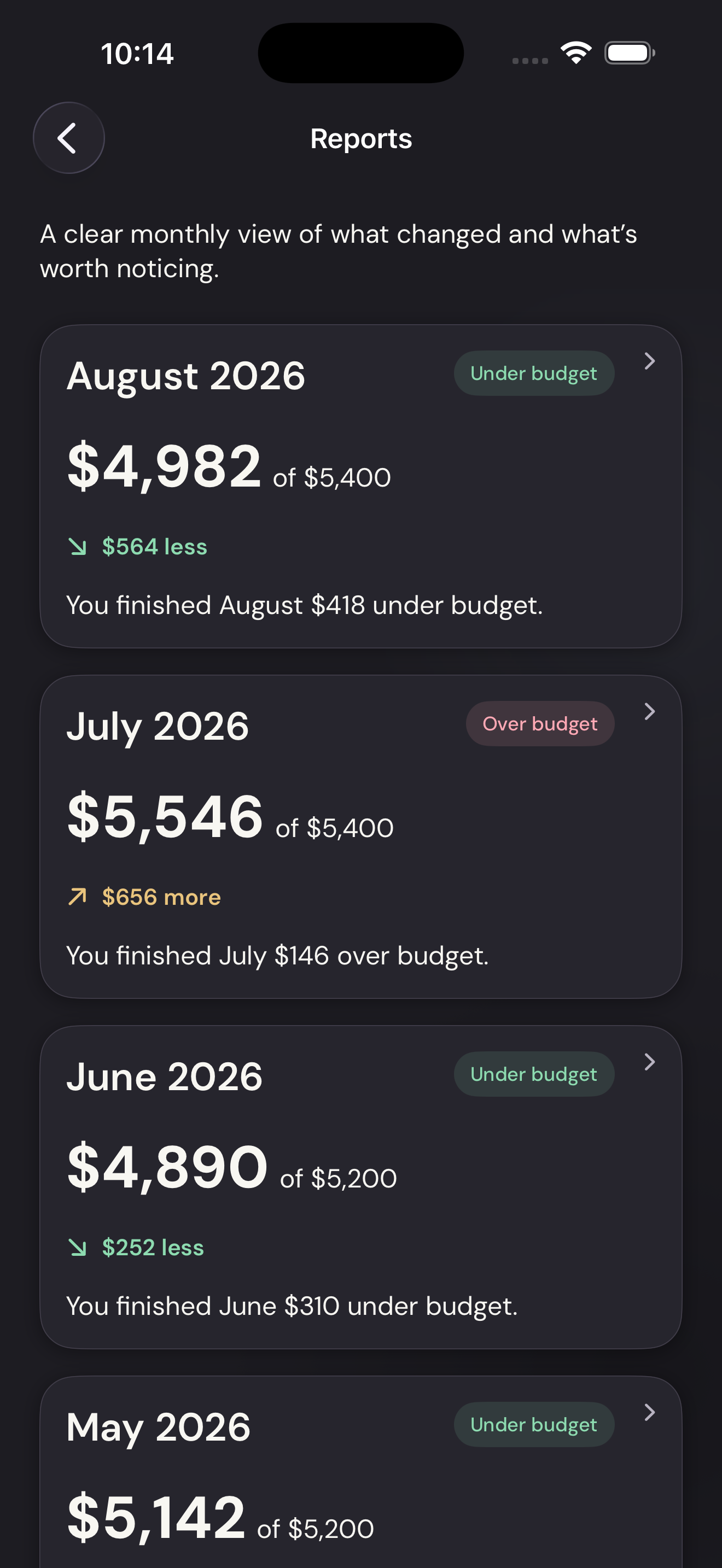
Choose the monthTap to enlarge Check purchases or adjust the budget
Use View all transactions to inspect the purchases, or Edit budget to change the amounts.
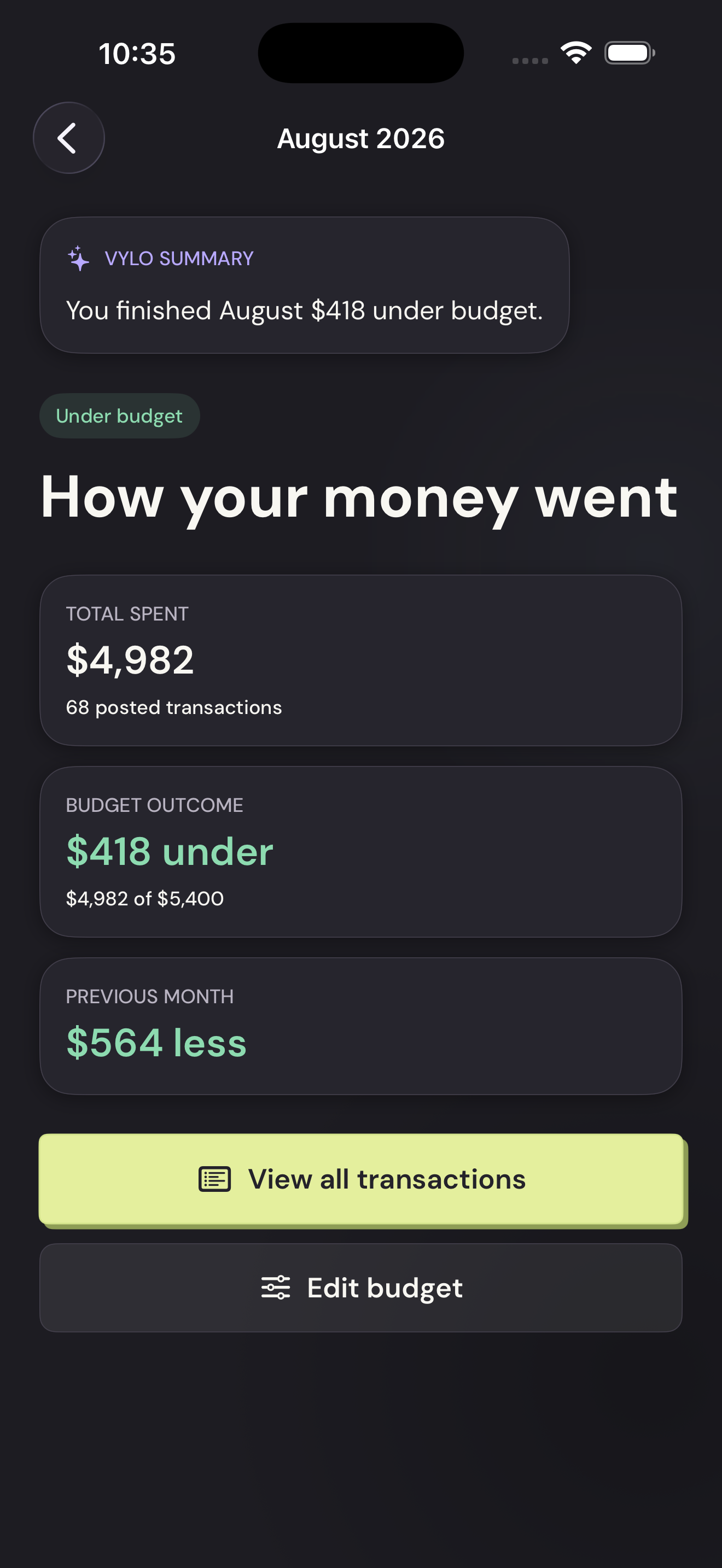
Check purchases or adjust the budgetTap to enlarge