
Choose Start from scratch when you already know your planned amounts, or when past spending isn’t a useful guide to the next month.
Include regular bills and everyday spending. Check the total against the income you expect before applying the budget.
If a category is missing, add it in Categories and return to budget setup. You can edit the plan later as your needs change.
On the web
Open budget setup
Choose Spend in the navigation, then Add Budget. Once a budget exists, this section is called Budgets.
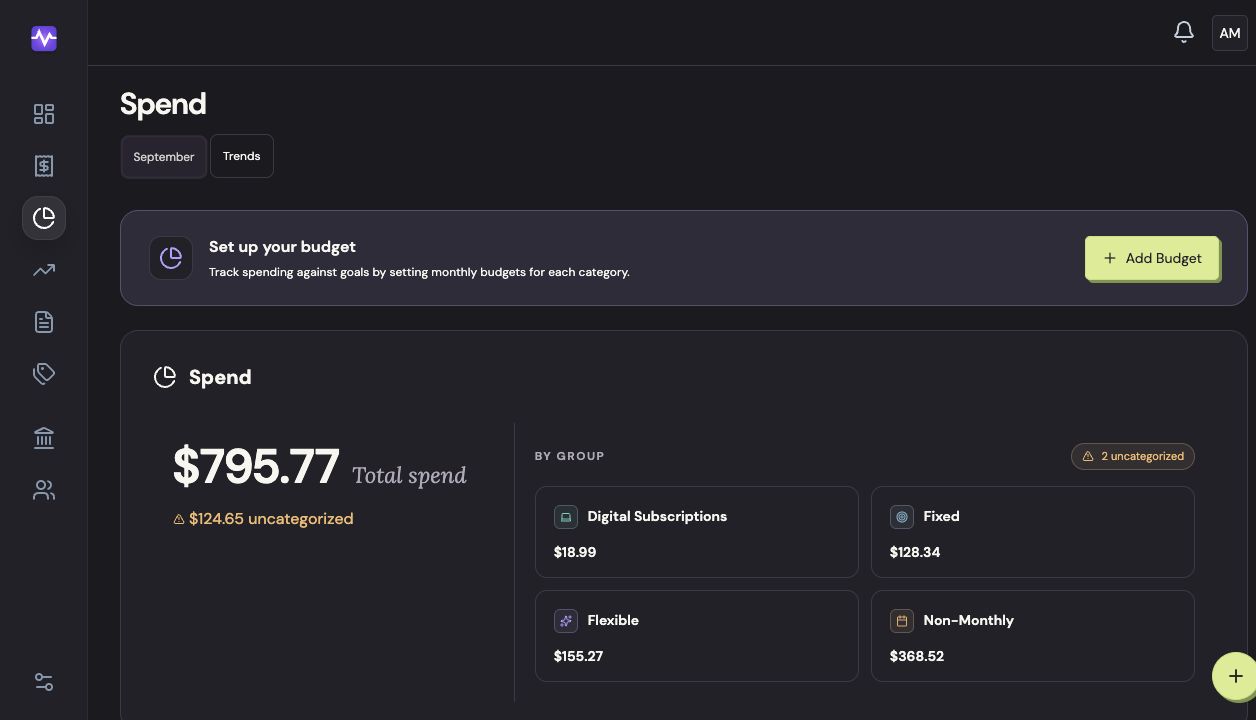
Open budget setupTap to enlarge Start with your own amounts
Choose Start from scratch.
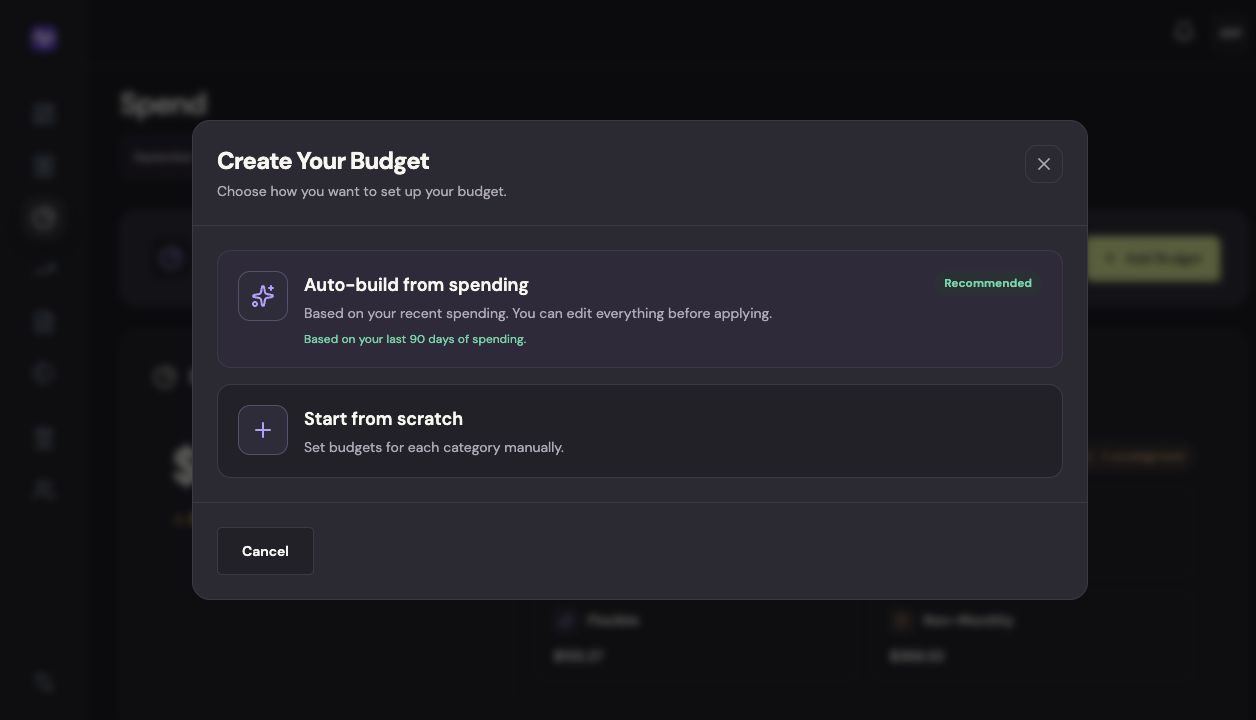
Start with your own amountsTap to enlarge Set category amounts
Enter the monthly amount beside each category. Leave categories at zero if you don’t want to budget for them.
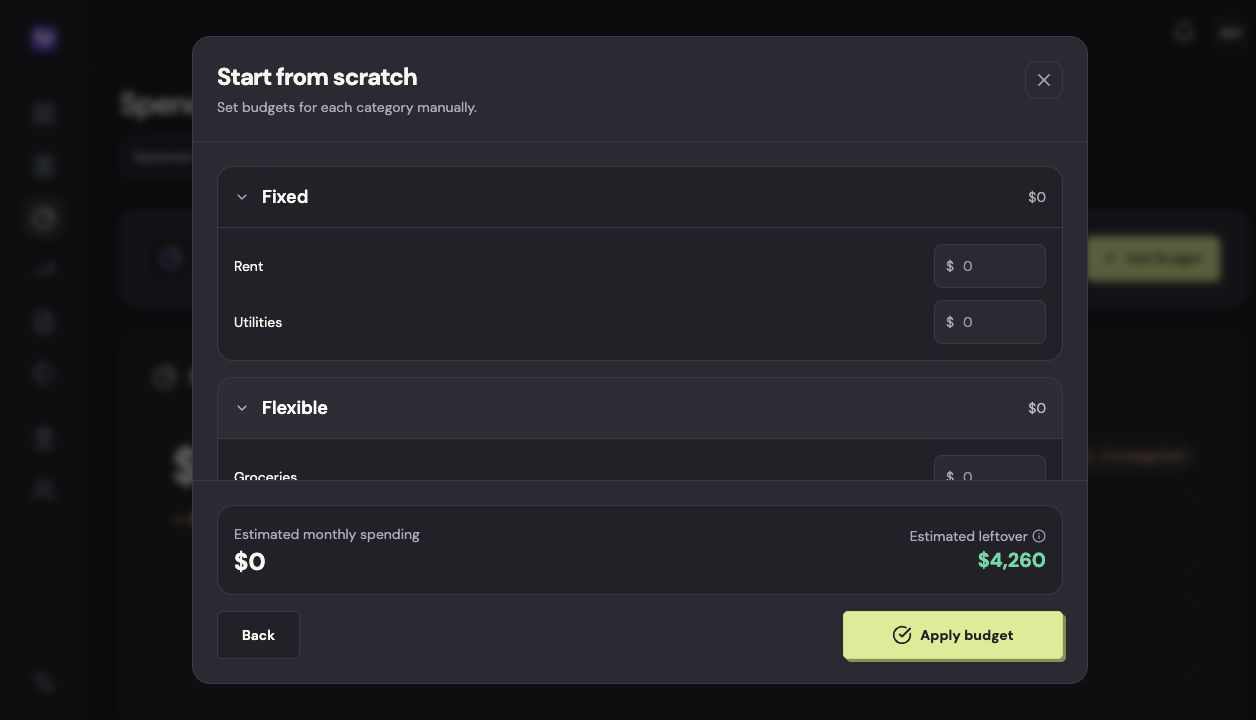
Set category amountsTap to enlarge Apply the budget
Check the total, then click Apply budget.
Apply the budgetTap to enlarge
On iPhone
Add a budget
Tap Spend in the bottom navigation, then Add Budget.
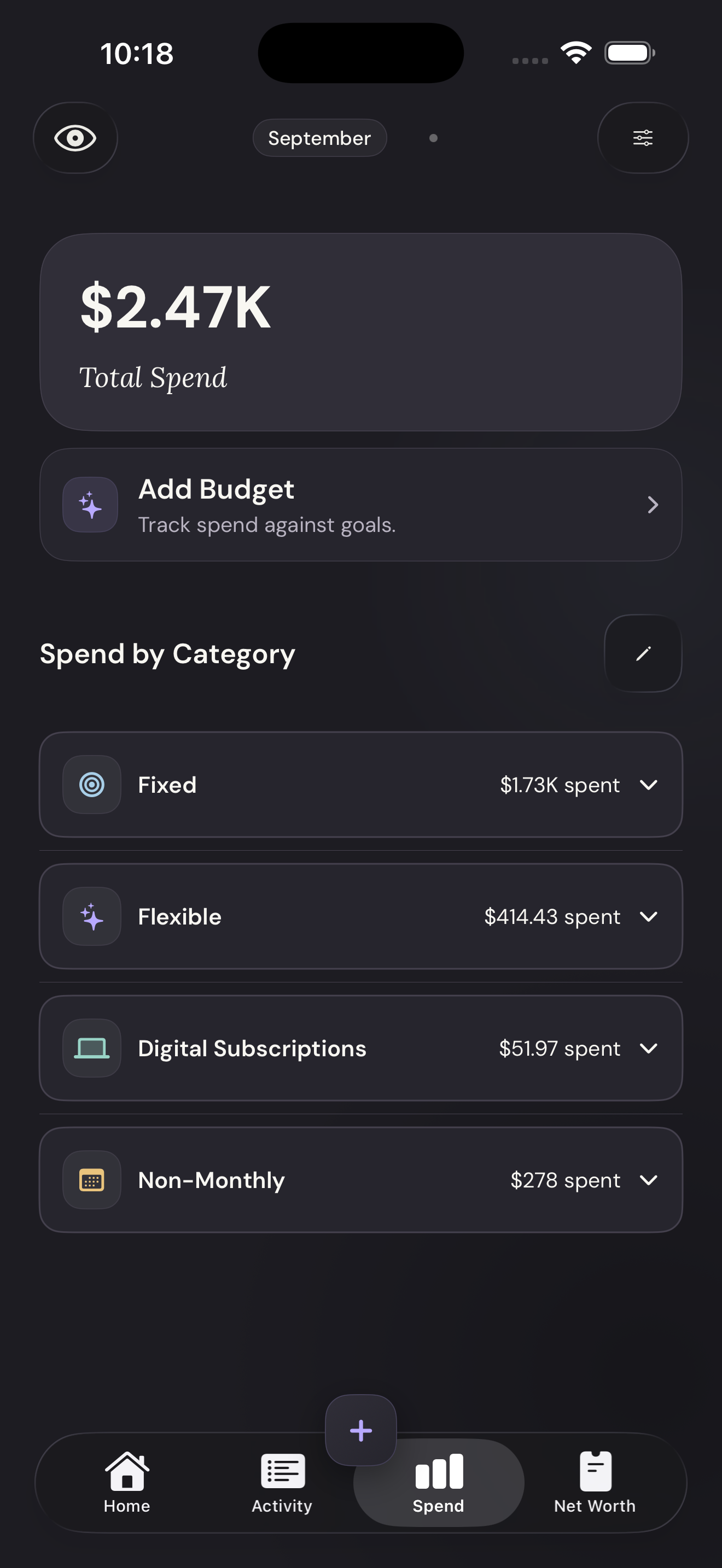
Add a budgetTap to enlarge Start from scratch
Choose Start from scratch.
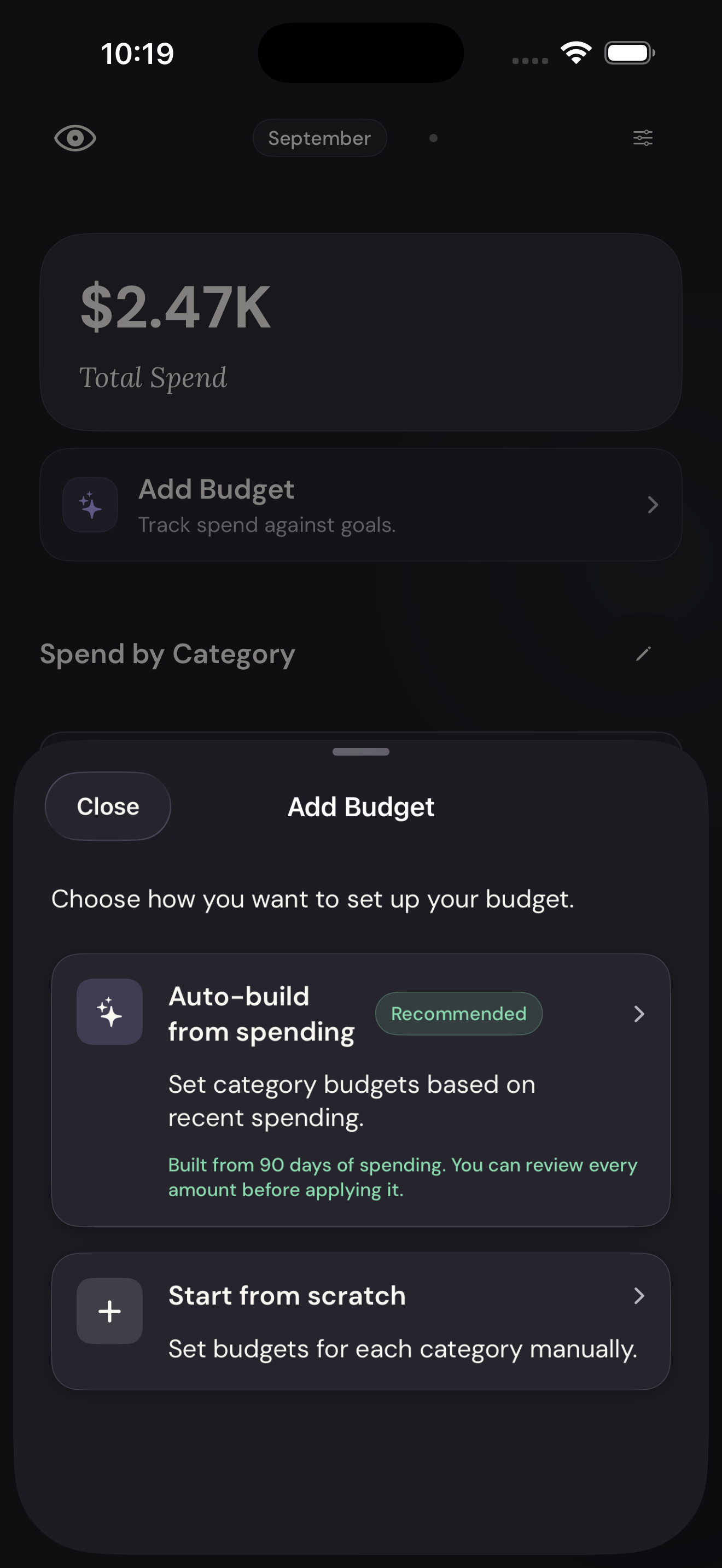
Start from scratchTap to enlarge Enter your amounts
Enter a monthly amount for each category. Scroll for all groups.
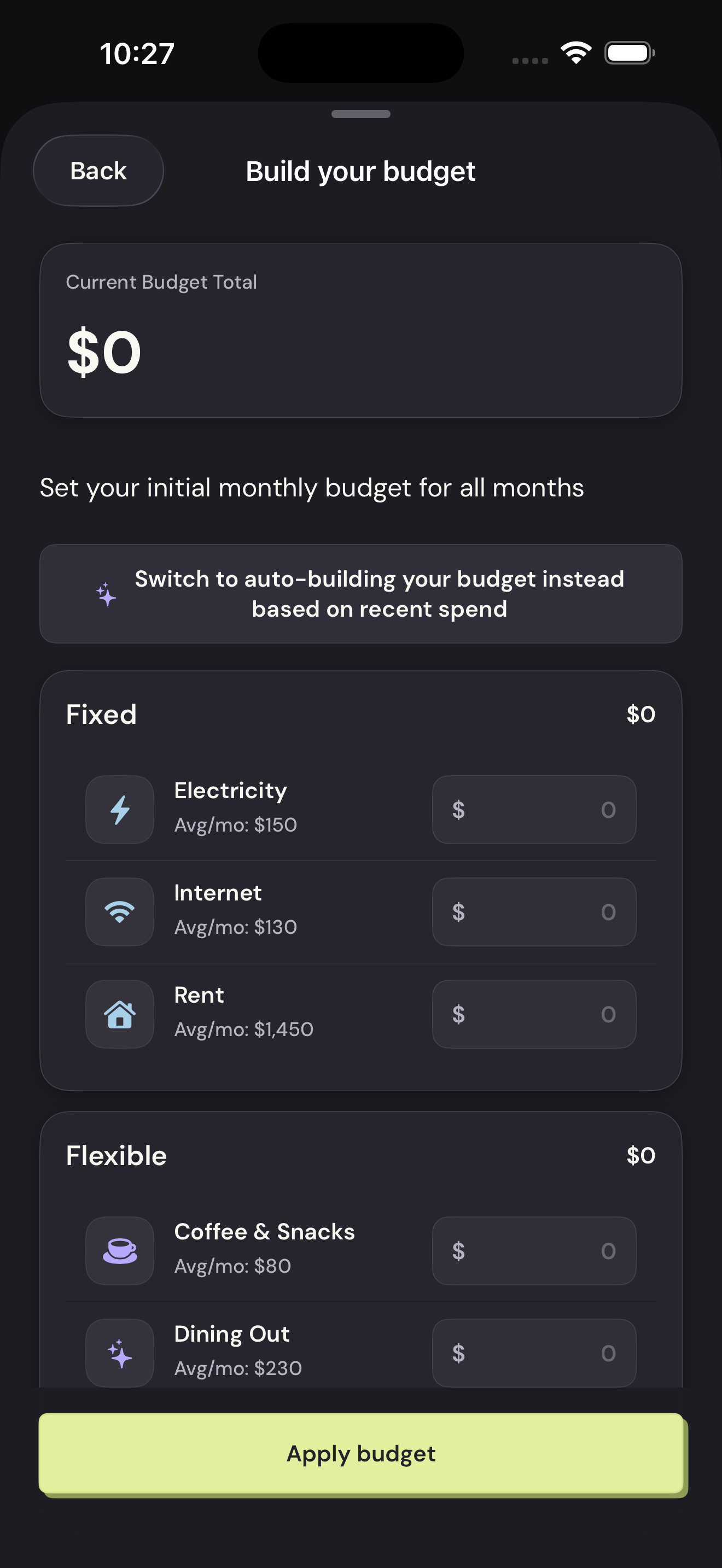
Enter your amountsTap to enlarge Apply the budget
Check the total, then tap Apply budget.
Apply the budgetTap to enlarge