
Renaming changes the label and keeps the category’s existing transactions. For example, you can rename Dining out to Restaurants & takeout without moving any purchases.
The name alone doesn’t change how future purchases are sorted. Use merchant choices or keywords for that.
On the web
Open Categories
Choose Categories in the left navigation.

Open CategoriesTap to enlarge Open the group
Click View on the group containing the category. This example uses Flexible.
Open the groupTap to enlarge Click the category name
Click Groceries, or the category you want to rename. The name becomes an editable field.
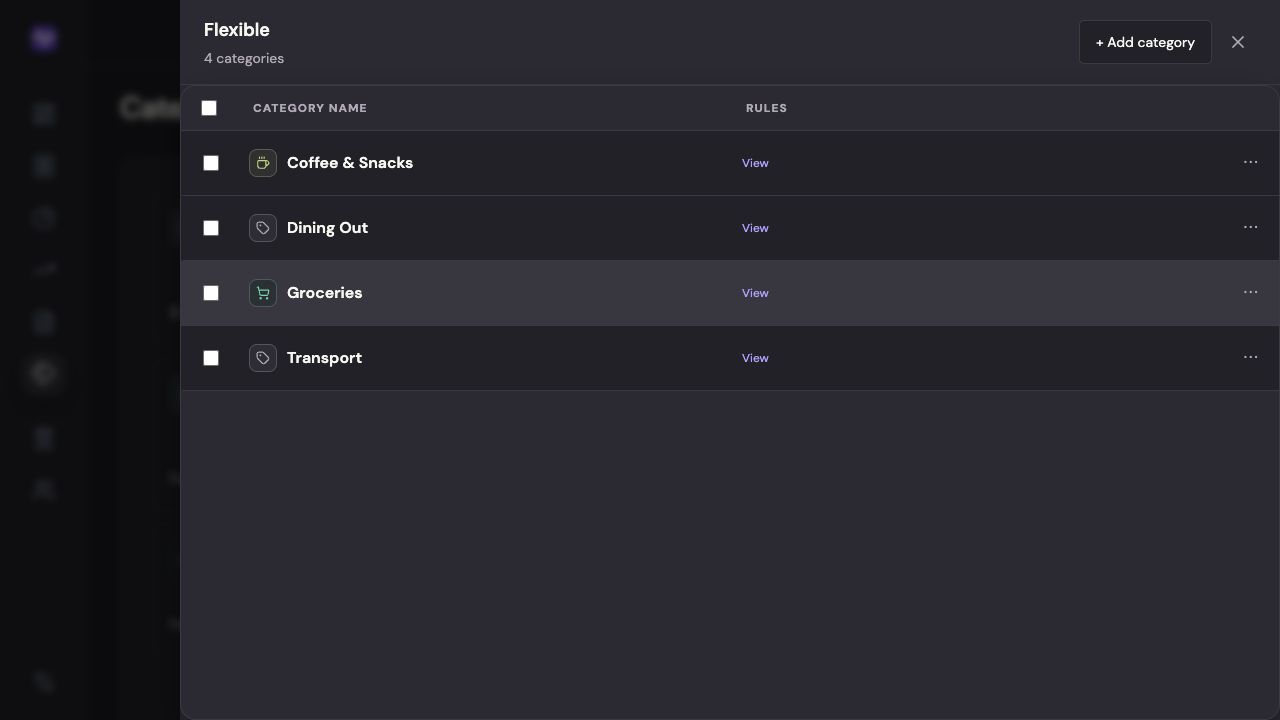
Click the category nameTap to enlarge Enter the new name
Replace the name and press Enter. Press Escape to leave it unchanged.
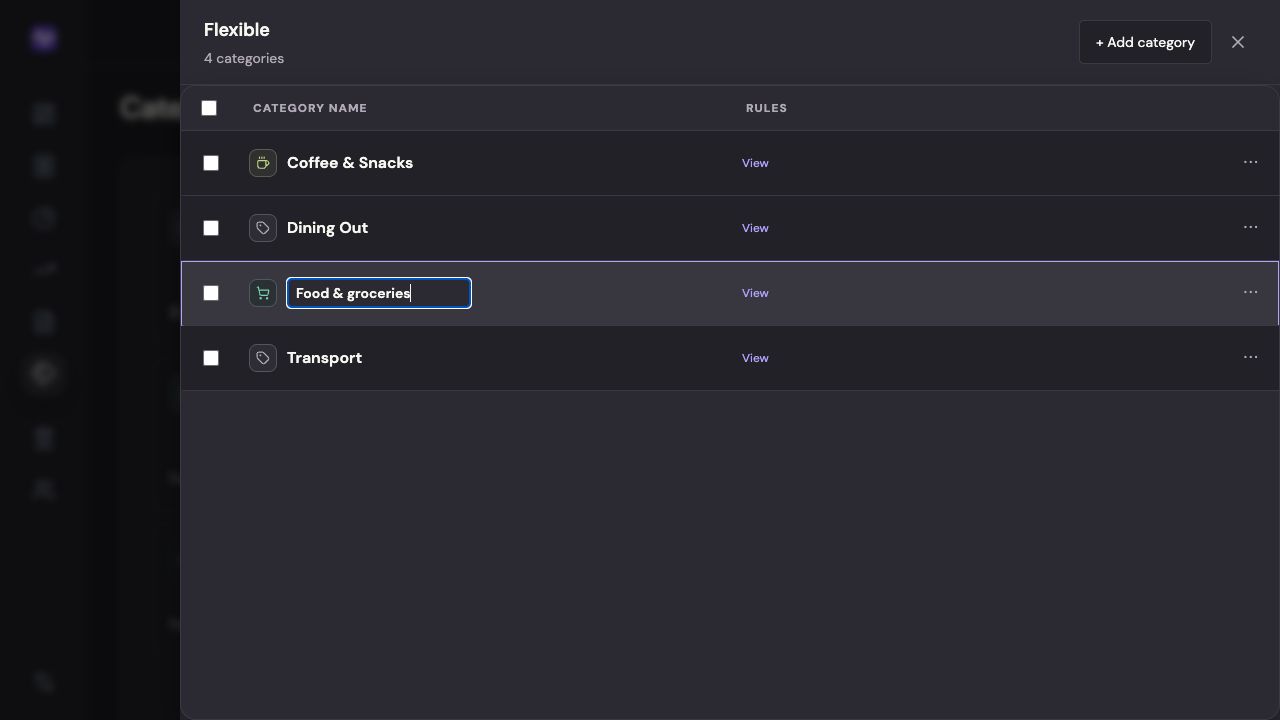
Enter the new nameTap to enlarge
On iPhone
Open Categories
Tap the settings control at the top right of the app, then Categories.
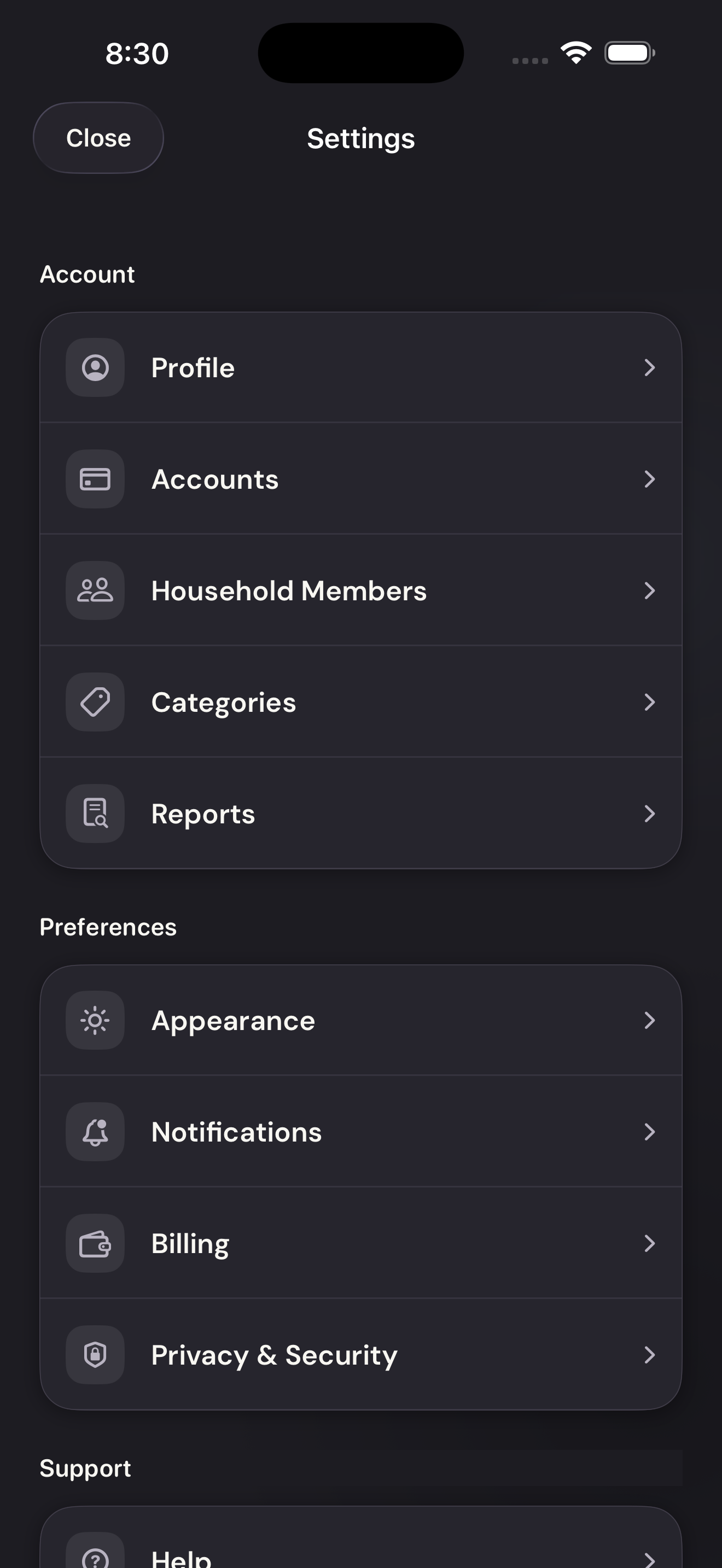
Open CategoriesTap to enlarge Open the category
Tap the category name. Expand its group first if the list is collapsed.
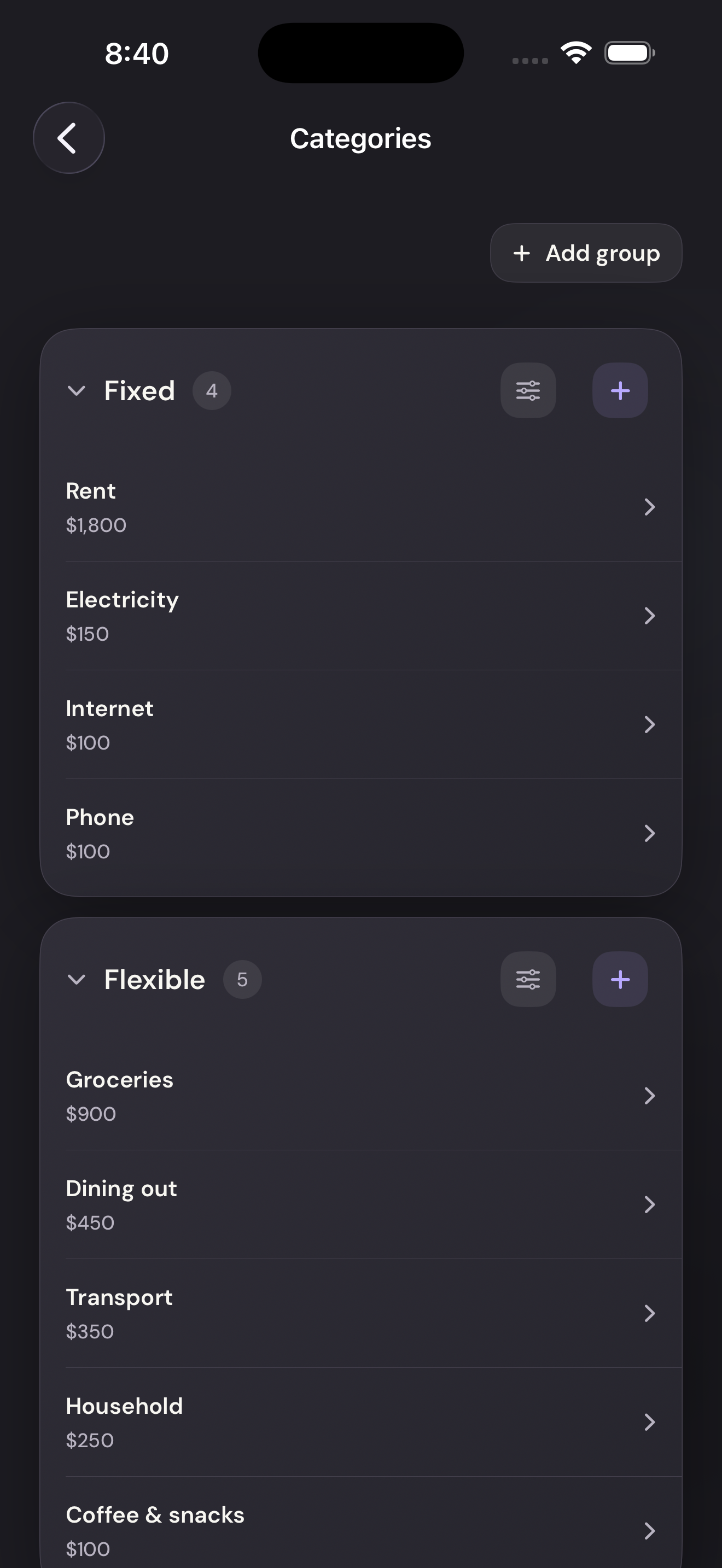
Open the categoryTap to enlarge Change the name
Replace the text in Category name. The existing transactions stay in this category.
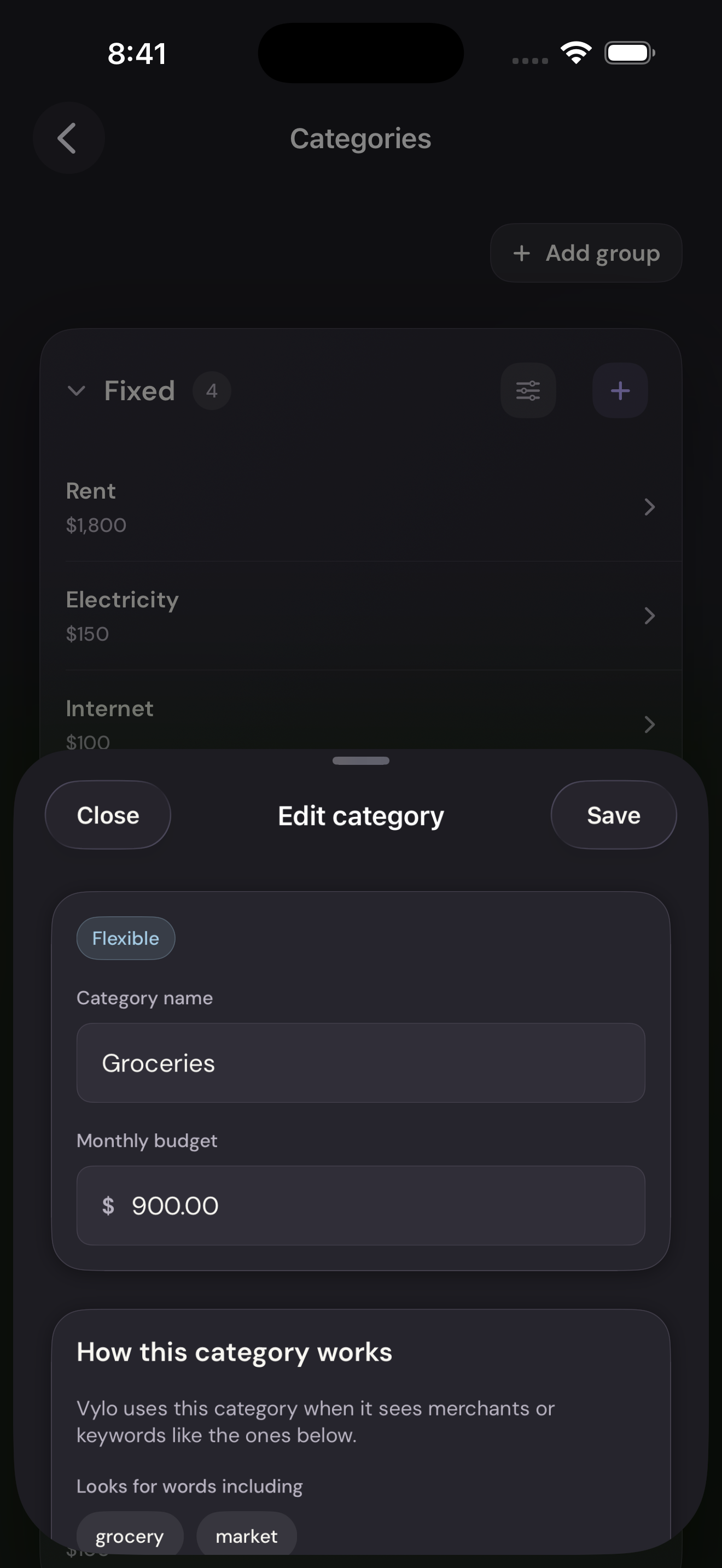
Change the nameTap to enlarge Save the change
Tap Save at the top of the sheet.
Save the changeTap to enlarge