
Account deletion is permanent. If you subscribed through the App Store, cancel that subscription with Apple first. Deleting Vylo does not stop Apple from renewing it.
What happens to my household?
- Household owner: deletion removes the household and its financial data, disconnects its linked accounts, and ends everyone’s access to that household. Other members keep their own Vylo accounts.
- Household member: deletion removes your Vylo account, your household access, and the bank connections and imported financial data you added. The rest stays with the household owner.
The deletion preview tells you which case applies before you confirm. Download any records you want to keep first.
How do I stop an iPhone subscription renewing?
Open the iPhone Settings app → your name → Subscriptions → Vylo → Cancel Subscription using the Apple Account that purchased it. If someone else pays, that person must cancel. Apple shows the expiration status when renewal is already off. Apple’s cancellation guide.
For a web subscription, the deletion preview tells you when Vylo will cancel it automatically. If your goal is only to stop paying, cancel renewal instead of deleting the account.
When is deletion complete?
Once Vylo records the deletion request, app access is disabled while account cleanup finishes. Cleanup is scheduled to complete within 7 calendar days, and Vylo emails the account address when it is complete.
Some limited security, tax, accounting, dispute, or legally required records may be retained as permitted by law. If the app can’t confirm the deletion status, email hi@myvylo.com so we can check the request.
On the web
Open Privacy & Security
Choose Settings in the navigation, then Privacy & Security.
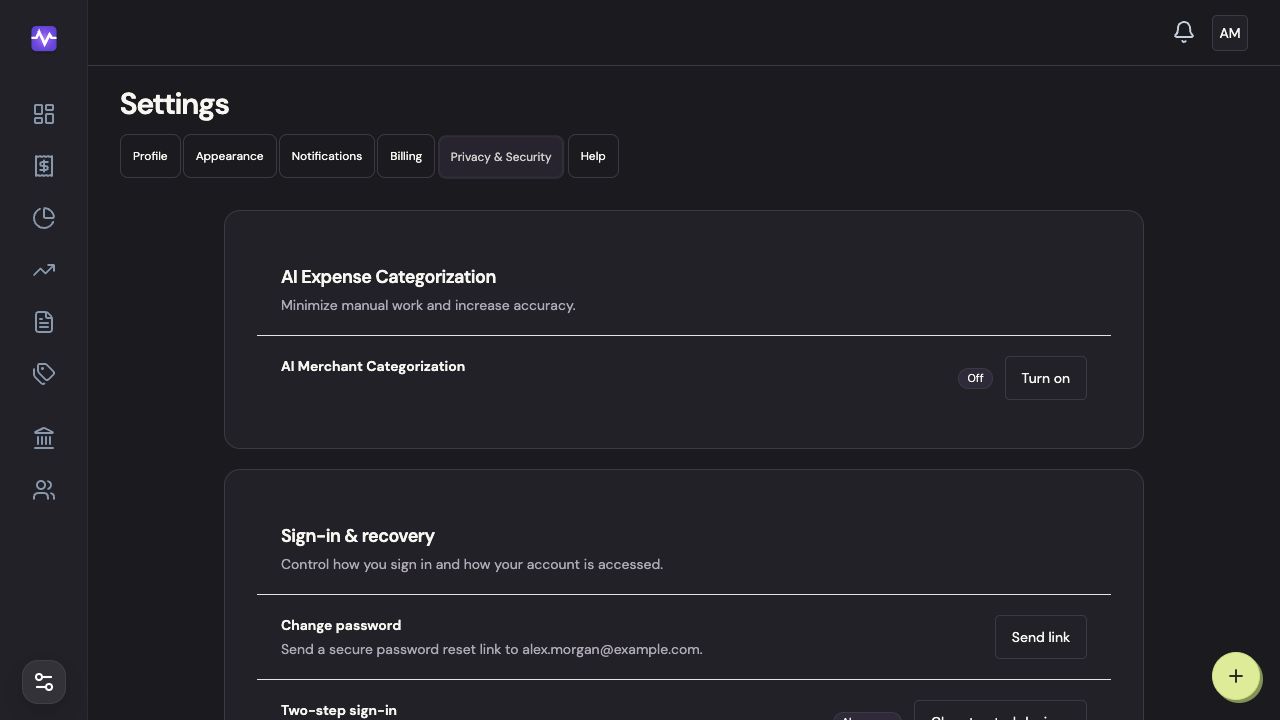
Open Privacy & SecurityTap to enlarge Open Delete account
Scroll to the bottom and click Delete.
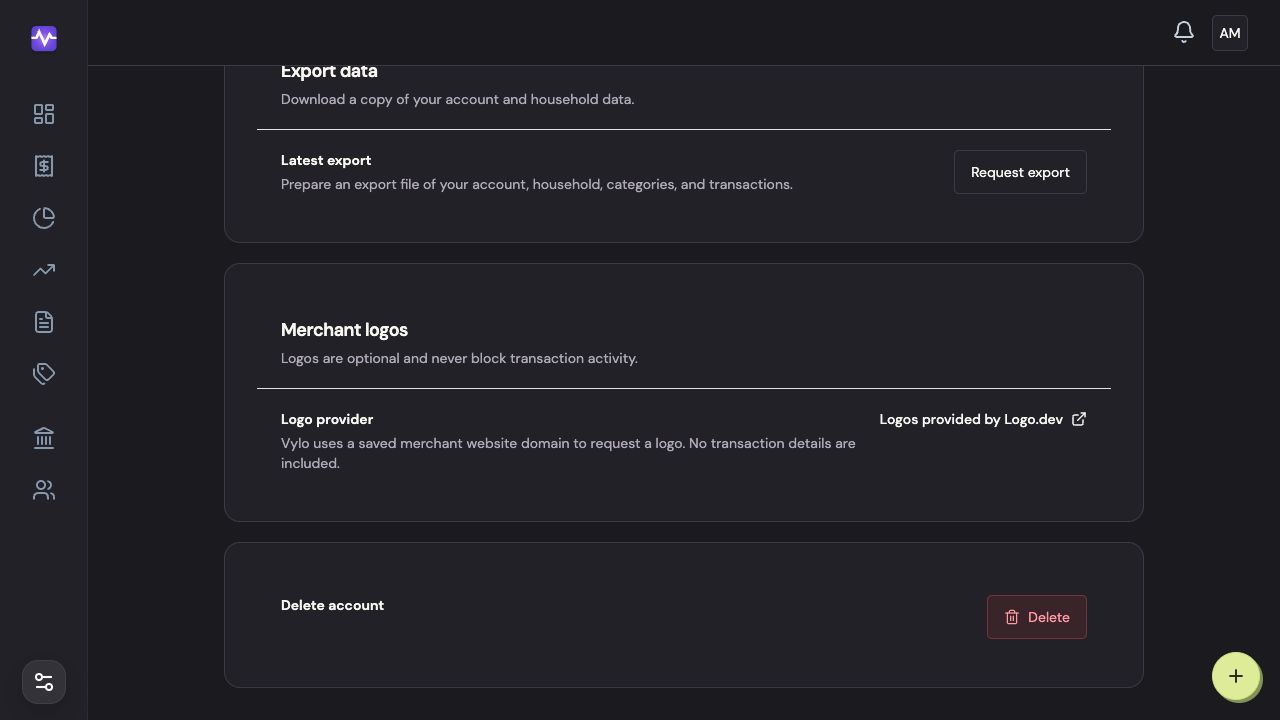
Open Delete accountTap to enlarge Read what will be deleted
Check whether this deletes your account or the whole household. The preview also explains what happens to your subscription.
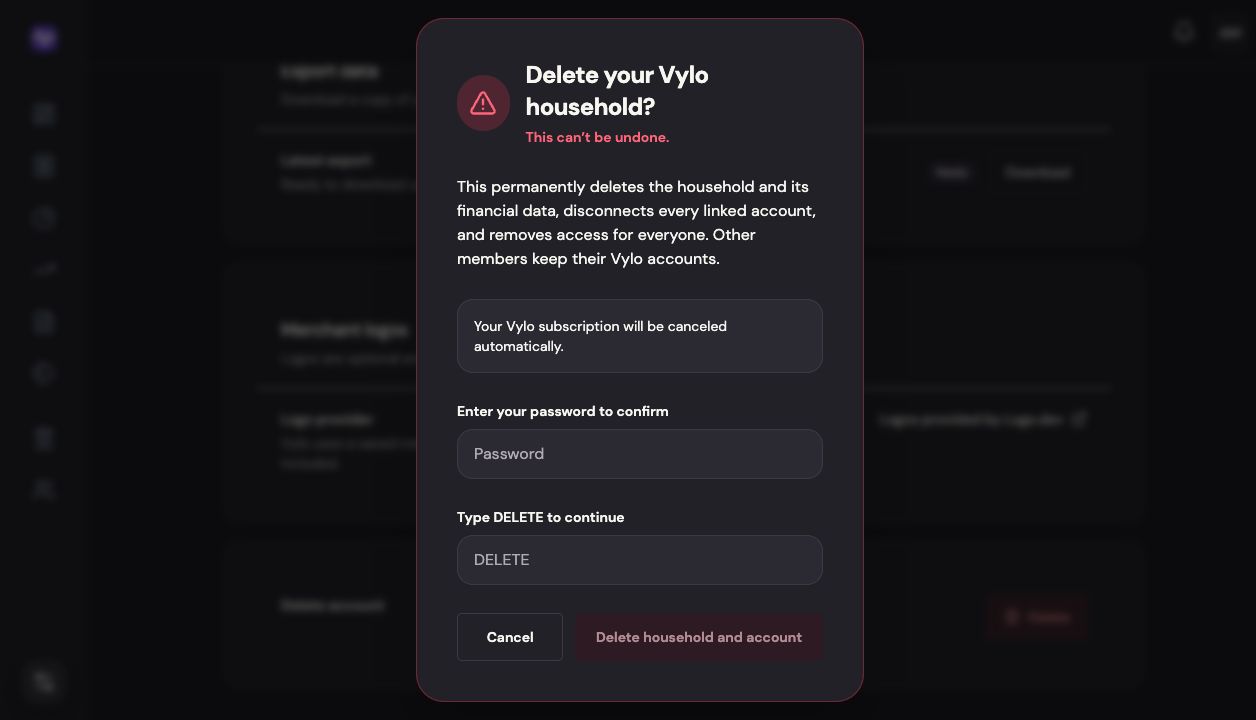
Read what will be deletedTap to enlarge Confirm only when you’re ready
Enter your password and type DELETE. The final button names what will be deleted. This action is permanent.
Confirm only when you’re readyTap to enlarge
On iPhone
Open Privacy & Security
Tap the settings control at the top right of the app, then Privacy & Security.
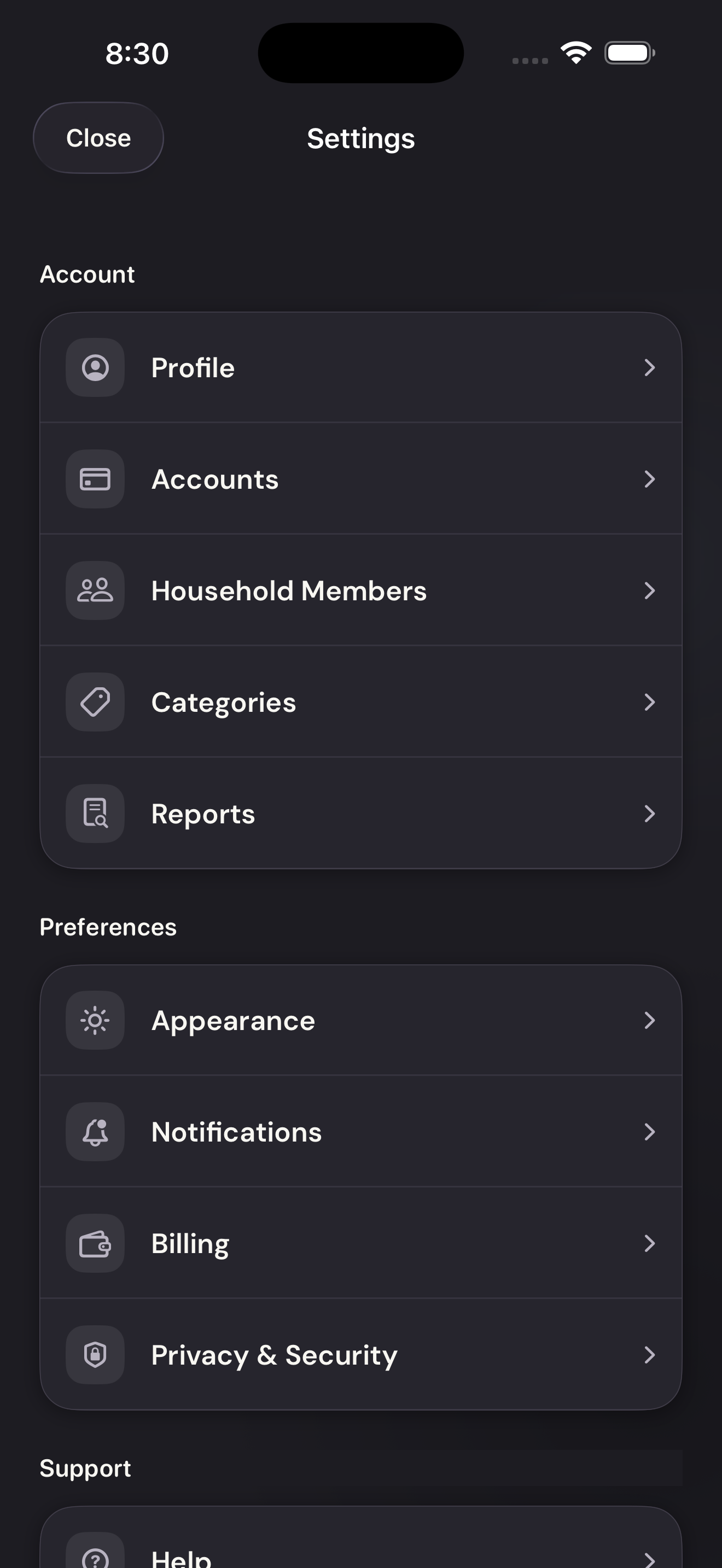
Open Privacy & SecurityTap to enlarge Open Delete account
Scroll to the bottom and tap Delete account.
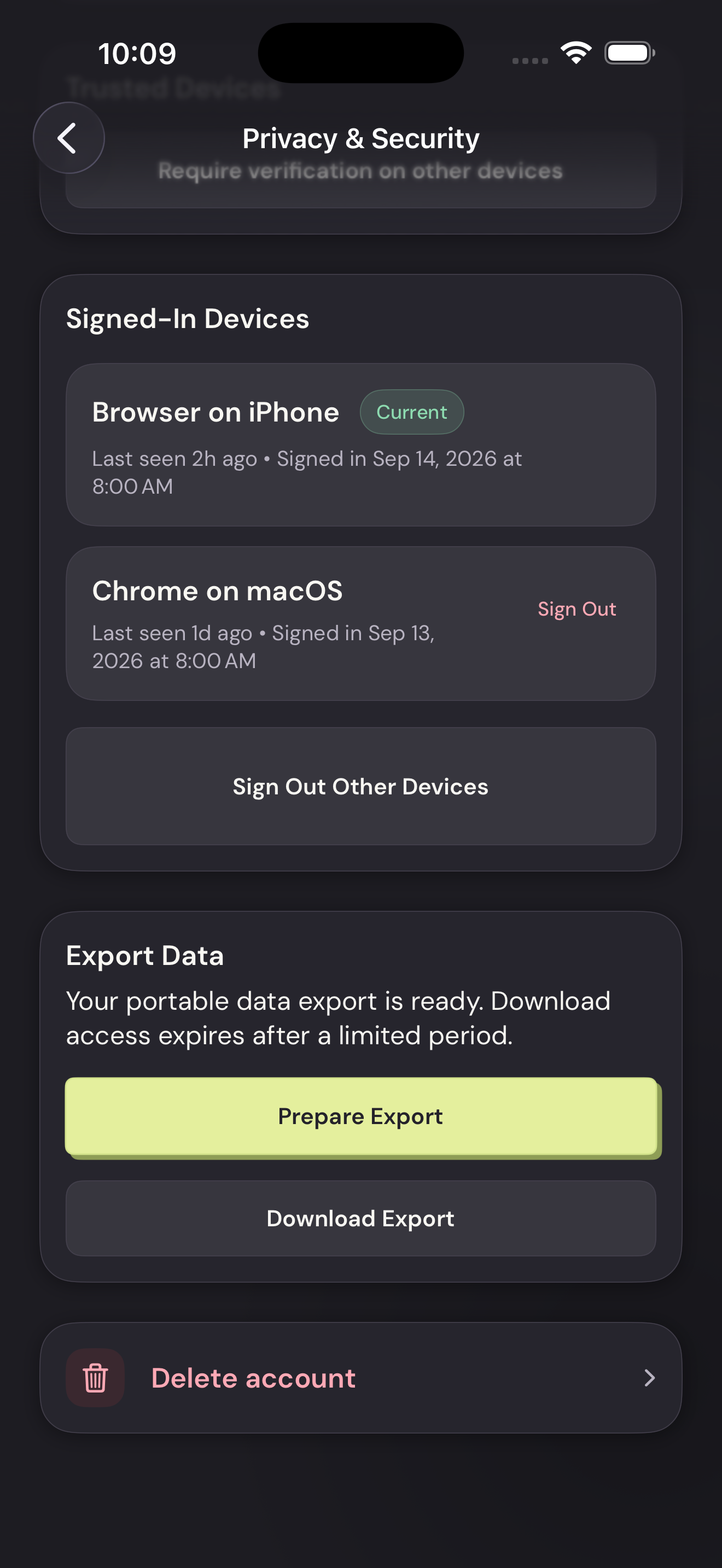
Open Delete accountTap to enlarge Check the household and subscription warnings
Read what will be deleted. If Apple bills you, use Manage Apple Subscription and cancel renewal before continuing.
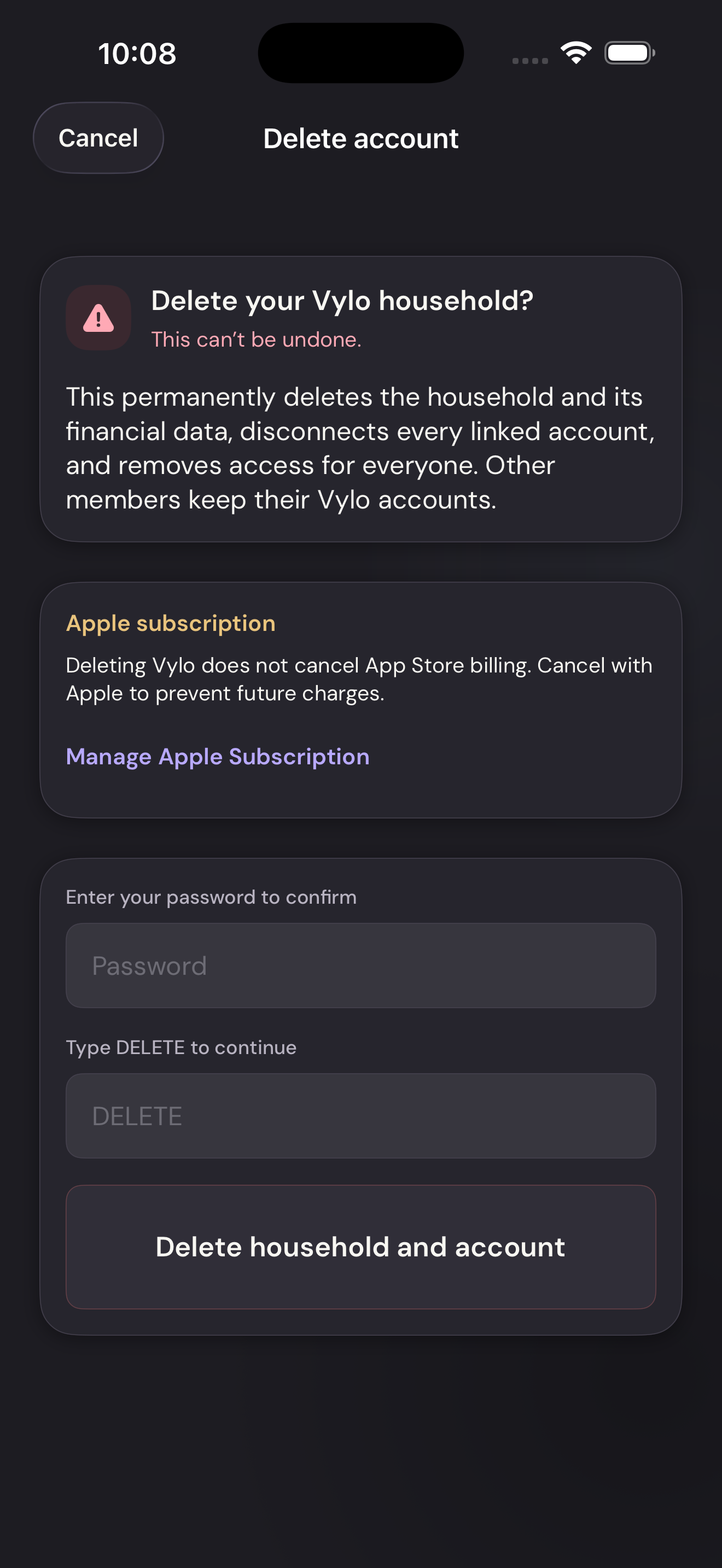
Check the household and subscription warningsTap to enlarge Confirm deletion
Enter your password and type DELETE. Tap the final deletion button only after saving any records you need.
Confirm deletionTap to enlarge