
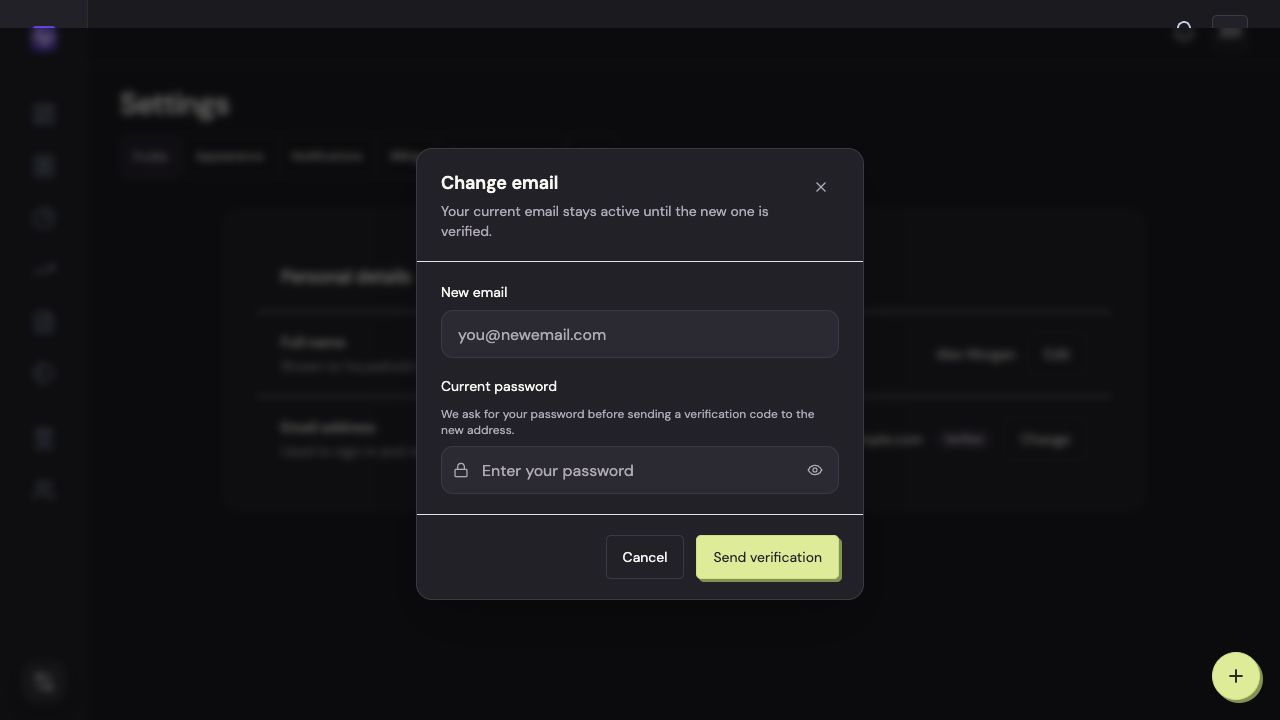
Your current email remains active until the new one is verified. Vylo asks for your current password before sending a verification code to the new address.
Once the change is confirmed, use the new address to sign in.
How do I change my password?
In Settings → Privacy & Security, use the password-reset link control and follow the email. If you can’t sign in, use the reset option on the sign-in screen.
Changing your password revokes existing trusted sign-ins and refresh sessions. Review signed-in devices too if you suspect someone accessed the account.
On the web
Open Profile
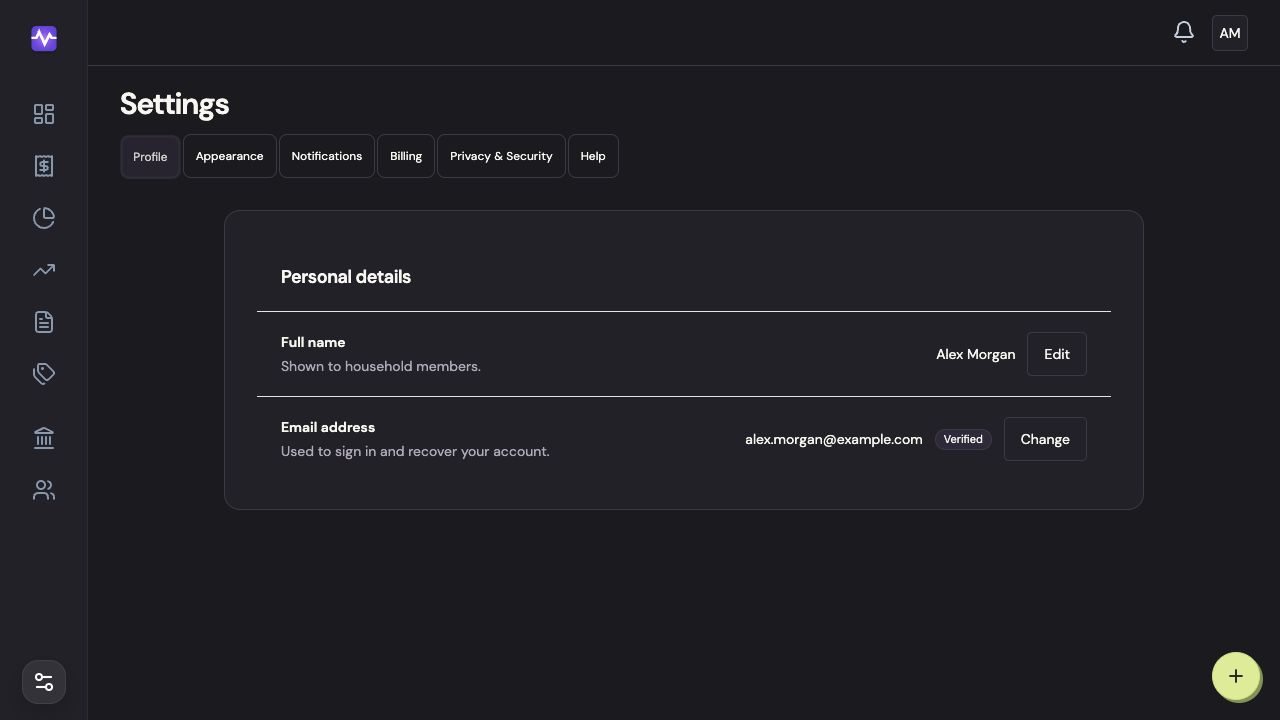
Choose Settings, then Profile. Use Change beside your email address.
Open ProfileTap to enlarge Enter the new email and current password
Enter the email address you want to use and your current Vylo password. Send the verification code when the address is correct.
Enter the new email and current passwordTap to enlarge Verify the new address
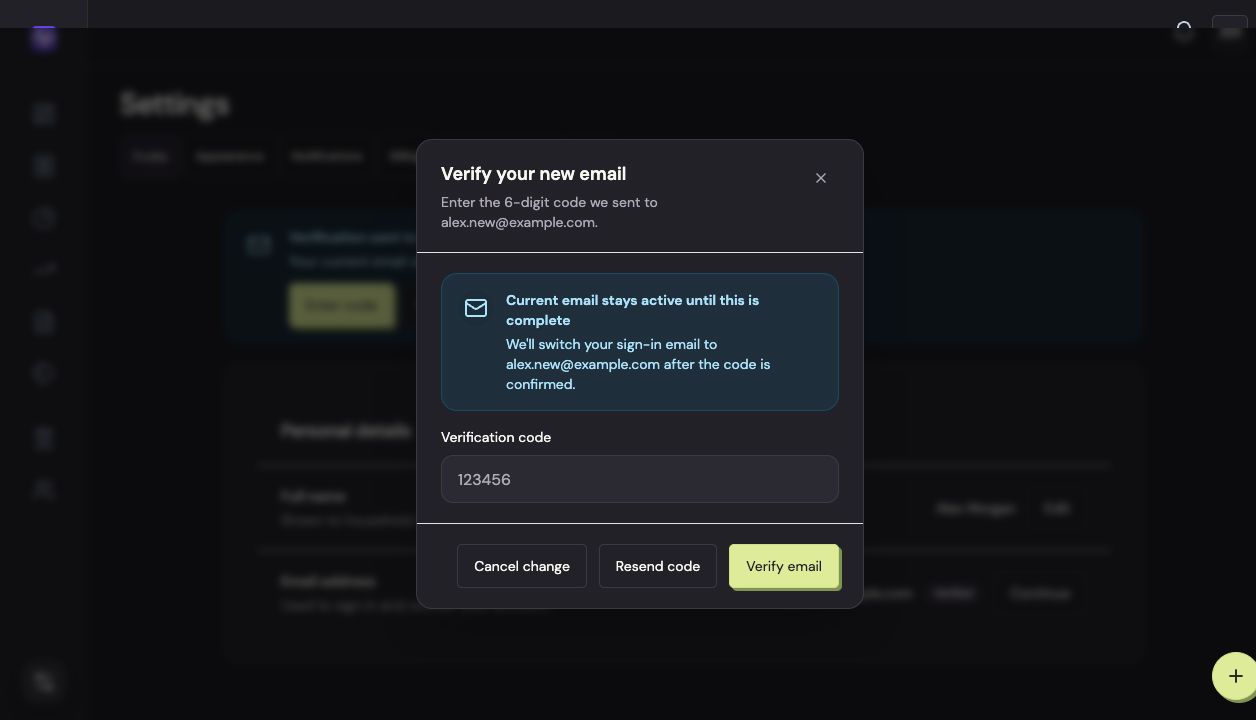
Enter the six-digit code sent to your new address, then click Verify email. Your current address stays active until verification succeeds.
Verify the new addressTap to enlarge To change your password
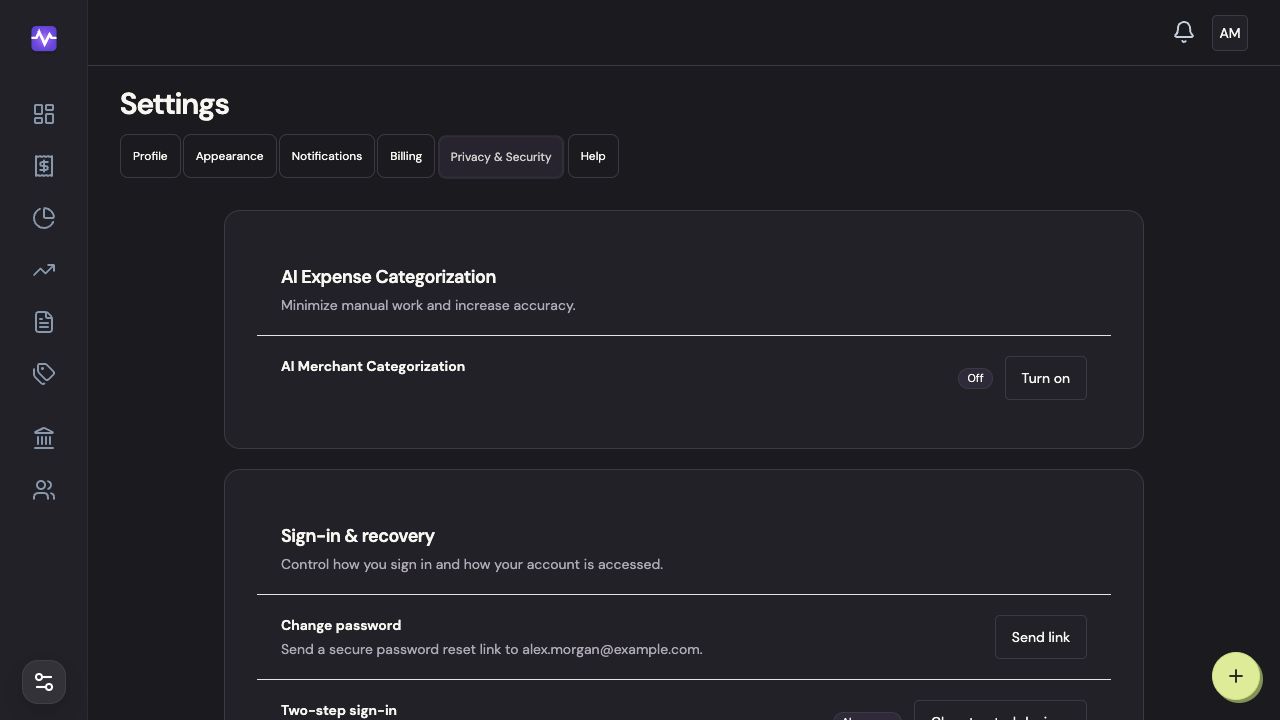
Open Privacy & Security and click Send link under Change password. Follow the reset email.
To change your passwordTap to enlarge
On iPhone
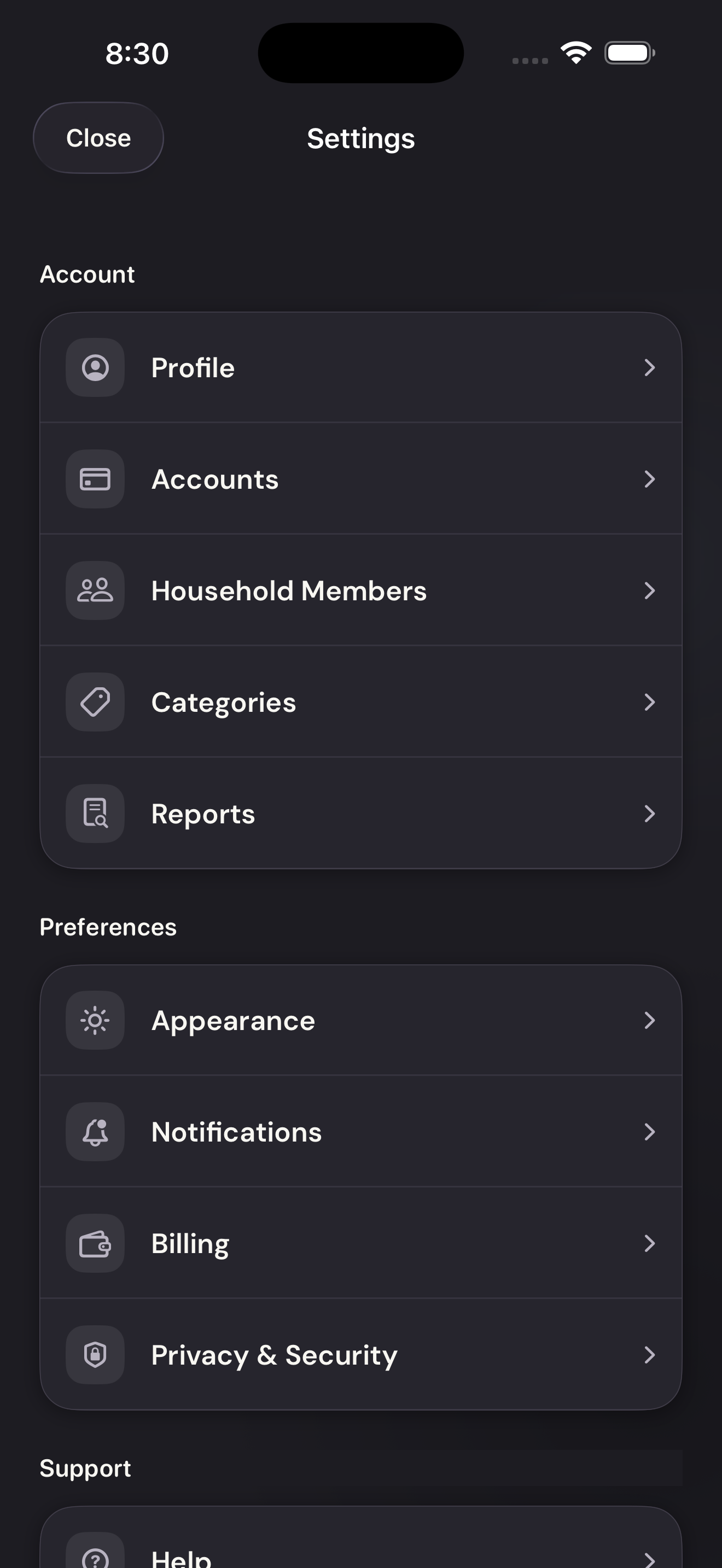
Open Profile
Tap the settings control at the top right of the app, then Profile.
Open ProfileTap to enlarge Enter the new address
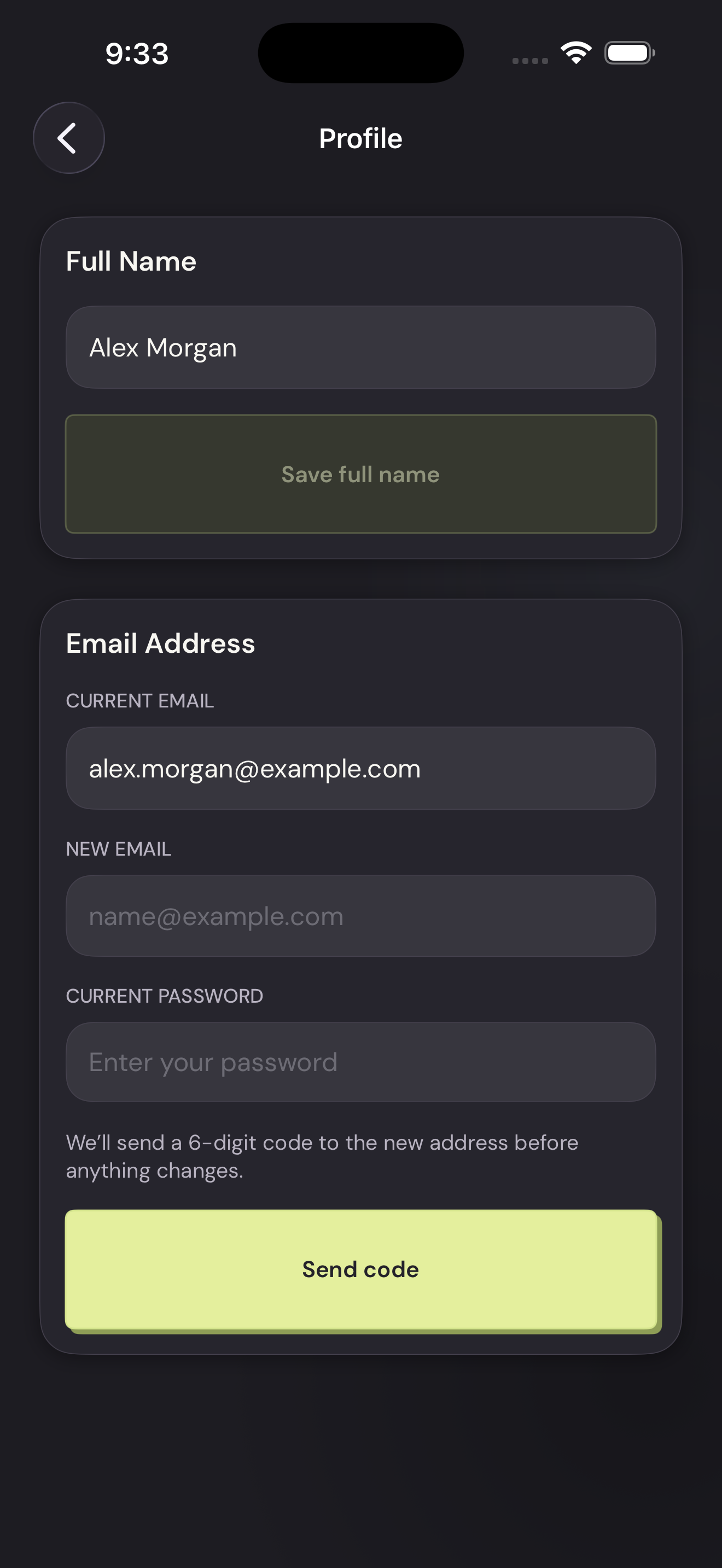
In Email Address, enter the new email and your current password, then tap Send code.
Enter the new addressTap to enlarge Confirm the code
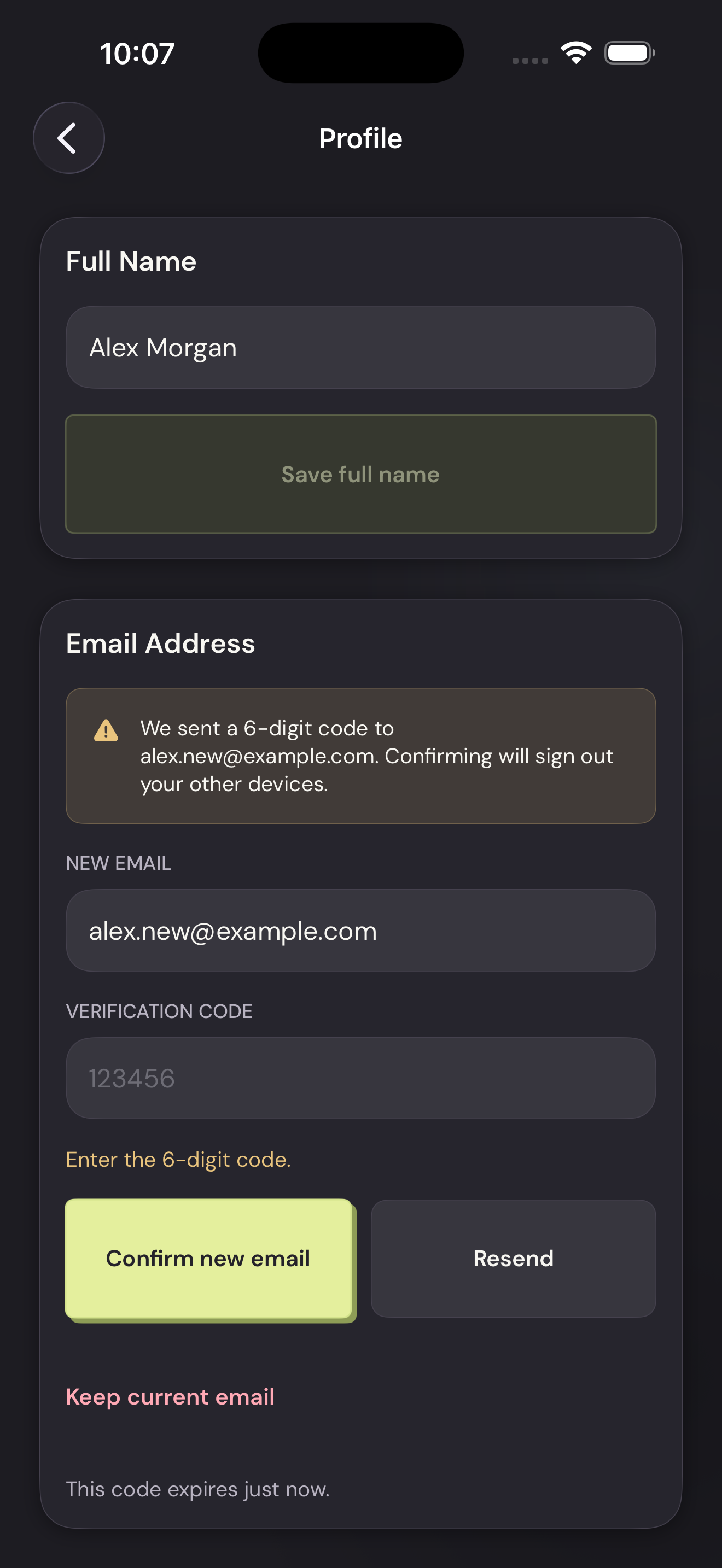
Enter the six-digit code from the new inbox and tap Confirm new email. Confirming signs out your other devices.
Confirm the codeTap to enlarge To change your password
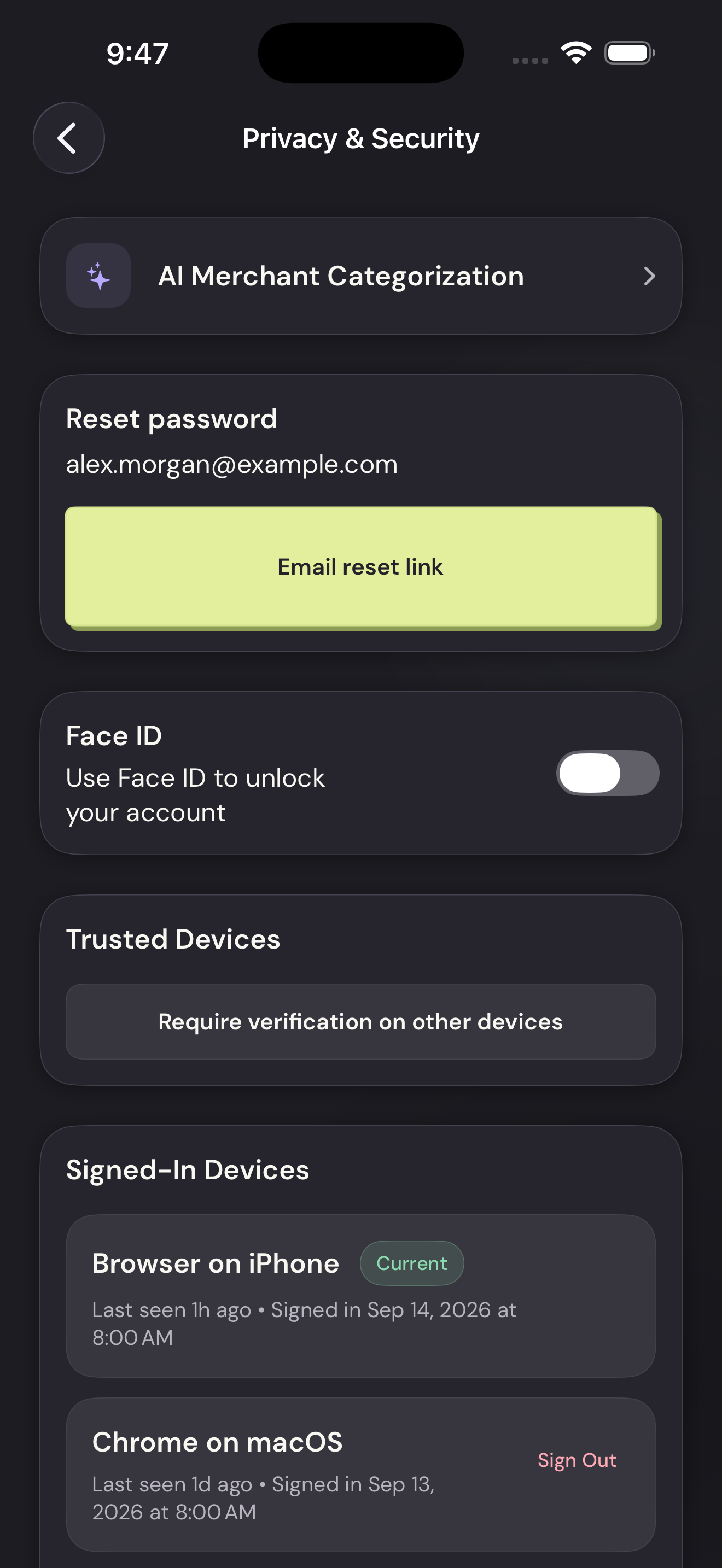
Open Privacy & Security and tap Email reset link. Follow the link in your email.
To change your passwordTap to enlarge