Vylo

How do I reconnect a bank?

Use Reconnect when an existing bank needs you to sign in or verify it again.

Banks sometimes need fresh authorization or another verification step. Use Reconnect on the existing institution so you keep working with that connection.

The provider will guide you through any bank sign-in, code, or approval it needs. When you return to Vylo, let the import finish before checking recent purchases.

Why does verification keep repeating?

Sign in to your bank’s own app and check for notices or required account updates. If the reconnect flow still loops or fails, email hi@myvylo.com with the bank name and error message.

Adding the same bank again can create duplicate accounts. Reconnect is the better starting point for an existing connection that needs attention.
On the web

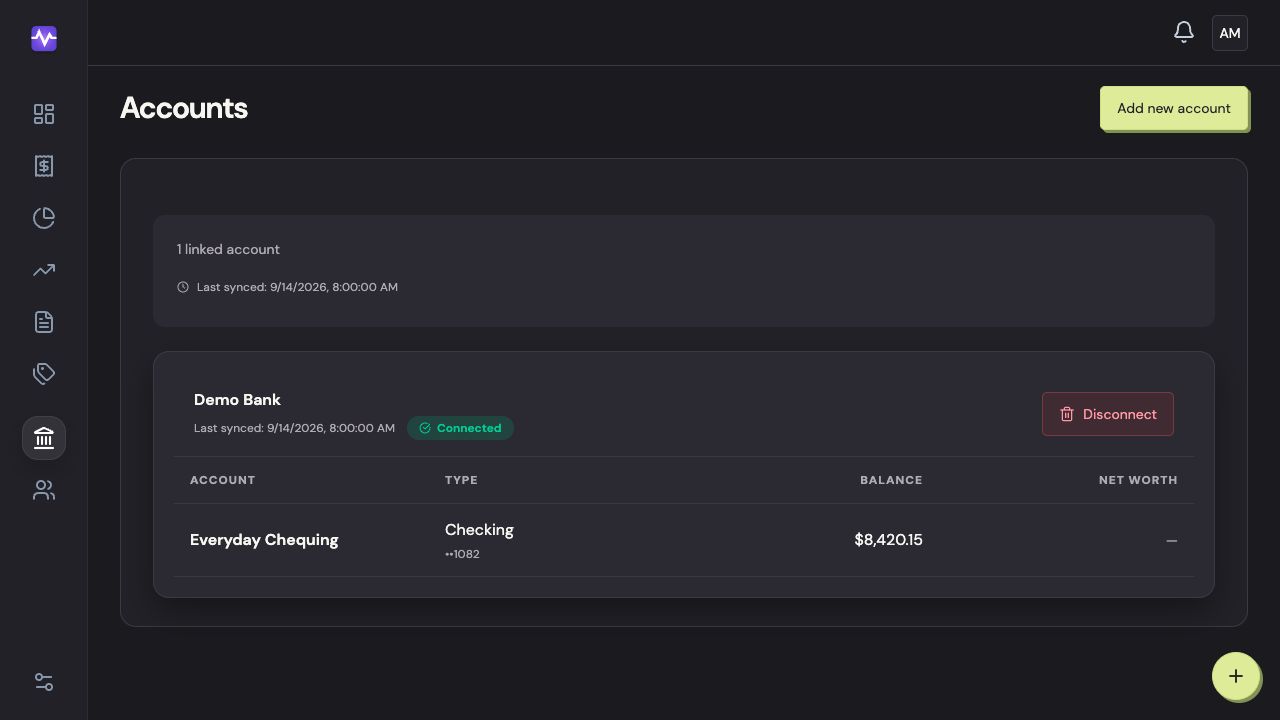
  1. Open Accounts

    Choose Accounts in the navigation.

    Vylo on the web: Open Accounts. The relevant control is outlined.
    Open AccountsTap to enlarge
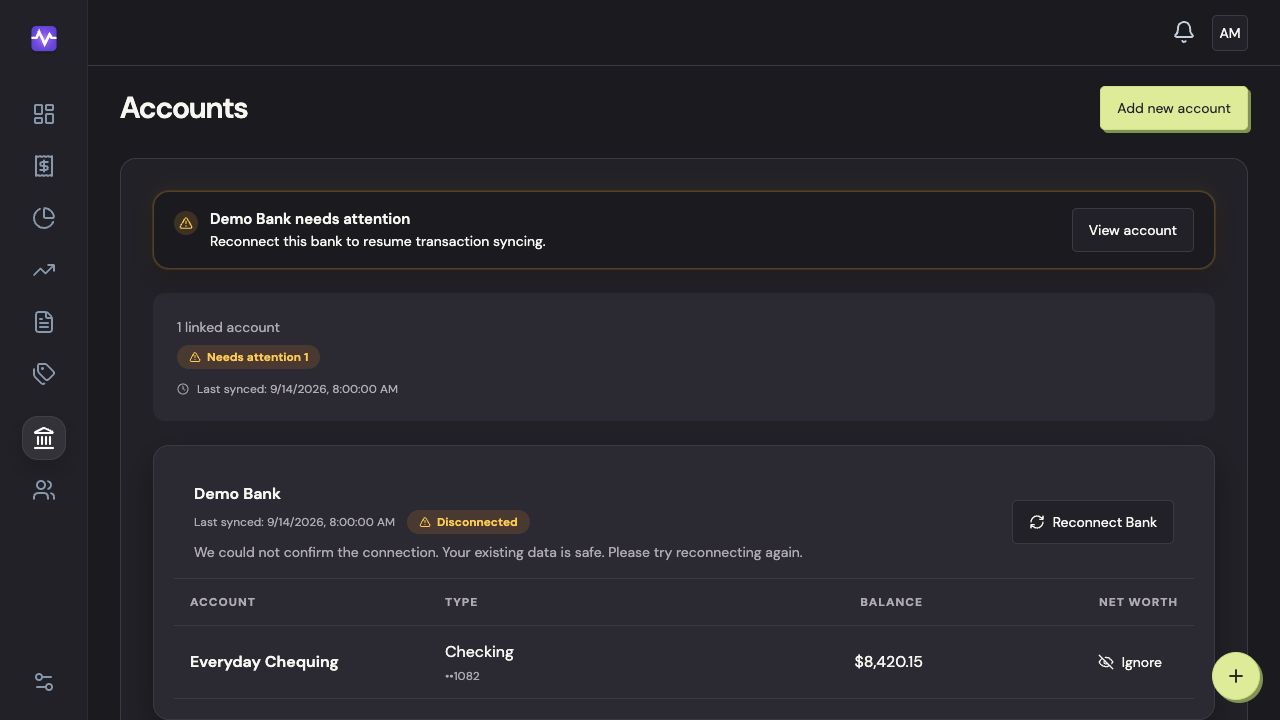
  2. Reconnect the existing bank

    Find the institution marked as needing attention and click Reconnect Bank. Complete the provider’s sign-in and verification prompts.

    Vylo on the web: Reconnect the existing bank. The relevant control is outlined.
    Reconnect the existing bankTap to enlarge

On iPhone

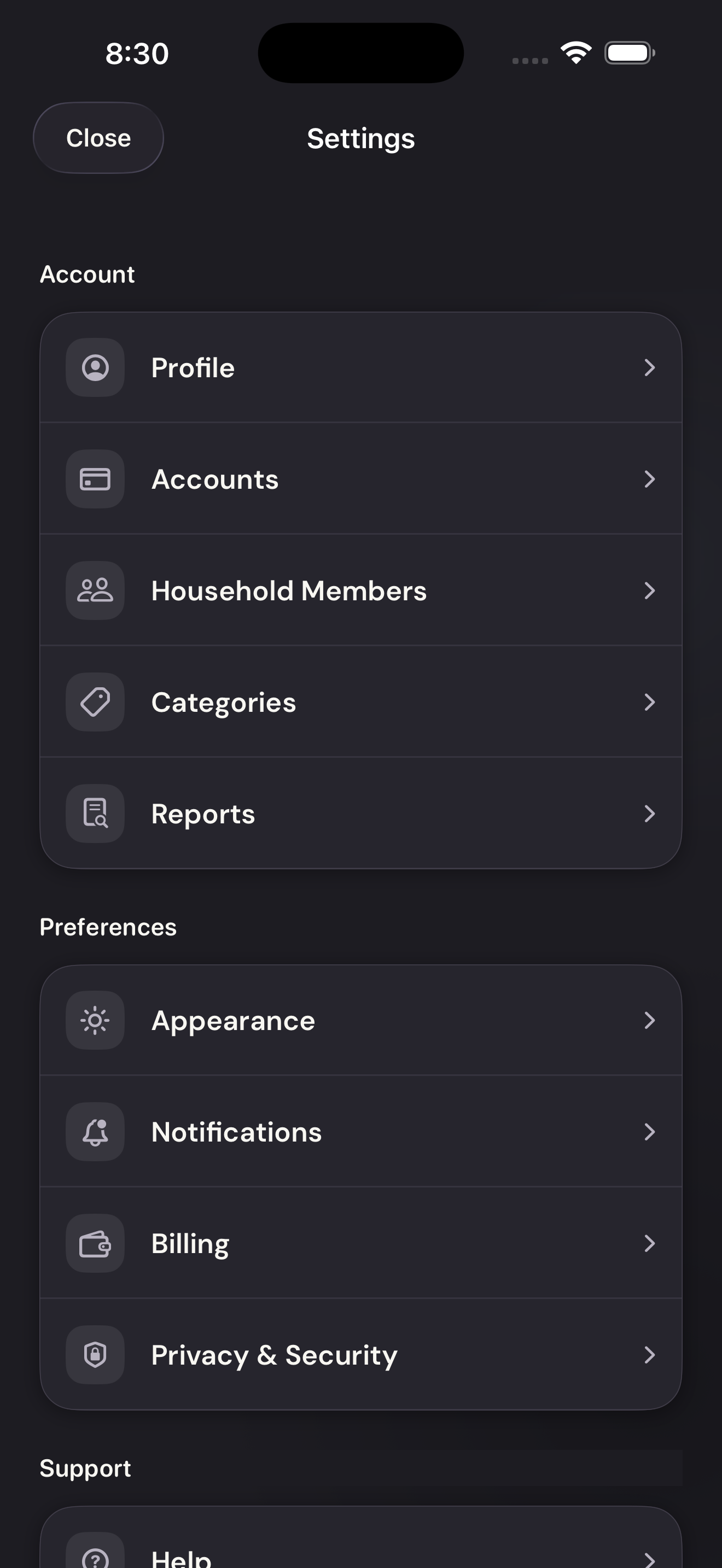
  1. Open Accounts

    Tap the settings control at the top right of the app, then Accounts.

    Vylo for iPhone: Open Accounts. The relevant control is outlined.
    Open AccountsTap to enlarge
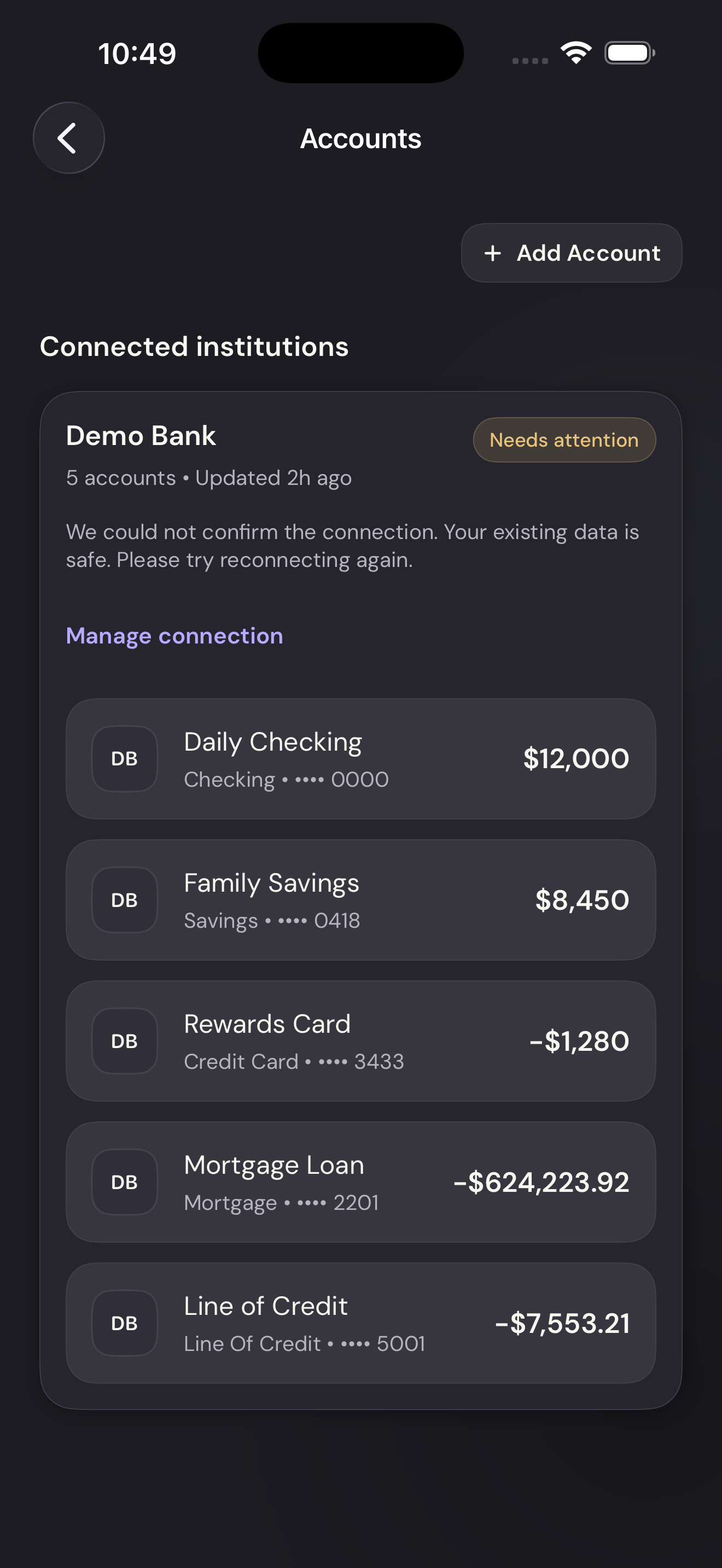
  2. Manage the connection

    Find the bank marked Needs attention and tap Manage connection. Complete the provider’s sign-in and verification prompts.

    Vylo for iPhone: Manage the connection. The relevant control is outlined.
    Manage the connectionTap to enlarge