
Income transactions can arrive from a connected bank, or you can enter them manually. Use the appropriate income category, such as Salary, for money you earned.
Where can I see my income?
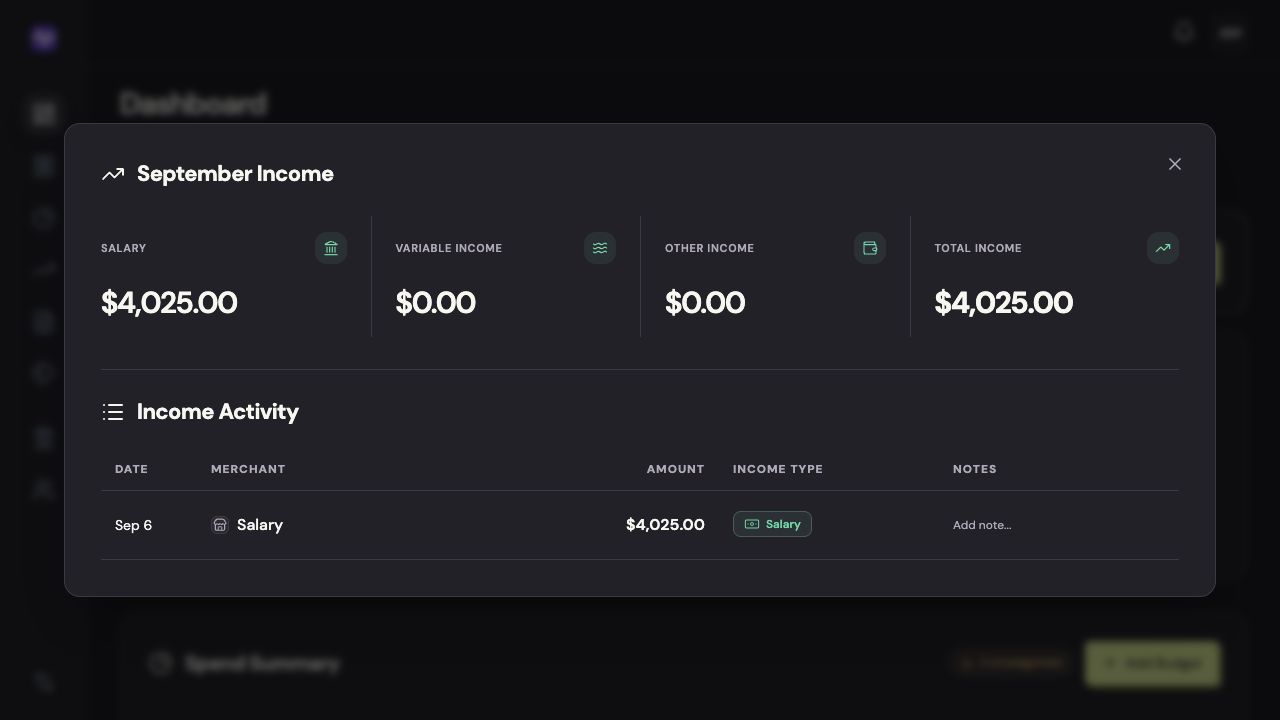
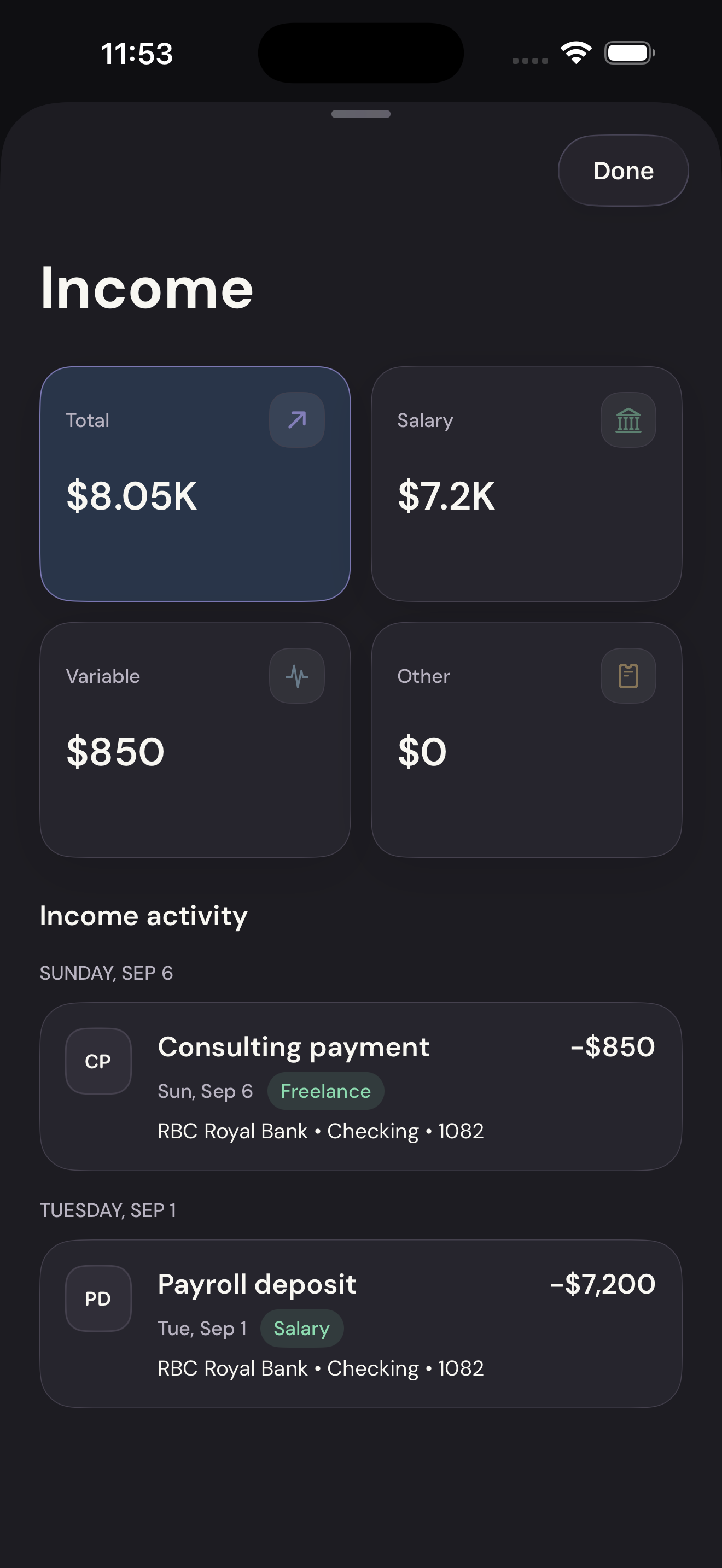
Open the Income card on your overview: Dashboard on the web, or Home on iPhone. Income activity lists the payments for the selected month, including their dates, amounts, and income categories.
Your custom income categories appear on the individual payments. They don’t each get a separate summary card. On iPhone, select Total to see all income types in the activity list.
If a payment is missing, check the selected month and find it in Transactions on the web or Activity on iPhone. A deposit categorized as a transfer or refund won’t be treated as earnings.
Can I keep side-gig income separate from salary?
Yes. Create a category in the Income group, such as Tutoring or Freelance design, then assign those payments to it. You’ll see that name beside each payment in Income activity.
Use a separate expense category for the costs of doing that work. This example covers both income and expenses.
Is every deposit income?
No. A transfer from your savings account or a refund on a purchase isn’t new salary. Categorize it for what it represents. Read about transfers and refunds.
Expected income and actual income
Expected income helps you plan a budget. Actual income records what has arrived. If your pay varies, check the assumption in your budget each month.
Add income manually only when it won’t come through a connected bank. Otherwise, you may count the same payment twice.
On the web
For an income payment that won’t arrive through a connected bank, add it manually and choose an income category such as Salary. The linked Add a transaction guide shows every entry field.
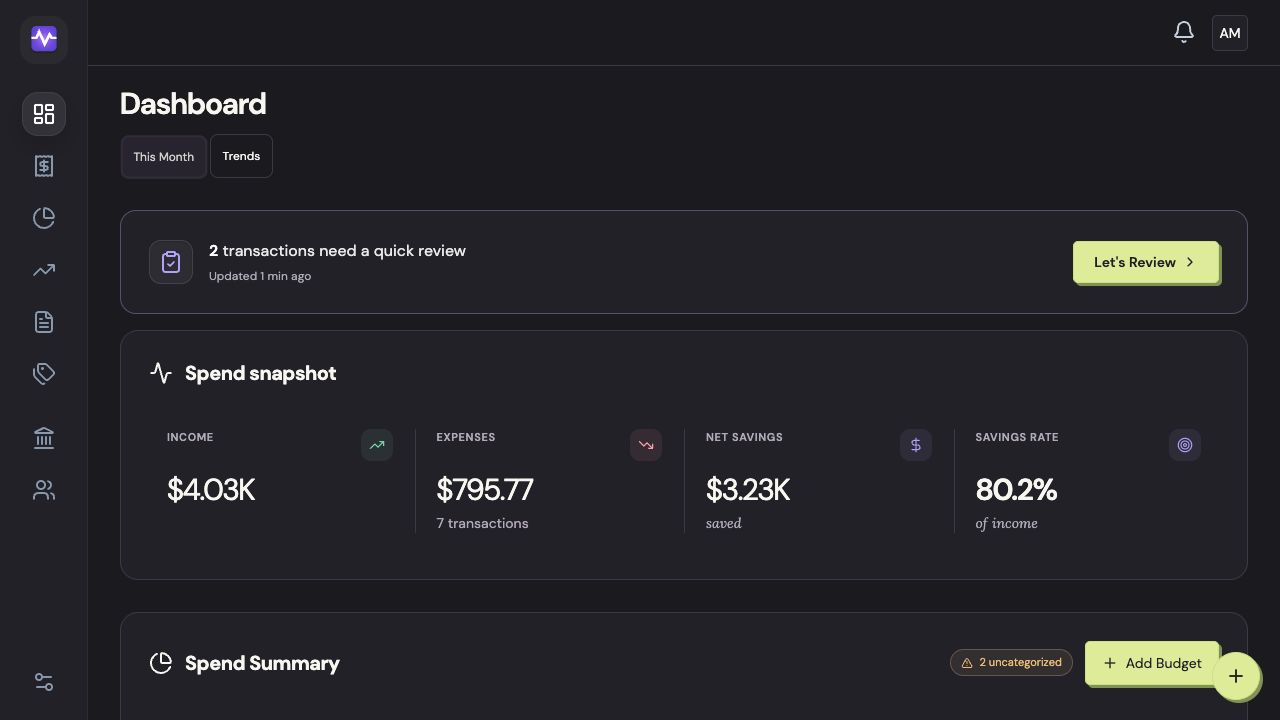
Open Income from Dashboard
Click the Income card on Dashboard to open the selected month’s income.
Open Income from DashboardTap to enlarge Check Income activity
The list shows each payment’s date, amount, and income category. Custom income categories appear here beside the payment.
Check Income activityTap to enlarge Find income in your transactions
Open Transactions and search for the payer. Check the category to make sure the deposit is classified as income.
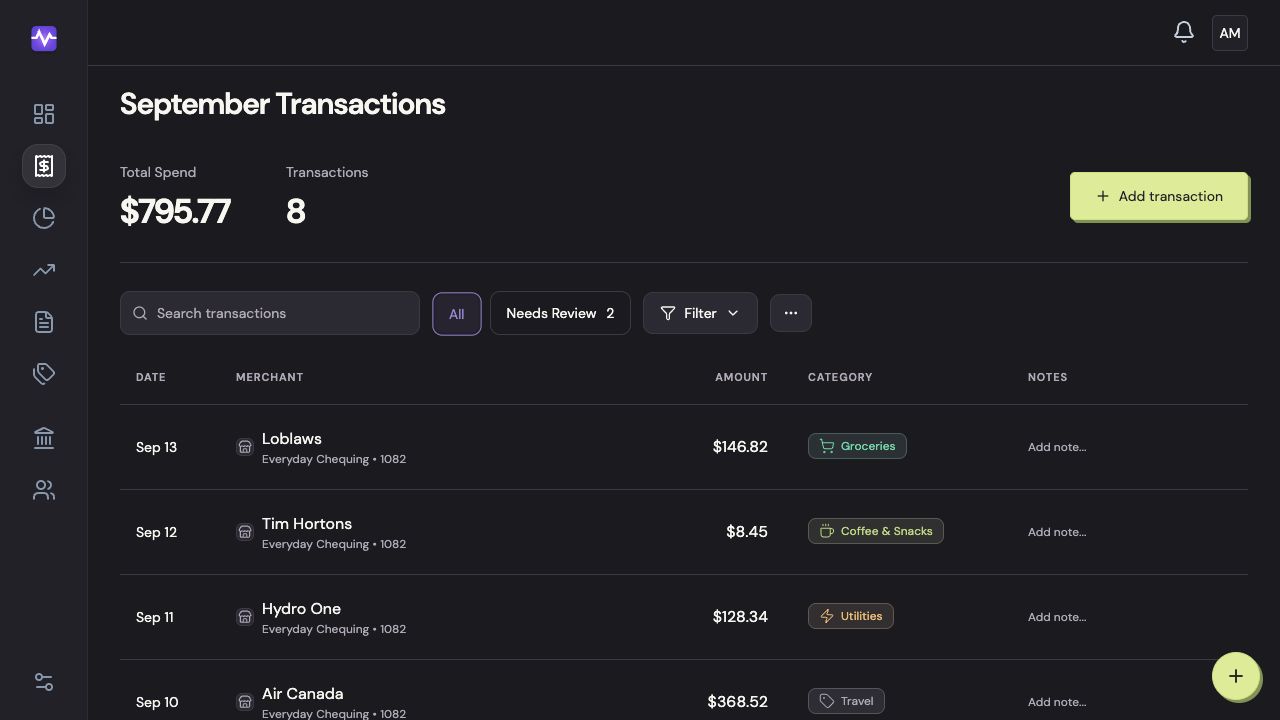
Find income in your transactionsTap to enlarge
On iPhone
Use an income category for earnings. A transfer between your own accounts or a refund is not new salary.
Open Income from Home
Tap the Income card on Home to see the selected month’s income.
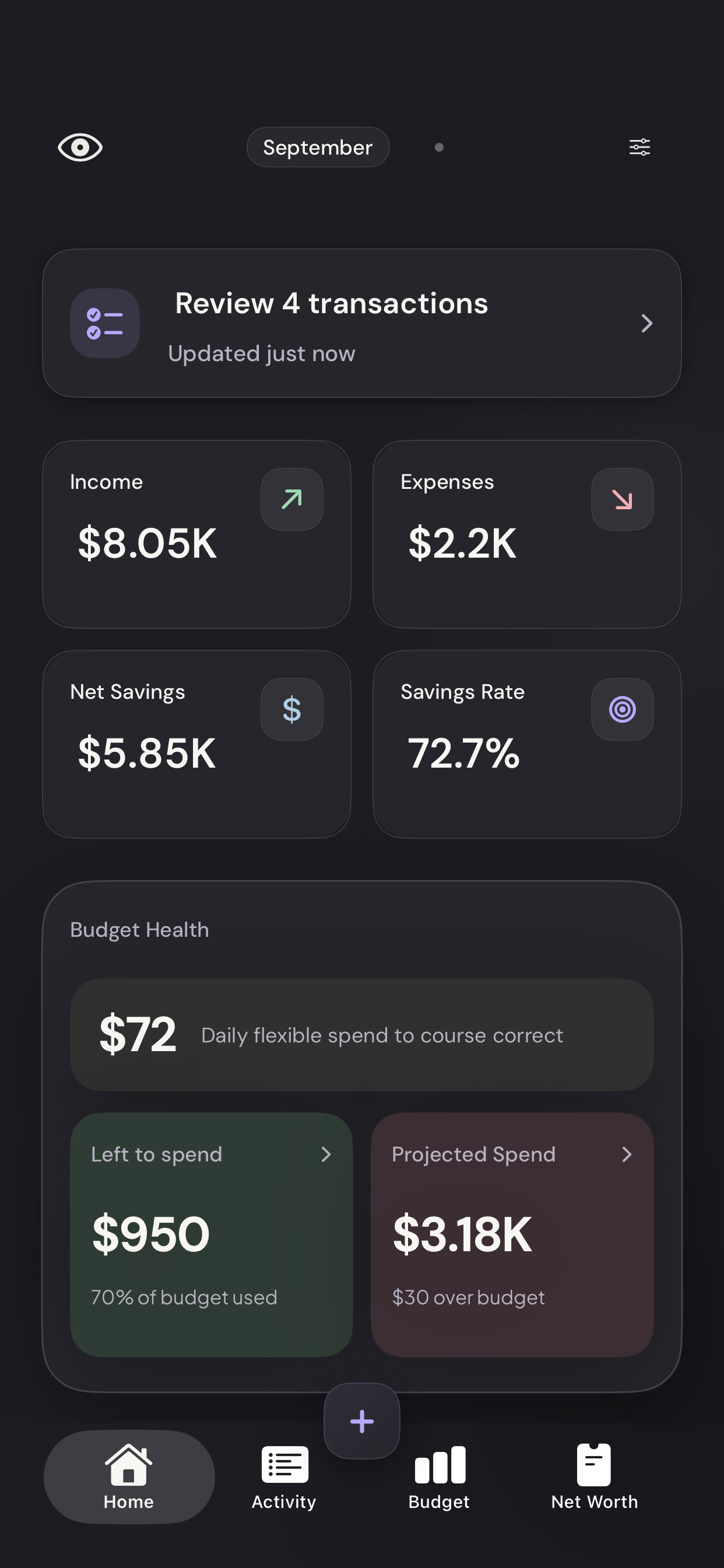
Vylo for iPhone · Demo dataTap to enlarge Check the payments and their categories
Keep Total selected to see all income types in Income activity. This example has a consulting payment labelled Freelance alongside Salary.
Check the payments and their categoriesTap to enlarge Find the income payment
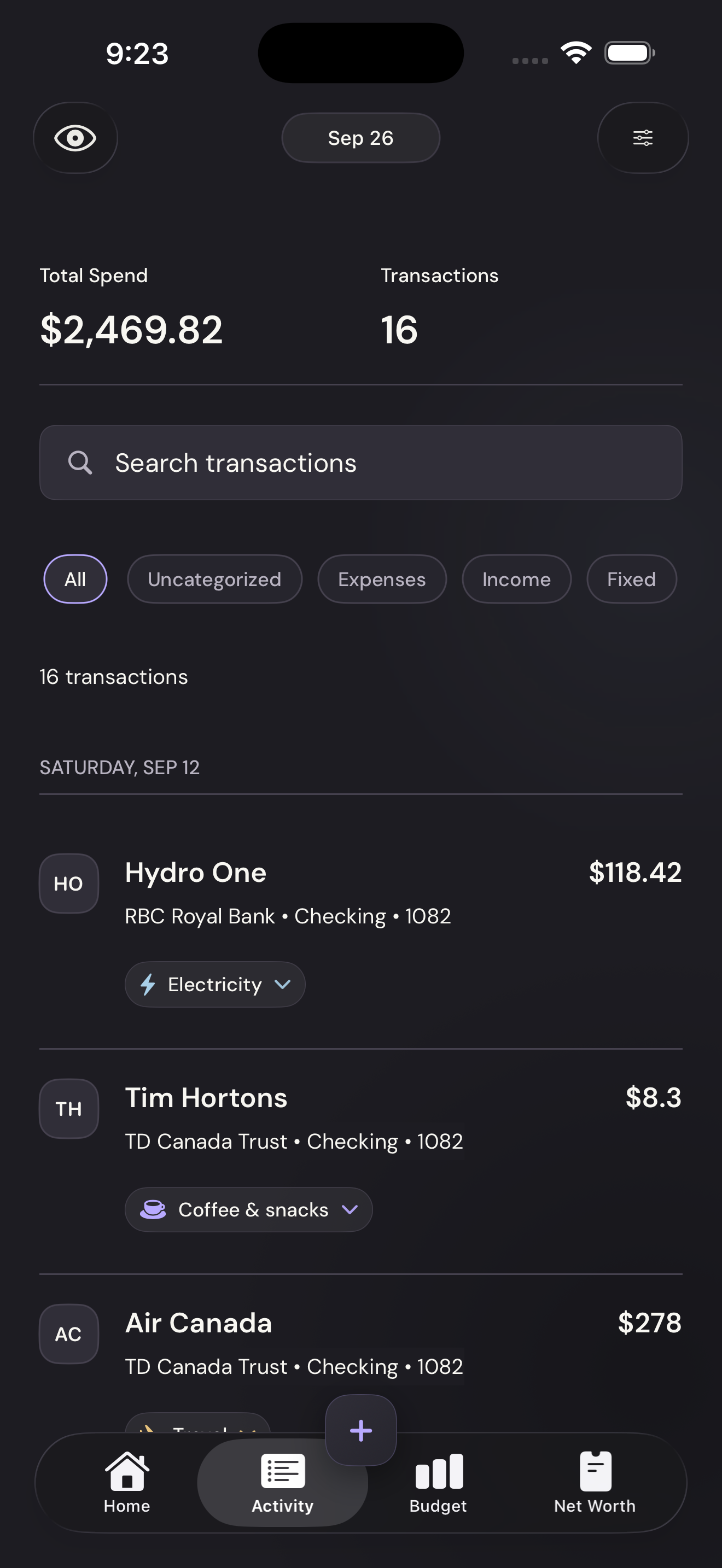
Open Activity. Use the Income filter to see earnings, or search for the payer.
Find the income paymentTap to enlarge