Vylo’s notification settings let you choose which updates you receive and how they arrive. Options include in-app notices, push notifications, and email where available.
Budget-alert emails are grouped into a daily roundup. Turning off a report notification doesn’t delete the report; it stays available in Reports.
Why didn’t a notification arrive?
Check the preference in Vylo, then the browser or iPhone’s notification permission. For email, check spam and the address in your profile.
Security and essential account messages are separate from optional spending updates.
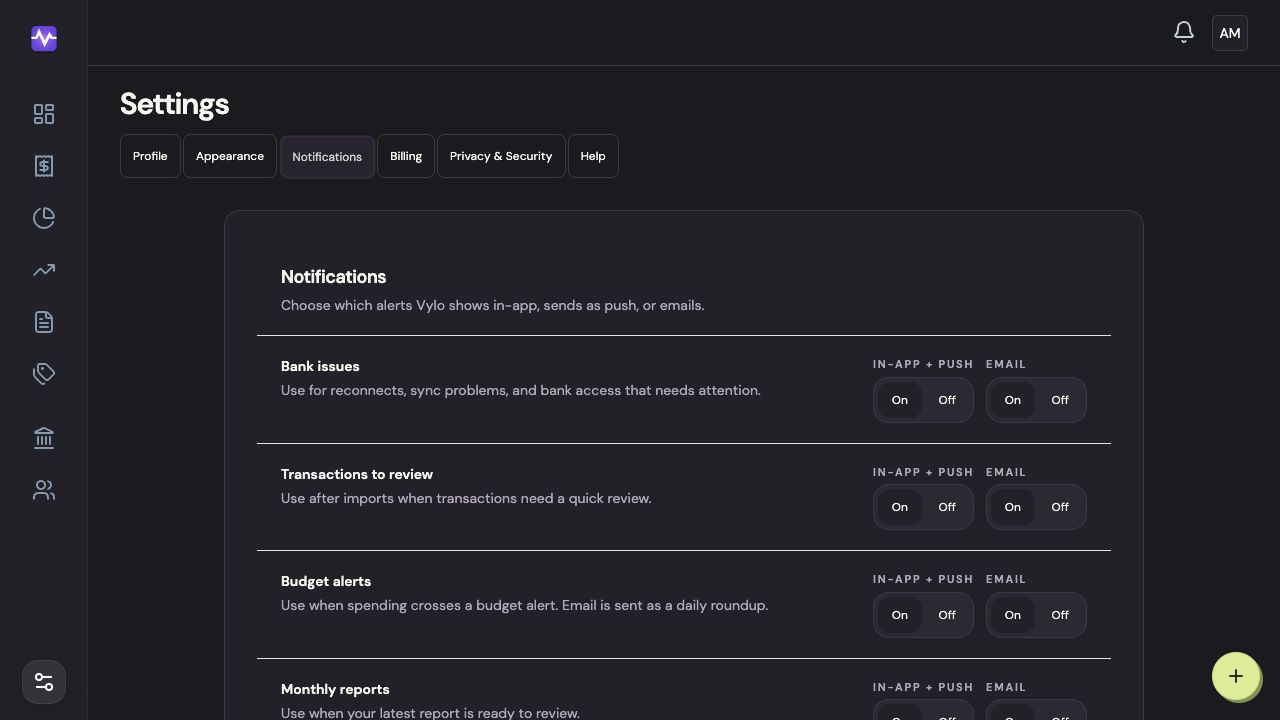
On the web
On iPhone
Open Notifications
Tap the settings control at the top right of the app, then Notifications.
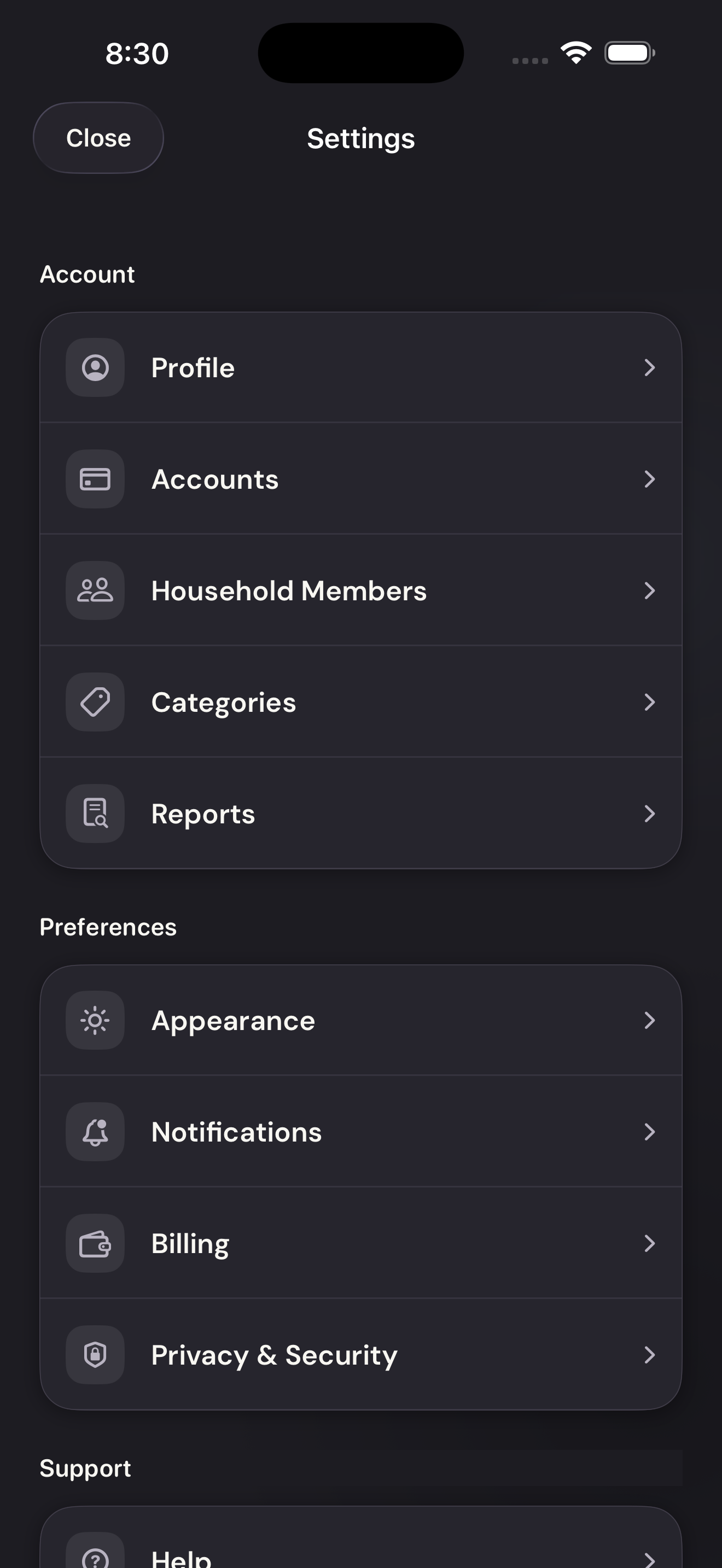
Open NotificationsTap to enlarge Choose the alerts
Set In-app + push and Email separately for each alert. Scroll for budget alerts and monthly reports.
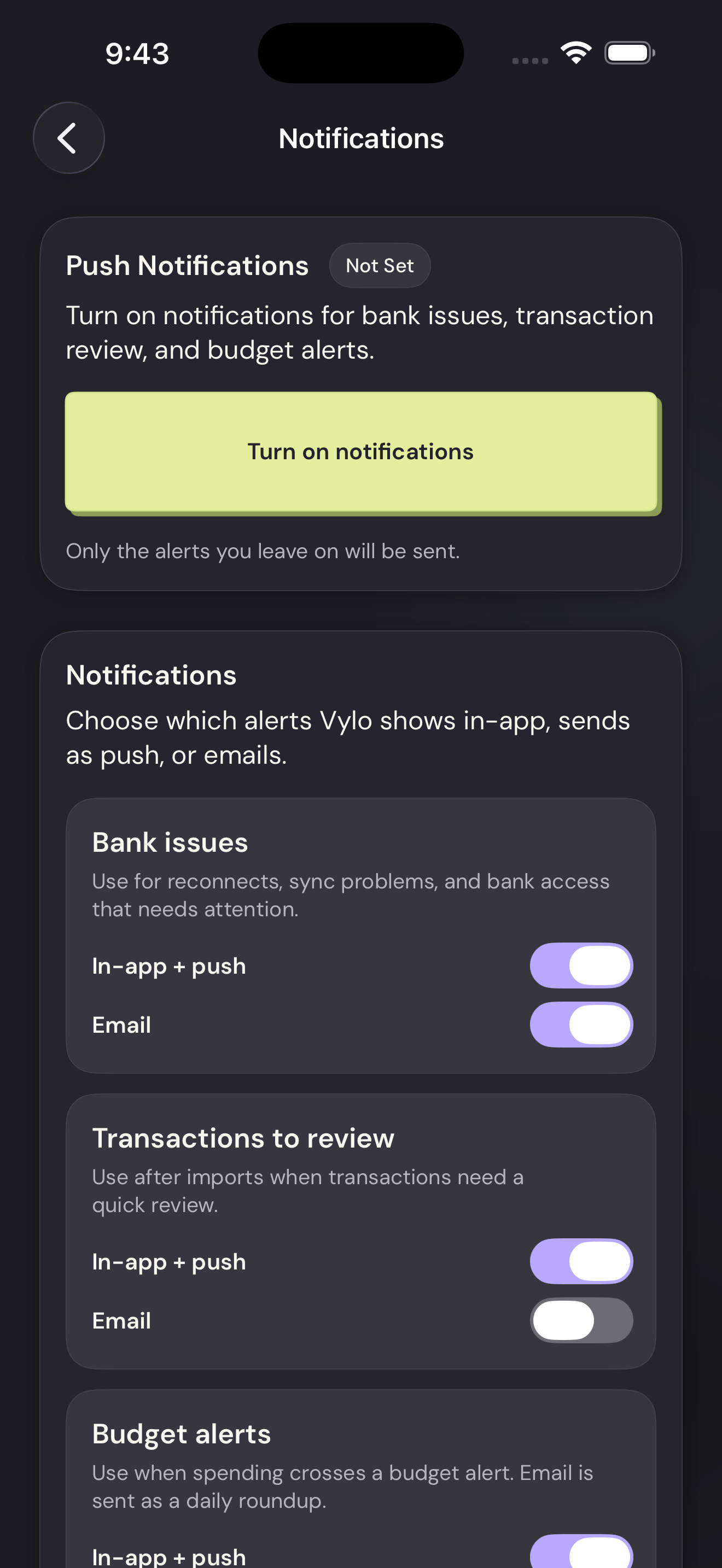
Choose the alertsTap to enlarge Allow iPhone notifications
If push permission is Not Set, tap Turn on notifications and respond to the iPhone permission prompt. You can change the system permission later in iPhone Settings.
Allow iPhone notificationsTap to enlarge