
Export CSV downloads transactions in a file you can open in Excel, Numbers, or another spreadsheet app. Choose the month and filters first, then check the file’s dates if you need a particular period.
For a broader copy of your account and household records, use Download your data.
On the web
Open the transactions you want to export
Go to Transactions. Choose the month and narrow the list if needed.
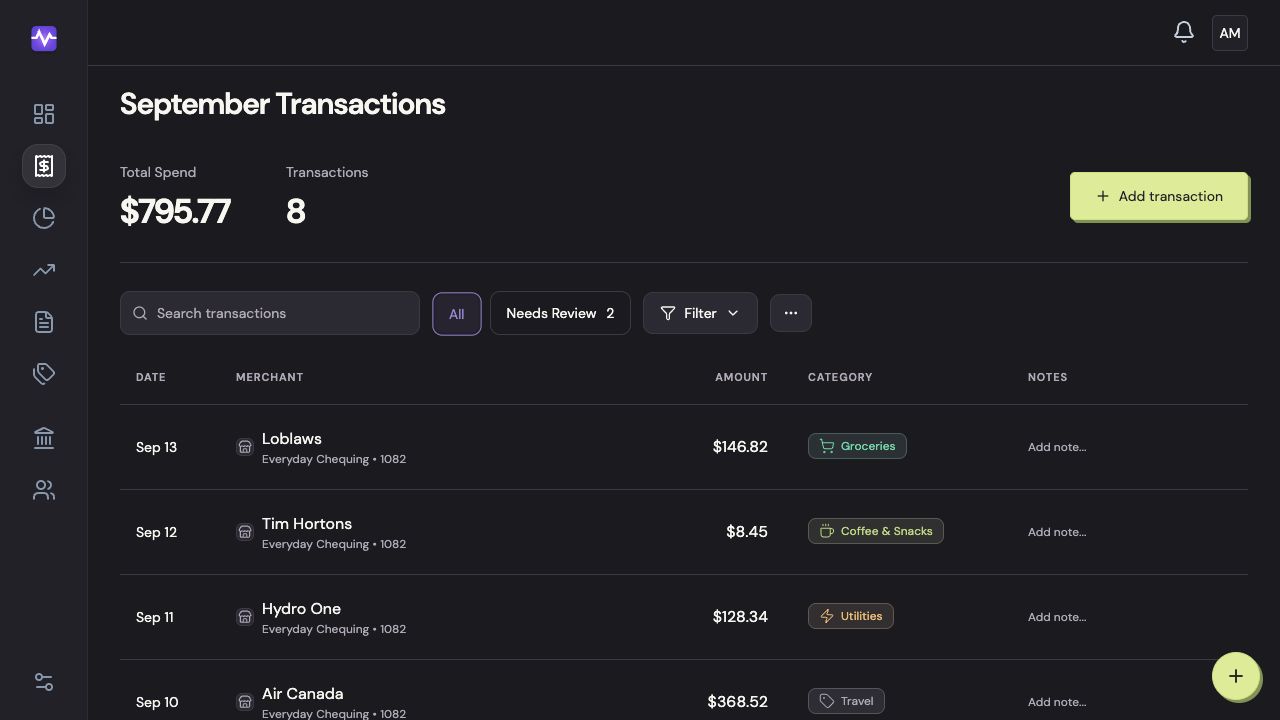
Open the transactions you want to exportTap to enlarge Open the actions menu
Click the three-dot menu beside Filter.
Open the actions menuTap to enlarge Download the CSV
Choose Export CSV. Your browser saves the file.
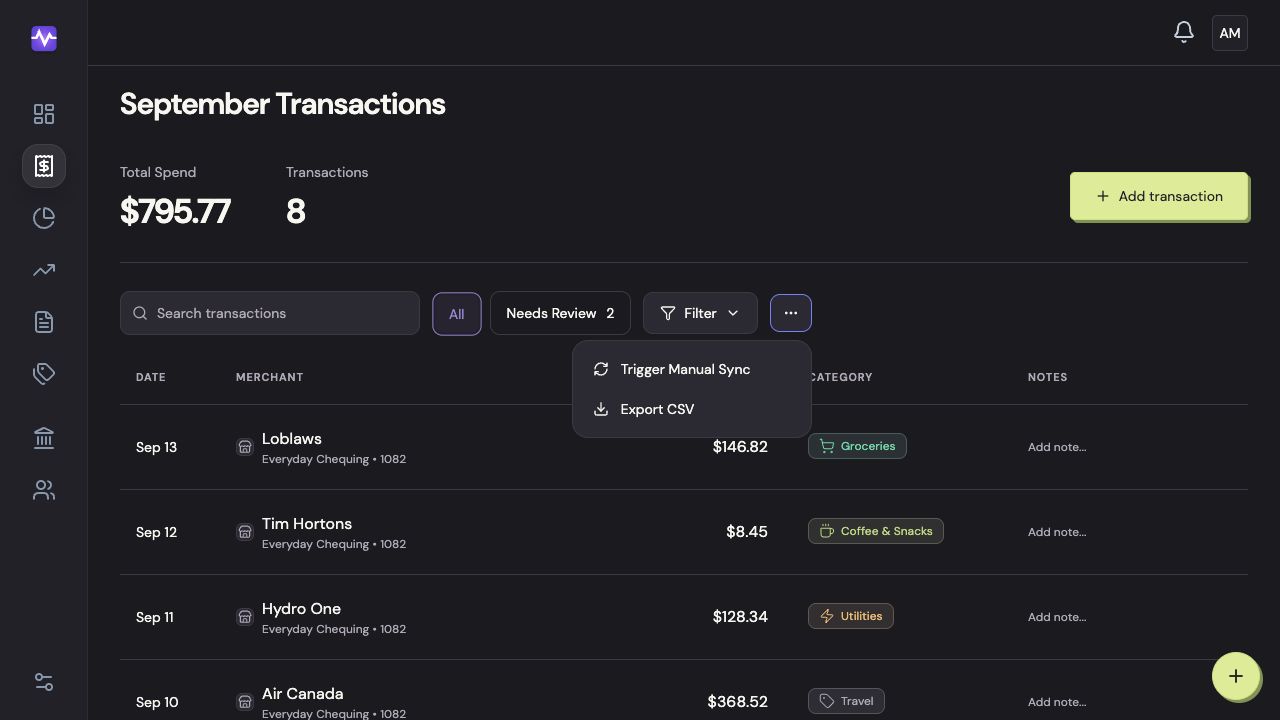
Download the CSVTap to enlarge
On iPhone
CSV transaction export is available on the web. Sign in from a browser and follow the web steps. For a copy of your wider account data, use Settings → Privacy & Security → Prepare Export in the iPhone app.